Create with express configuration - Amazon Aurora
Services or capabilities described in Amazon Web Services documentation might vary by Region. To see the differences applicable to the China Regions, see Getting Started with Amazon Web Services in China (PDF).

Create with express configuration

You can create and connect to an Aurora PostgreSQL serverless database in seconds using express configuration which provides a streamlined database creation experience with preconfigured defaults to help you get started easily and quickly.

In two clicks, you can have an Aurora cluster with a serverless instance ready to use in seconds. You can also use the Amazon Command Line Interface (Amazon CLI) or Amazon SDKs with the parameter --express-configuration to create both a cluster and an instance within the cluster with single API call which makes it ready for running queries in seconds. You have the flexibility to modify most of the settings during, and most other settings after the database creation. For more information about these settings, see Express configuration settings. Once created, you have access to most of the features and benefits of Aurora such as the ability to add readers for high availability and scalability, and automatic failover capabilities. Some options, such as specifying a customer managed encryption key, selecting specific engine versions, or associating the clusters with an Amazon Virtual Private Cloud (VPC), are only available when using the Create with full configuration option. This creation experience for Aurora PostgreSQL is also available with the Amazon Free Tier.

Prerequisites

Before you can create an Aurora PostgreSQL DB cluster with express configuration, you must at minimum have the following permissions:

  • ec2:DescribeAvailabilityZones

  • iam:CreateServiceLinkedRole

  • rds:CreateDBCluster

  • rds:CreateDBInstance

  • rds:EnableInternetAccessGateway

Supported Regions

You can create an Aurora PostgreSQL serverless cluster with express configuration in all Amazon Web Services Regions except the Amazon China, Amazon GovCloud (US), Middle East (UAE), and Middle East (Bahrain) Regions.

Internet access gateway

Aurora also provides an internet access gateway enabled by default to connect securely with the clusters created through express configuration. This feature is currently supported only for express configuration clusters. It supports the PostgreSQL wire protocol and enables you to connect through the internet from a wide range of tools and development platforms that may be running outside of you Amazon infrastructure - no VPN or Amazon Direct Connect required. The gateway is distributed across multiple Availability Zones, offering the same level of high availability as your Aurora cluster. It is a managed component of Aurora, so there are no software updates or patches that need to be applied by you.

The internet access gateway is integrated with Amazon Identity and Access Management (IAM), allowing you to enforce identity-based permissions for authorized access and safeguard your data with ephemeral token-based access. When using the gateway, the required setup for the database administrator user, including granting the rds_iam role, is automatically managed for you.

Creating a DB cluster with express configuration

You can create an Aurora PostgreSQL DB cluster with express configuration using the Amazon Web Services Management Console, the Amazon CLI, or the RDS API.

Console

To create with express configuration using the console:

To create with express configuration using the console
  1. Sign in to the Amazon Web Services Management Console and open the Amazon RDS console at https://console.aws.amazon.com/rds/.

  2. In the upper-right corner of the Amazon Web Services Management Console, choose the Amazon Region in which you want to create the DB cluster.

  3. In the navigation pane, choose Databases.

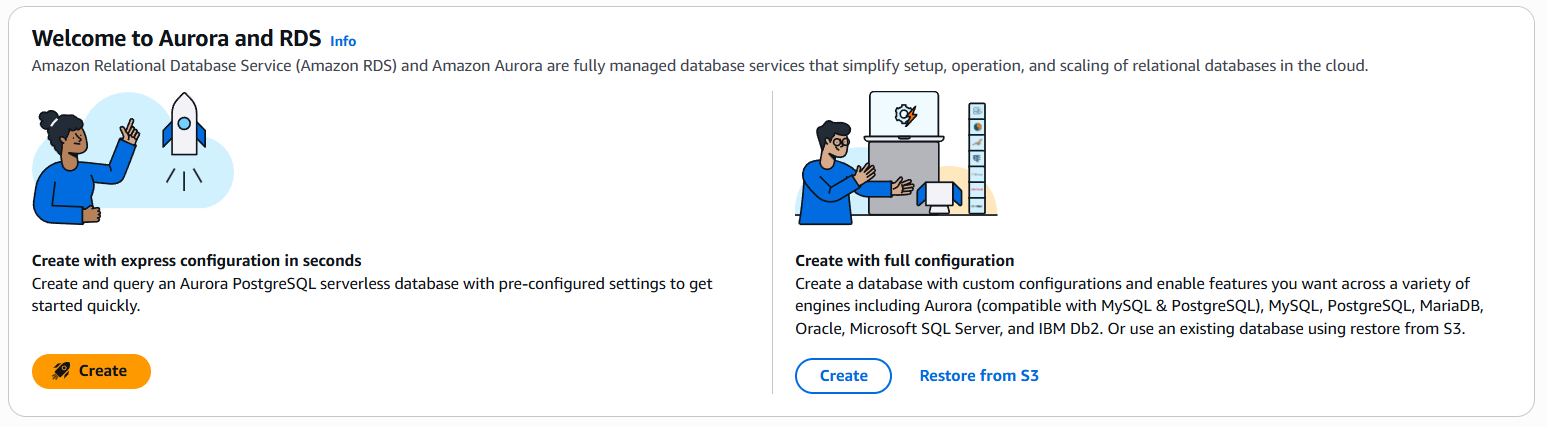
  4. On the Welcome to Aurora and RDS page, locate the Create with express configuration in seconds section on the left side, and choose Create.

    The Welcome to Aurora and RDS page showing the Create with express configuration section.
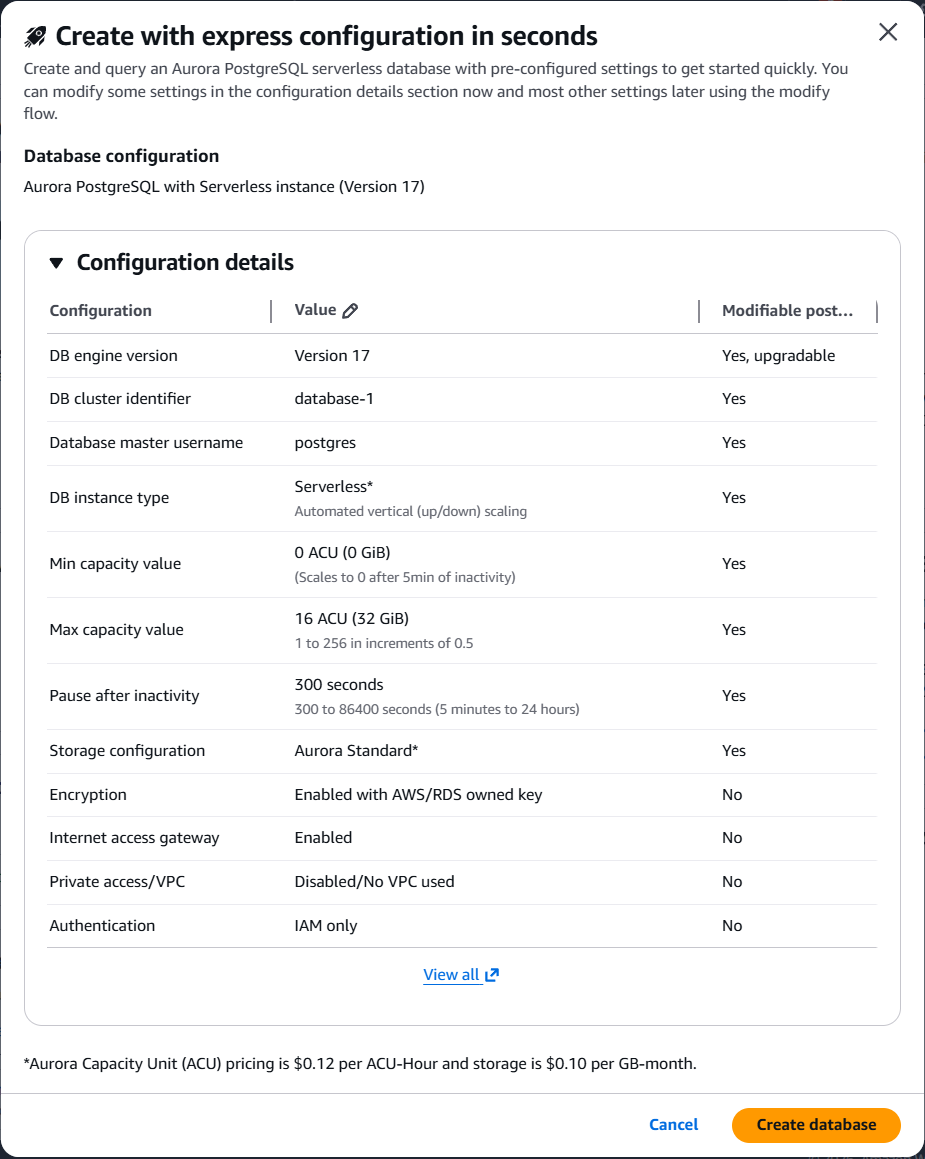
  5. Review pre-configured settings in the Create with express configuration dialog.

    The Create with express configuration dialog showing pre-configured settings.
  6. (Optional) Modify the DB cluster identifier or the capacity range as per your need.

  7. Choose Create database.

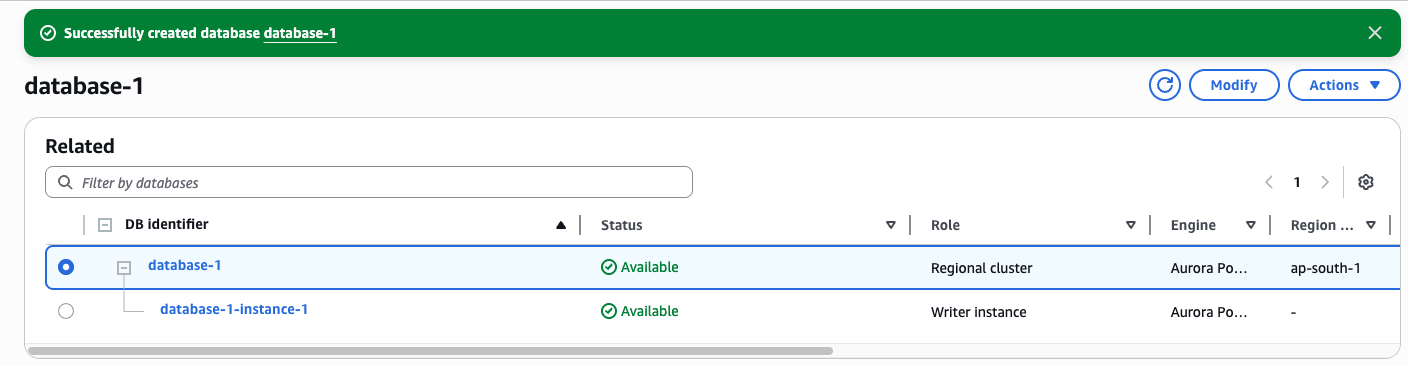
  8. Your Aurora PostgreSQL Serverless database should be ready in seconds. A success banner confirms the creation, and the database status changes to "Available".

    The database status showing Available after successful creation.

CLI

You can use the Amazon CLI to create an Aurora PostgreSQL clusters with express configuration.

For Linux or MacOS.

aws rds create-db-cluster --db-cluster-identifier sample-express-cluster \ --engine aurora-postgresql \ --with-express-configuration

For Windows:

aws rds create-db-cluster --db-cluster-identifier sample-express-cluster ^ --engine aurora-postgresql ^ --with-express-configuration

The express configuration parameter takes care of creating a database cluster, an Aurora serverless instance, setting up the internet access gateway, and IAM authentication for the admin database user (default = postgres).

API

You can use the relevant Amazon SDK and call the CreateDBCluster operation to create a DB cluster and database instance with the express configuration.

Express configuration settings

The following table describes the settings for express configuration and indicates whether they can be modified after creation.

Setting Setting description Default Setting and Limitations
Auto minor version upgrade This setting enables your Aurora DB cluster to receive preferred minor version upgrades to the DB engine automatically when they become available. For more information about engine updates for Aurora PostgreSQL, see Database engine updates for Amazon Aurora PostgreSQL. Enabled by default. Can be changed after the create operation completes.
Amazon KMS key Clusters with express configuration are encrypted with Amazon/RDS Service owned keys. Enabled with Amazon/RDS service owned key. Cannot be modified.
Certificate authority Clusters with express configuration are enabled with internet access gateway, which uses the Amazon root certificates. For more information, see ACM root CAs Not applicable for connecting through internet access gateway
Cluster storage configuration The storage type for the DB cluster: Aurora Standard or Aurora I/O-Optimized. For more information, see Storage Configurations for Amazon Aurora DB clusters. Aurora standard by default. Can be changed after the create operation completes.
Copy tags to snapshots Choose this option to copy any DB instance tags to a DB snapshot when you create a snapshot. For more information, see Tagging Amazon Aurora and Amazon RDS resources. Disabled by default. Can be changed during creation or after the creation.
Database authentication Clusters with express configuration and internet access gateway only support IAM authentication. For more information, see IAM database authentication. Enabled with IAM Authentication by default. Cannot be modified.
Database port Clusters with express configuration and internet access gateway only support the default PostgreSQL port Default value = 5432. Cannot be modified.
DB cluster identifier Enter a name for your DB cluster that is unique for your account in the Amazon Region that you chose. This identifier is used in the cluster endpoint address for your DB cluster. For information on the cluster endpoint, see Amazon Aurora endpoint connections. The DB cluster identifier has the following constraints: It must contain from 1 to 63 alphanumeric characters or hyphens. Its first character must be a letter. It cannot end with a hyphen or contain two consecutive hyphens. It must be unique for all DB clusters per Amazon account, per Amazon Region. Required parameter. Can be changed during creation or after the creation.
DB cluster parameter group Clusters with express configuration use the Aurora default DB cluster parameter group. Default parameter group. Can be changed after the create operation completes.
DB instance class Clusters with express configuration start with an Aurora Serverless instance. Serverless v2 instance. Can be changed after the create operation completes.
DB subnet group Clusters with express configuration are not created within your VPC. Access is through the Aurora internet access gateway No VPC associated. Cannot be set.
Enable deletion protection Choose Enable deletion protection to prevent your DB cluster from being deleted. If you create a production DB cluster with the console, deletion protection is enabled by default. Disabled by default. Can be changed during or after the creation completes.
Enable encryption Clusters with express configuration are encrypted with Amazon/RDS Service owned keys. Enabled with Amazon/RDS service owned key. Cannot be modified.
Enable Enhanced Monitoring Choose Enable enhanced monitoring to enable gathering metrics in real time for the operating system that your DB cluster runs on. For more information, see Monitoring OS metrics with Enhanced Monitoring. Disabled by default. Can be changed after the create operation completes.
Enable the RDS Data API Choose Enable the RDS Data API to enable RDS Data API (Data API). Data API provides a secure HTTP endpoint for running SQL statements without managing connections. For more information, see Using the Amazon RDS Data API. Disabled by default. Can be changed after the create operation completes.
Engine type Clusters with express configuration clusters are only supported with Aurora PostgreSQL Required paramater. Supported value: "aurora-postgresql". Cannot be modified.
Engine version Clusters with express configuration use the default major and minor version. See Aurora versions, for details on default versions. Default major and minor version. Engine version can be upgraded later.
Failover priority Choose a failover priority for the instance. If you don't choose a value, the default is tier-1. This priority determines the order in which Aurora Replicas are promoted when recovering from a primary instance failure. For more information, see Fault tolerance for an Aurora DB cluster. Default value = 1. Can be changed after the create operation completes.
Initial database name The name for your default database. If you don't provide a name for an Aurora PostgreSQL DB cluster, Amazon RDS creates a database named postgres. For Aurora PostgreSQL, the default database name has these constraints: It must contain 1–63 alphanumeric characters. It must begin with a letter. Subsequent characters can be letters, underscores, or digits (0–9). It can't be a word reserved by the database engine. To create additional databases, connect to the DB cluster and use the SQL command CREATE DATABASE. For more information about connecting to the DB cluster, see Connecting to an Amazon Aurora DB cluster with internet access gateway. Default value = postgres. Can be changed during or after the creation completes.
Log exports In the Log exports section, choose the logs that you want to start publishing to Amazon CloudWatch Logs. For more information about publishing Aurora MySQL logs to CloudWatch Logs, see Publishing Amazon Aurora MySQL logs to Amazon CloudWatch Logs. For more information about publishing Aurora PostgreSQL logs to CloudWatch Logs, see Publishing Aurora PostgreSQL logs to Amazon CloudWatch Logs. Disabled by default. Can be changed during or after the creation.
Maintenance window Choose Select window and specify the weekly time range during which system maintenance can occur. Or choose No preference for Amazon RDS to assign a period randomly. Default maintenance window varies by Region. Can be changed during or after the creation.
Manage master credentials in Amazon Secrets Manager Clusters with express configuration and internet access gateway support IAM authentication only. This setting does not apply. N/A
Master password Clusters with express configuration and internet access gateway support IAM authentication only. This setting does not apply. N/A
Master user authentication type Clusters with express configuration automatically sets authentication type to IAM authentication. Supported Value = iam-db-auth. Cannot be modified.
Master username Enter a name to use as the master username to log on to your DB cluster. For Aurora PostgreSQL, it must contain 1–63 alphanumeric characters. The first character must be a letter. The name can't be a word reserved by the database engine. You can't change the master username after the DB cluster is created. Default value = postgres. Can be changed during or after the creation.
Multi-AZ deployment Clusters with express configuration are not associated with an VPC, and availability zones are automatically chosen for you. You can add read replicas after the database is created. Availability zones are automatically chosen. The writer and reader instances are placed in different availability zones.
Network type Clusters with express configuration are not associated with an VPC. Not Applicable
Public access Clusters with express configuration are created with the internet access gateway, which offers secure internet access with built-in integration with Amazon Identity and Access Management and Amazon Shield. Not Applicable
RDS Extended Support Select Enable RDS Extended Support to allow supported major engine versions to continue running past the Aurora end of standard support date. When you create a DB cluster, Amazon Aurora defaults to RDS Extended Support. To prevent the creation of a new DB cluster after the Aurora end of standard support date and to avoid charges for RDS Extended Support, disable this setting. Your existing DB clusters won't incur charges until the RDS Extended Support pricing start date. For more information, see Amazon RDS Extended Support with Amazon Aurora. Not supported
RDS Proxy RDS Proxy is not supported with clusters that are not associated with a VPC. For more information, see Amazon RDS Proxy for Aurora. Not supported
Retention period Choose the length of time, from 1 to 35 days, that Aurora retains backup copies of the database. Backup copies can be used for point-in-time restores (PITR) of your database down to the second. Default value = 1. Can be changed after the create operation completes.
Backup window A 30-minute window selected at random from an 8-hour block of time to take automatic backup of your database. Uses the default parameter group. Can be changed later using parameter groups.
Turn on DevOps Guru DevOps Guru for RDS provides detailed analysis of performance anomalies, Performance Insights must be turned on. For more information, see Setting up DevOps Guru for RDS. Disabled by default. Can be changed after the create operation completes.
Turn on Performance Insights Amazon RDS Performance Insights provides monitoring information for your database. For more information, see Monitoring DB load with Performance Insights on Amazon Aurora. Disabled by default. Can be changed after the create operation completes.
Virtual Private Cloud (VPC) Clusters with express configuration are not associated with an VPC N/A
VPC security group (firewall) Clusters with express configuration are not associated with an VPC N/A
Write forwarding Enables you to forward writes sent on the reader endpoint to the writer node for processing. Enables achieving read-after-write consistency. For more information see, Local write forwarding in Aurora PostgreSQL. Disabled by default. Can be changed after the create operation completes.

Connecting to clusters with express configuration

Clusters created with express configuration are automatically set up with an internet access gateway, which provides public access to your database with IAM authentication. Ensure that the IAM identity you use to connect to the database has permissions to rds-db:connect to generate the authentication token needed to access the database. To learn more, see IAM database authentication.

The following guide demonstrates how to use the various options in the "Connectivity & Security" tab in the Amazon Web Services Management Console to connect to your database.

The RDS Console surfaces relevant information such as code snippets, endpoint details, and other connection details to help you connect to the database. It also offers a utility to generate a token and direct access through Amazon CloudShell. Both the generate token utility and CloudShell connect using the master username you set up at the time of database creation.

Using the Connectivity & security tab

After your database is created, navigate to the Connectivity & security tab to access connection options. The Connect to database section provides three methods for connecting:

Code snippets

Use when connecting through SDK, APIs, or third-party tools. The console provides ready-to-use code snippets for your selected programming language. The snippets also dynamically reflect the authentication configuration for your database.

The following steps show connecting to your database cluster using the psql command line utility code snippet.

Prerequisites

  • You can connect to Aurora PostgreSQL DB clusters by using tools like psql, the PostgreSQL interactive terminal. To install psql and learn more about using the PostgreSQL interactive terminal, see psql in the PostgreSQL documentation.

  • You must have the latest version of the Amazon CLI installed. To install or update the Amazon CLI, see Installing or updating to the latest version of the Amazon CLI.

Connecting with psql

To connect with psql
  1. Sign in to the Amazon Web Services Management Console and open the Amazon RDS console at https://console.aws.amazon.com/rds/.

  2. Navigate to your database cluster from the Databases list tab.

  3. Under the connectivity & Security tab, select the PSQL code snippet for your respective operating system (macOS, linux, or Windows).

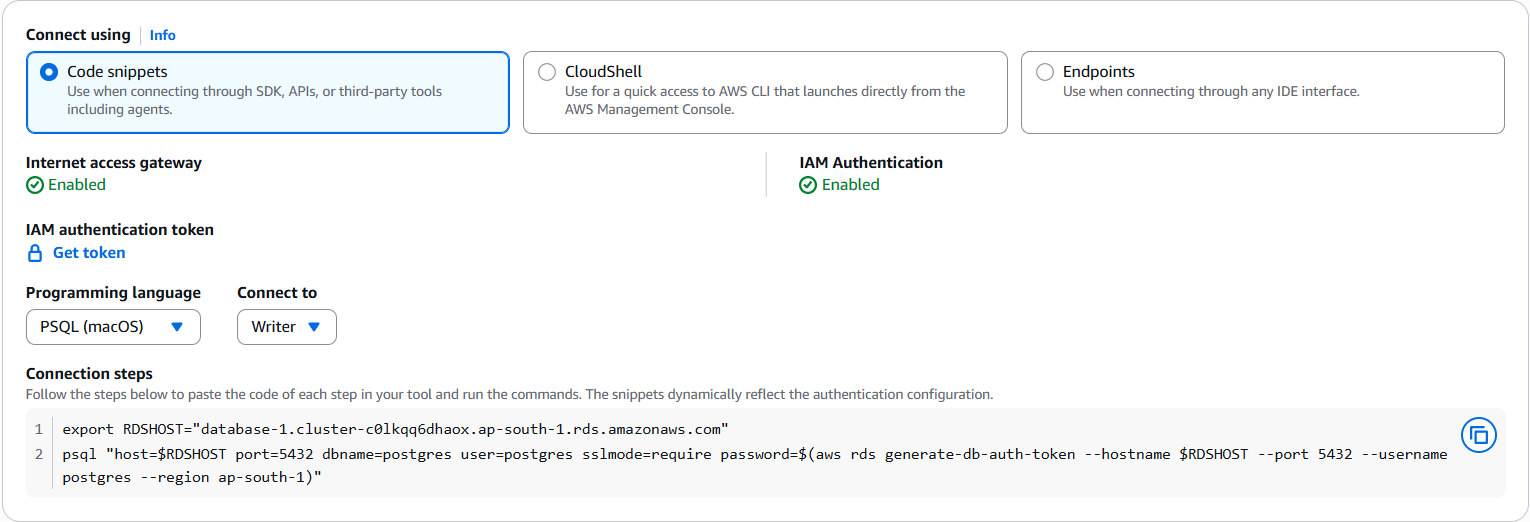
  4. Copy the code shown in connection steps modal.

    The connection steps modal showing the PSQL code snippet.
  5. Open a terminal on your local development environment / machine.

  6. (optional) If you have already configured the Amazon CLI and credentials, you can skip this step. Otherwise, use the following command for a temporary login session.

    aws login
  7. Paste the command you copied in step 4. You should see psql login and the “postgres =>” prompt, enabling you to run SQL commands.

CloudShell

The console provides an automated way to connect to your cluster using Amazon CloudShell. The following guide shows the steps to connect using psql and CloudShell.

Prerequisites

None

Using CloudShell and PSQL

To connect using CloudShell and PSQL
  1. Sign in to the Amazon Web Services Management Console and open the Amazon RDS console at https://console.aws.amazon.com/rds/.

  2. Navigate to your database cluster from the Databases list tab.

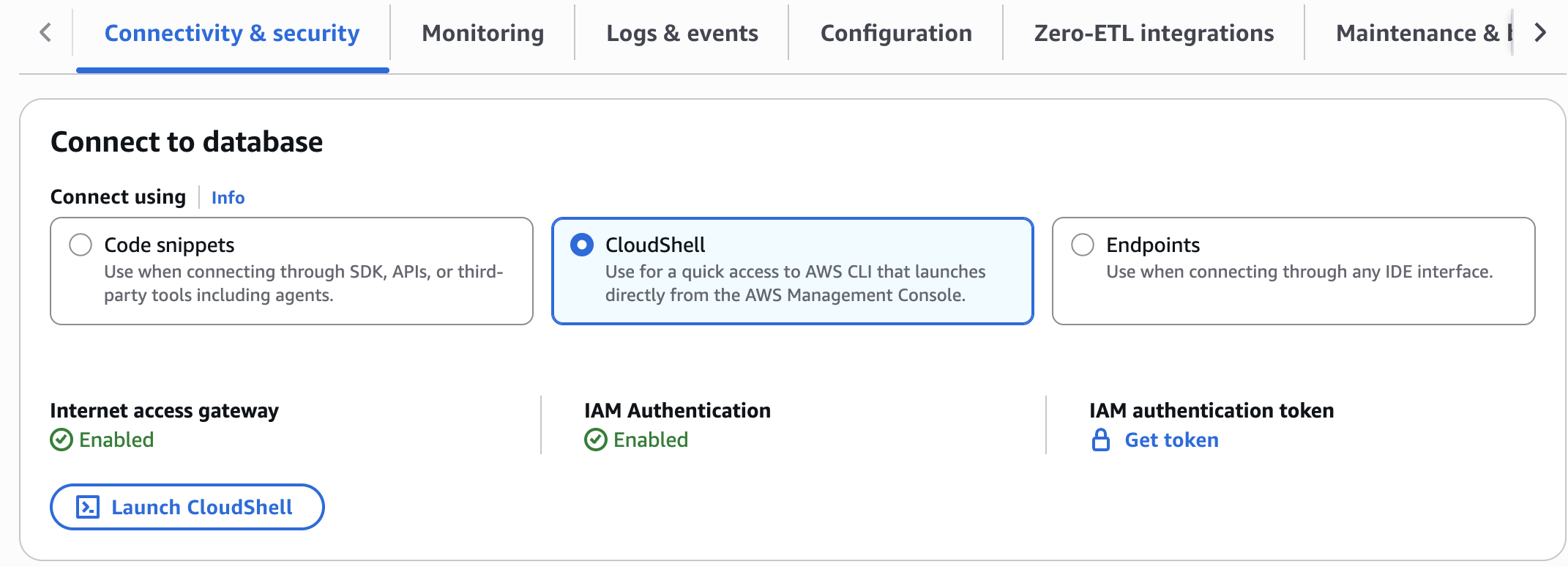
  3. Under the connectivity & Security tab, select CloudShell.

  4. Click Launch Cloudshell

    The CloudShell launch button in the connectivity and security tab.
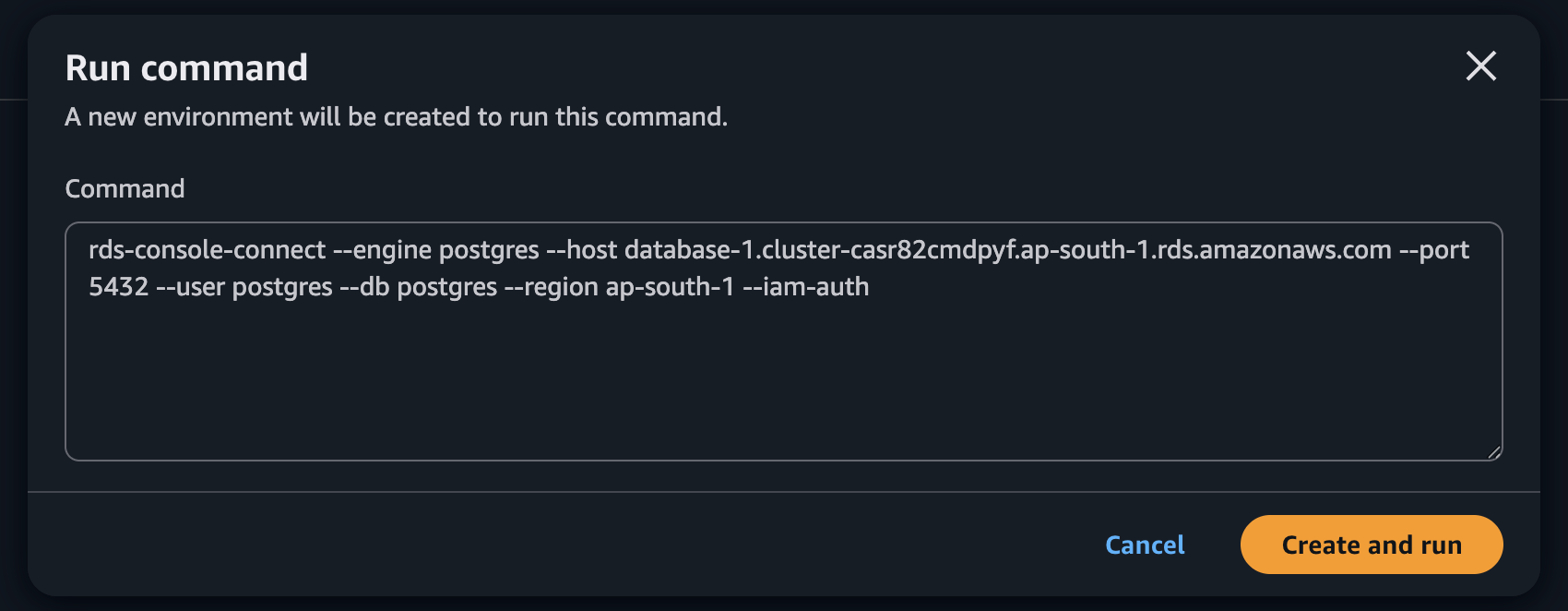
  5. Click Run on prompt window. The command is pre-prepopulated with relevant information to connect to your specific cluster.

    The CloudShell prompt window with pre-populated connection command.
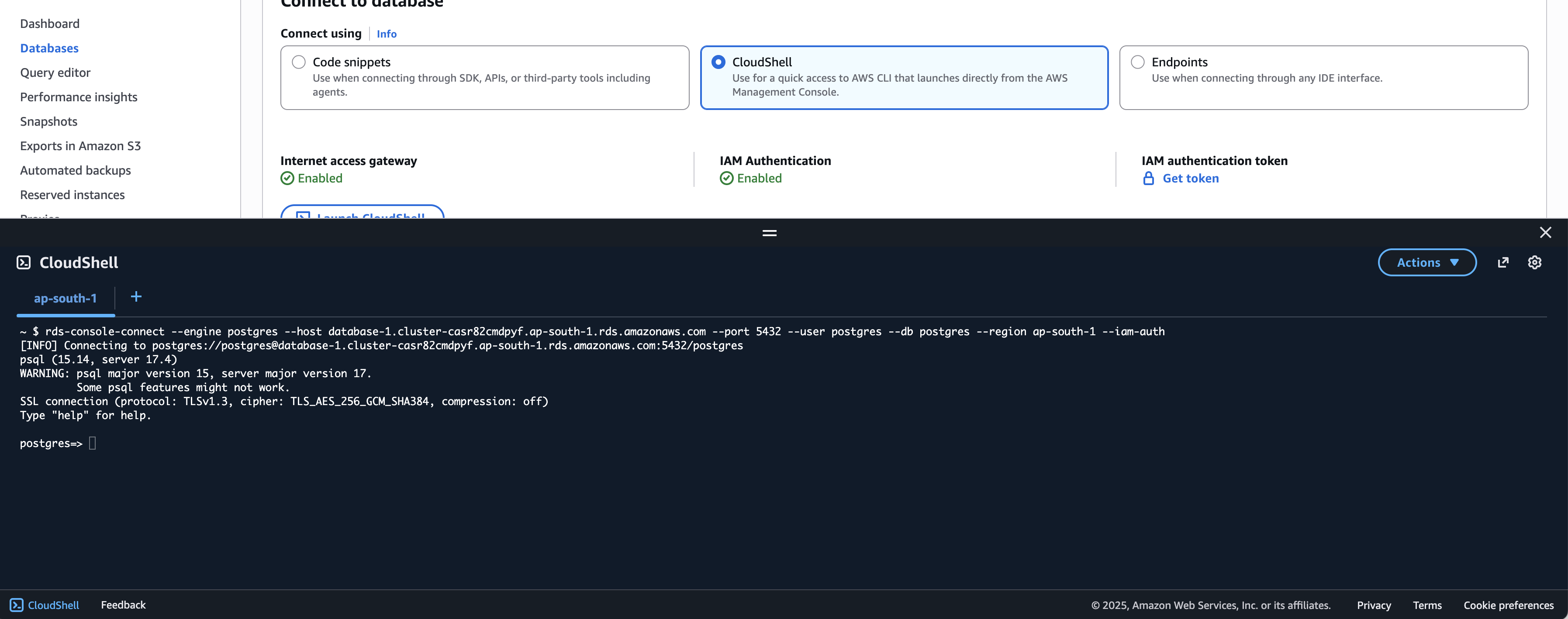
  6. You should see psql login and the “postgres =>” prompt, enabling you to run SQL commands.

    The psql login prompt in CloudShell showing successful connection.

Use for quick access to Amazon CLI that launches directly from the Amazon Web Services Management Console. CloudShell provides a browser-based shell environment with pre-authenticated Amazon CLI access.

Endpoints with Get token utility

If you are using tools that only support using username and password credentials, you can use the Get token utility to connect. In this case, you use the token generated by the utility in the password field. The token is generated for the master username that you setup at the time of creating the database. The token is valid for 15 minutes at a time. If the tool you are using terminates the connection, you would need to generate the token again.

The following steps show, how to use the Get token utility to connect to your database cluster using pgAdmin.

Prerequisites

  • You can use the pgAdmin utility to connect to Aurora PostgreSQL DB clusters by using a UI interface. For more information, see the Download page from the pgAdmin website.

Connecting to pgAdmin

To connect using pgAdmin
  1. Sign in to the Amazon Web Services Management Console and open the Amazon RDS console at https://console.aws.amazon.com/rds/.

  2. Navigate to your database cluster from the Databases list tab.

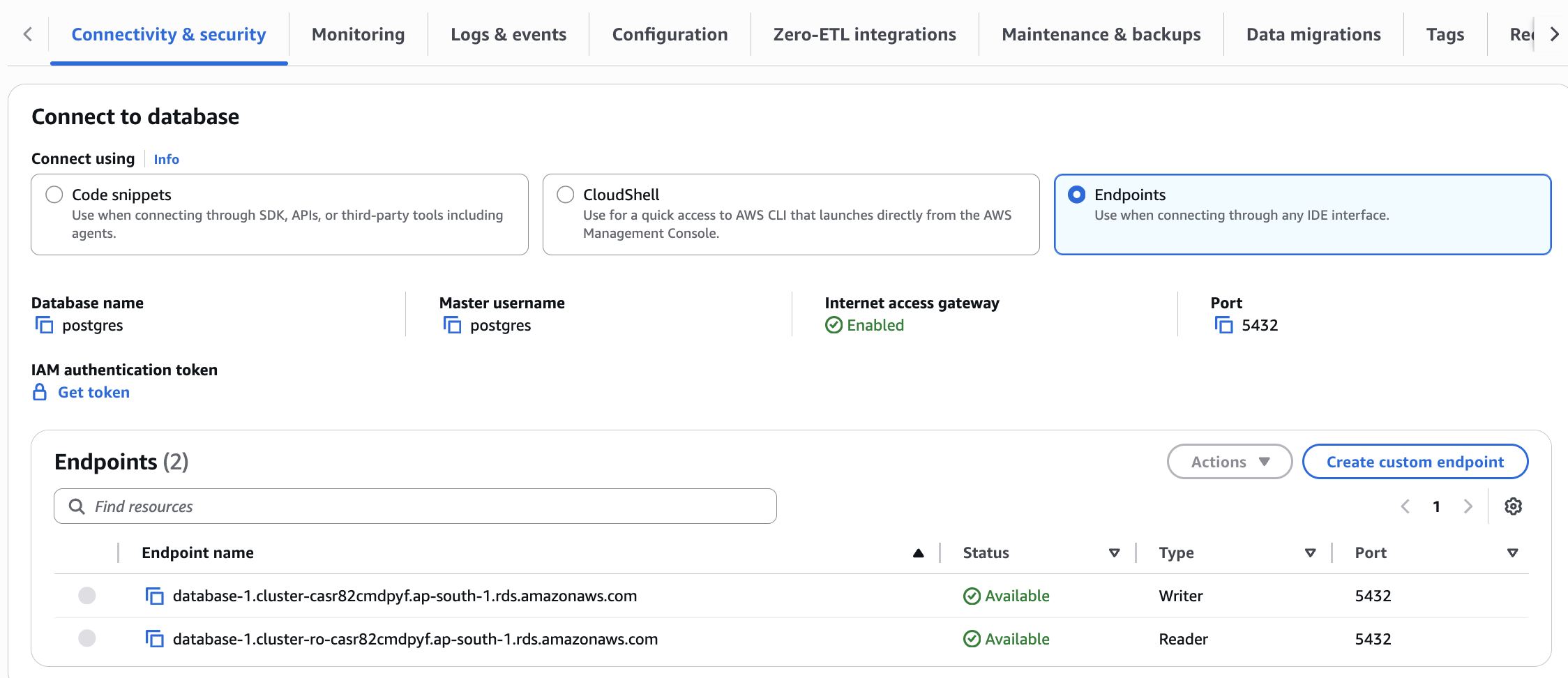
  3. Under the connectivity & Security tab, select the “Endpoints” tab.

    The Endpoints tab showing writer endpoint, port, and database details.
  4. Copy the relevant information, including the writer endpoint, port, master username, and database name.

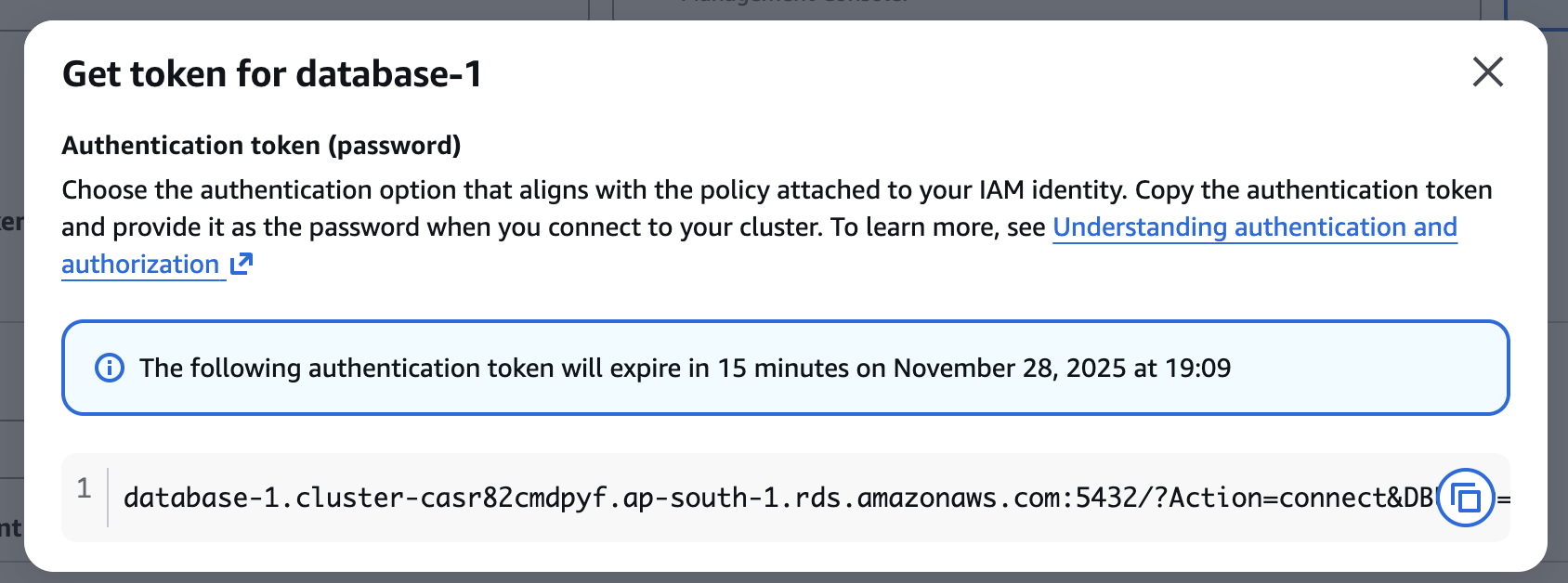
  5. Generate and copy a new token (short lived password) from the Get token utility.

    The Get token utility for generating an authentication token.
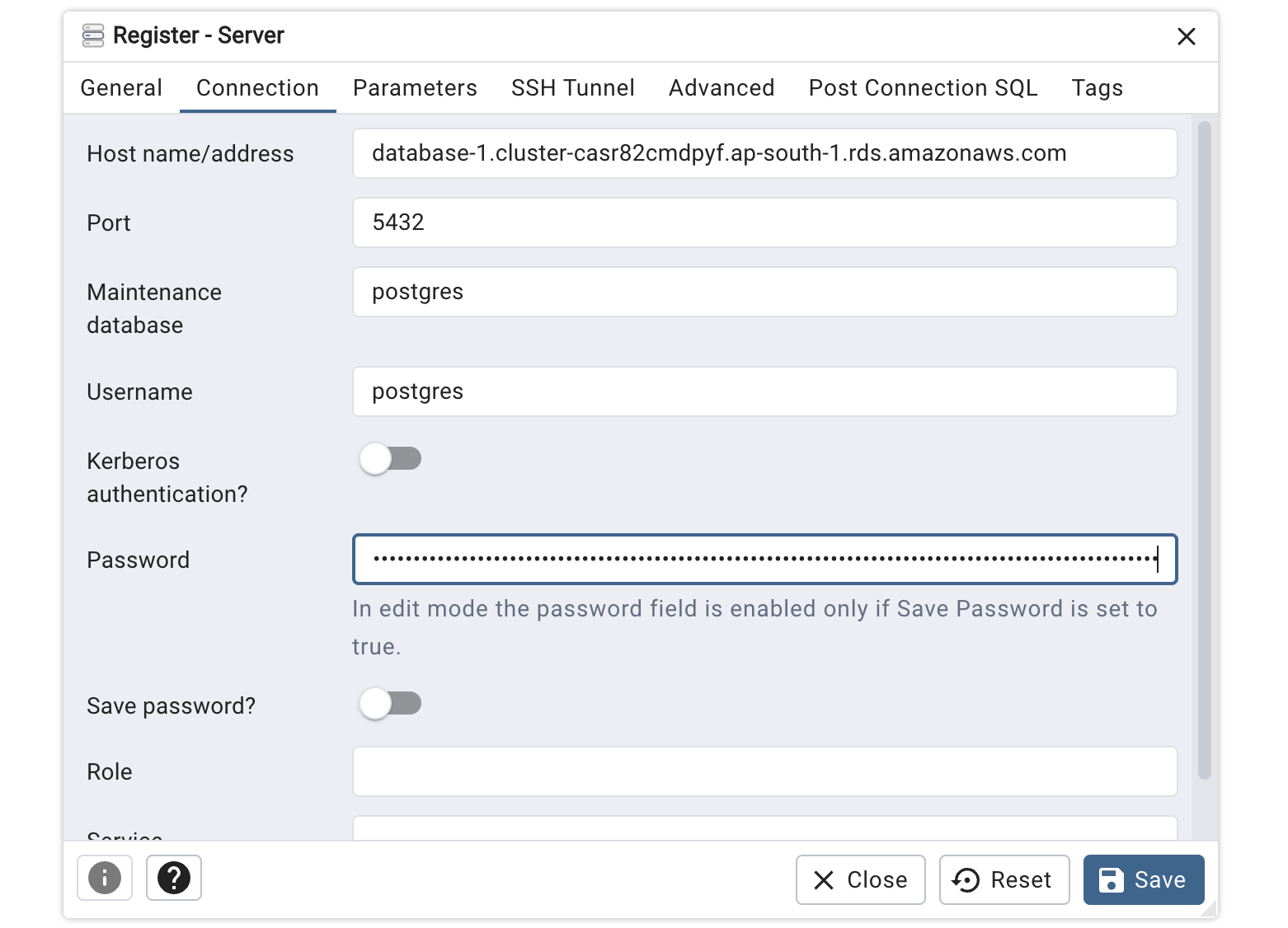
  6. Open pgAdmin on your machine, and “Add a new server”. Enter the details in the Connection tab. Use the token in the password field.

    The pgAdmin connection dialog with server details.

The connection panel displays: internet access gateway status (Enabled), IAM Authentication status (Enabled), and IAM authentication token option. Select your programming language from the dropdown and follow the connection steps to paste the code and run the commands.

Restoring a cluster created through express configuration

The restore process for express configuration clusters follows the same workflow as standard clusters. You can restore from a manual snapshot using the restore-db-cluster-from-snapshot operation or restore to a specific point in time using the restore-db-cluster-to-point-in-time operation. You can restore a cluster with express configuration to either a cluster with full configuration or a cluster with express configuration. If you want to restore to a cluster with express configuration, both restore operations require two additional parameters—VPCNetworkingEnabled must be set to false and InternetAccessGatewayEnabled must be set to true. If you're restoring a regular cluster that used master username and password authentication to an express configuration cluster, you'll need to modify the restored DB cluster to update MasterUserAuthenticationType to iam-db-auth.

Limitations

The following limitations apply to clusters created with express configuration and the internet access gateway that is enabled by default.

  • You can only use express configuration with Aurora PostgreSQL only.

  • Cluster created with express configuration are encrypted with Amazon/RDS service managed key. You cannot use a custom Amazon KMS key to encrypt the database.

  • You cannot associate express clusters with an Amazon Virtual Private Cloud (VPC). When connecting from a machine that is inside a VPC to the database with the express cluster with internet access gateway enabled, ensure that the machine allows inbound and outbound traffic from the internet.

  • You cannot disable the internet access gateway for clusters created with express configuration.

  • You can only use RDS IAM authentication with the internet access gateway. See, IAM database authentication for list of limitations and recommendation. Features related to other forms of authentication such as managed credentials in Amazon Secrets Manager, and Kerberos authentication cannot be used with clusters that have internet access gateway enabled. You also cannot disable IAM authentication.

    Warning

    If you disable the rds_iam role for the master username, you will lose access to new connections to the database. You can restore access by modifying the cluster and setting the --master-user-authentication-type to iam-db-auth. See, modify-db-cluster.

  • You cannot select a specific engine version with express configuration. Engine version can be upgraded but not downgraded.

  • Clusters with express configuration only support creating an Aurora Serverless v2 instance. You can modify the instance type or add instances after the database is created.

  • Clusters with express configuration only support the default parameter group. The parameter group can be updated after the database is created.

  • The following features are not supported with clusters created with express configuration as they are not associated with a VPC.

    • Aurora limitless database

    • Aurora global database

    • RDS Proxy

    • Aurora Zero-ETL integration

    • RDS Query Editor

    • Blue/Green Deployments

    • Database Activity Streams

    • Zero Downtime Patching

    • Babelfish

  • Data API can be enabled for a cluster with express configuration after creation using the ModifyDBCluster operation. However, it doesn't support authentication with master username/password. You must create new user credentials to access Data API.

  • Database Insights Advanced mode can be enabled on a cluster with express configuration after creation using the ModifyDBCluster operation.

  • Clusters with express configuration support IPv4 addresses only. IPv6 is not supported.

  • Clusters with express configuration does not support changing all settings at the time of create operations. For example, you can only choose Aurora standard storage when creating with express configuration. You can change the storage type after the cluster is created. See, Express configuration settings for a list of all other settings and default values that apply with express configuration.

  • Clusters created through express configuration with internet access gateway enabled do not support configurable cipher suites. Although Amazon RDS for PostgreSQL allows you to configure the ssl_ciphers parameter to restrict allowed SSL cipher suites, this parameter is ignored on clusters with internet access gateway enabled, which use the default cipher suite configuration instead.