本文属于机器翻译版本。若本译文内容与英语原文存在差异,则一律以英文原文为准。
# 工具
工具是声明性的。您可以列出代理可以调用的内容; AgentCore 处理调用、凭据和结果。该工具支持五种工具类型,以及内置的文件系统和 shell 工具。
+ **MCP 服务器:**通过 URL 连接到任何远程[模型上下文协议](https://modelcontextprotocol.io)端点。对于简单的案例,无需网关。
+ **[AgentCore 网关](gateway.md):**通过 inbound/outbound 身份验证、访问控制和[策略实施](policy.md)来控制与 API 和 MCP 服务器的连接。引用网关 ARN,该网关上配置的所有工具都将变为可用。当你需要一个受管理的、有策略支持的工具界面时,可以使用 Gateway。
+ **[AgentCore 浏览器](browser-tool.md):**托管网页浏览和自动化。
+ **[AgentCore 代码解释器](code-interpreter-tool.md):**用于数据分析和计算的沙盒 Python/JavaScript/TypeScript 代码执行。
+ **内联函数:**在客户端执行的工具架构,而不是在 harness VM 上执行。工具在调用时会暂停,然后返回对代码的调用,由代码决定要做什么并将结果发送回去。这是人性化审批和自定义集成的模式。
默认工具`shell`,并且在每个会话中`file_operations`都可用,除非您对其进行限制`allowedTools`。 `shell`执行 bash 命令;`file_operations`支持查看、创建和编辑文件。
该`allowedTools`参数控制代理可以使用哪些工具。如果省略,则允许使用所有工具。
**工具定义产生的代币开销**
即使代理不调用工具,工具定义也会计入模型输入标记。默认值`shell`和`file_operations`定义共同向每个模型请求添加了大约 900 个输入标记。确切的数量因型号而异,并且可能随着工具定义的变化而变化。由于一次调用可以发出多个模型请求,因此每次调用可能会多次发生这种开销。`allowedTools`用于仅公开请求所需的工具并减少令牌使用量。
支持的模式:
| 模式 | 示例 | Matches |
| --- | --- | --- |
| `*` | `"*"` | 所有工具 |
| 普通名称 | `"shell"` | 按名称内置 |
| 内置地球仪 | `"file_*"` | `file_operations`, `file_read` |
| `@builtin` | `"@builtin"` | 所有内置工具 |
| `@builtin/name` | `"@builtin/shell"` | 特定的内置 |
| `@server` | `"@git"` | 来自 MCP 服务器的所有工具 |
| `@server/tool` | `"@git/git_status"` | 特定的 MCP 工具 |
| `@server/glob` | `"@git/read_*"` | 服务器内的 Glob |
| `@*/tool` | `"@*-mcp/status"` | 跨服务器的 Glob |
**注意**
`allowedTools`范围 LLM 工具选择`InvokeHarness`仅在此期间。它不会影响 [InvokeAgentRuntimeCommand](https://docs.amazonaws.cn/bedrock-agentcore/latest/devguide/runtime-execute-command.html),它是一个单独的 API,具有自己的 IAM 操作 (`bedrock-agentcore:InvokeAgentRuntimeCommand`),无需通过 LLM 即可直接执行命令。为防止直接执行命令,请勿`bedrock-agentcore:InvokeAgentRuntimeCommand`在您的 IAM 策略中授权。
## 添加工具
**Example**
`tools`在创建、更新或调用时通过:
```
tools = [
# MCP server
{
"type": "remote_mcp",
"name": "exa",
"config": {"remoteMcp": {"url": "https://mcp.exa.ai/mcp"}},
},
# MCP server with authentication headers (plain text)
{
"type": "remote_mcp",
"name": "my-private-mcp",
"config": {"remoteMcp": {
"url": "https://mcp.example.com/api",
"headers": {"Authorization": "Bearer "}
}},
},
# MCP server with API key stored in AgentCore Identity Token Vault.
# Use ${arn:...} to reference a credential provider - the ARN is resolved
# to the actual API key at invocation time.
{
"type": "remote_mcp",
"name": "exa-secure",
"config": {"remoteMcp": {
"url": "https://mcp.exa.ai/mcp",
"headers": {"x-api-key": "${arn:aws:bedrock-agentcore:us-west-2:123456789012:token-vault/default/apikeycredentialprovider/my-exa-key}"}
}},
},
# For managed credential rotation and OAuth-protected tools, put your MCP server
# behind AgentCore Gateway and use AgentCore Identity instead of raw headers.
#
# AgentCore Gateway with SigV4 auth (default)
{
"type": "agentcore_gateway",
"name": "my-gateway",
"config": {"agentCoreGateway": {"gatewayArn": "arn:aws:bedrock-agentcore:us-west-2:123456789012:gateway/my-gateway"}},
},
# AgentCore Gateway with OAuth auth
{
"type": "agentcore_gateway",
"name": "my-oauth-gateway",
"config": {"agentCoreGateway": {
"gatewayArn": "arn:aws:bedrock-agentcore:us-west-2:123456789012:gateway/my-oauth-gateway",
"outboundAuth": {"oauth": {
"credentialProviderName": "my-oauth-provider",
"scopes": ["read", "write"]
}}
}},
},
# AgentCore Browser
{"type": "agentcore_browser", "name": "browser"},
# AgentCore Code Interpreter
{"type": "agentcore_code_interpreter", "name": "code_interpreter"},
# Inline function - executes on the client side, not on the harness VM.
# When the agent calls this tool, the call is returned to your code for handling.
{
"type": "inline_function",
"name": "approve_purchase",
"config": {
"inlineFunction": {
"description": "Request human approval for a purchase.",
"inputSchema": {
"type": "object",
"properties": {
"item": {"type": "string"},
"amount": {"type": "number"},
},
"required": ["item", "amount"],
},
}
},
},
]
response = client.invoke_harness(
harnessArn=HARNESS_ARN,
runtimeSessionId=SESSION_ID,
tools=tools,
messages=[{"role": "user", "content": [{"text": "Find a mechanical keyboard under $200 and request approval."}]}],
)
```
以交互方式创建新线束时,向`agentcore add harness`导允许您选择工具。要通过 CLI 添加工具,请在创建线束`agentcore add tool`后使用:
该`--type`标志使用下划线分隔的名称(例如`agentcore_browser`),这些名称与中的工具类型标识符相匹配。`harness.json`
```
# Add a remote MCP server
agentcore add tool --harness my-agent --type remote_mcp \
--name exa --url https://mcp.exa.ai/mcp
# Create a harness with a remote MCP server and request headers.
# Use ${arn:...} syntax to reference a credential provider.
agentcore add harness \
--name secure_agent \
--model-provider bedrock \
--model-id us.anthropic.claude-sonnet-4-5-20250514-v1:0 \
--tools remote_mcp \
--mcp-name exa-secure \
--mcp-url https://mcp.exa.ai/mcp \
--mcp-headers '{"x-api-key":"${arn:aws:bedrock-agentcore:us-west-2:123456789012:token-vault/default/apikeycredentialprovider/my-exa-key}"}'
# Add Browser
agentcore add tool --harness my-agent --type agentcore_browser --name browser
# Add Code Interpreter
agentcore add tool --harness my-agent --type agentcore_code_interpreter --name code-interpreter
# Add Gateway by ARN
agentcore add tool --harness my-agent --type agentcore_gateway \
--name my-gateway --gateway-arn arn:aws:bedrock-agentcore:us-west-2:123456789012:gateway/my-gateway
# Add Gateway by project-local name
agentcore add tool --harness my-agent --type agentcore_gateway \
--name my-gateway --gateway my-gateway
# Add an inline function tool (executes client-side, not on the harness VM)
agentcore add tool --harness my-agent --type inline_function \
--name approve_purchase \
--description "Request human approval for a purchase" \
--input-schema '{"type": "object", "properties": {"item": {"type": "string"}, "amount": {"type": "number"}}, "required": ["item", "amount"]}'
```
部署以申请。
在单次调用时覆盖工具:
```
agentcore invoke --harness research-agent --tools agentcore_browser "Find the latest news on AI agents"
```
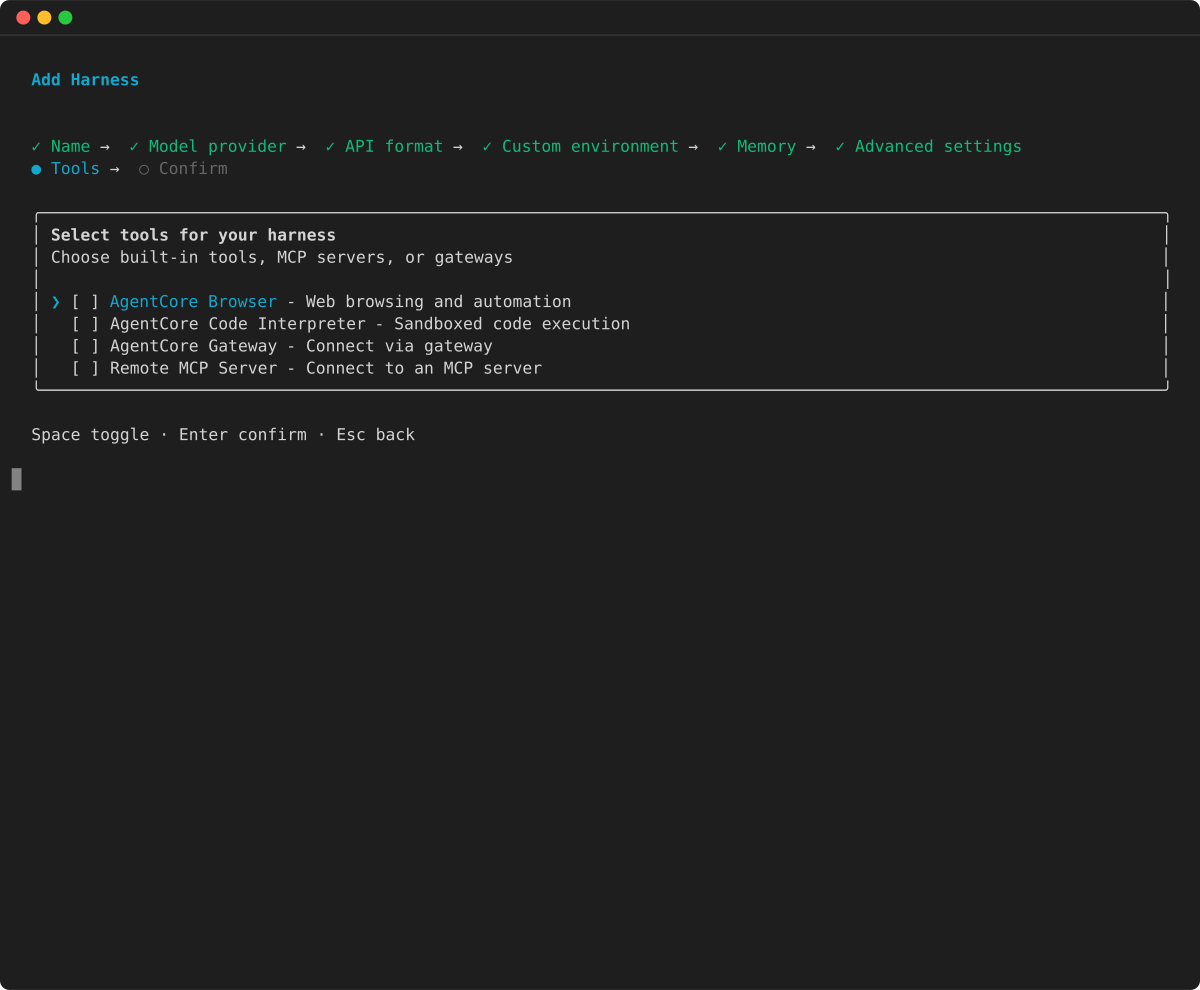
`agentcore`在项目目录中运行,选择**添加**,选择 H **arn** ess,然后进入**高级设置**。启用 “带**空**格的**工具**”,然后**按 Enter**。
1. 为您的工具选择工具:**AgentCore 浏览器、**AgentCore 代码解释**器**、**AgentCore 网关**或**远程 MCP 服务器**。使用**空格**键切换每个空格,然后**按 Enter**。
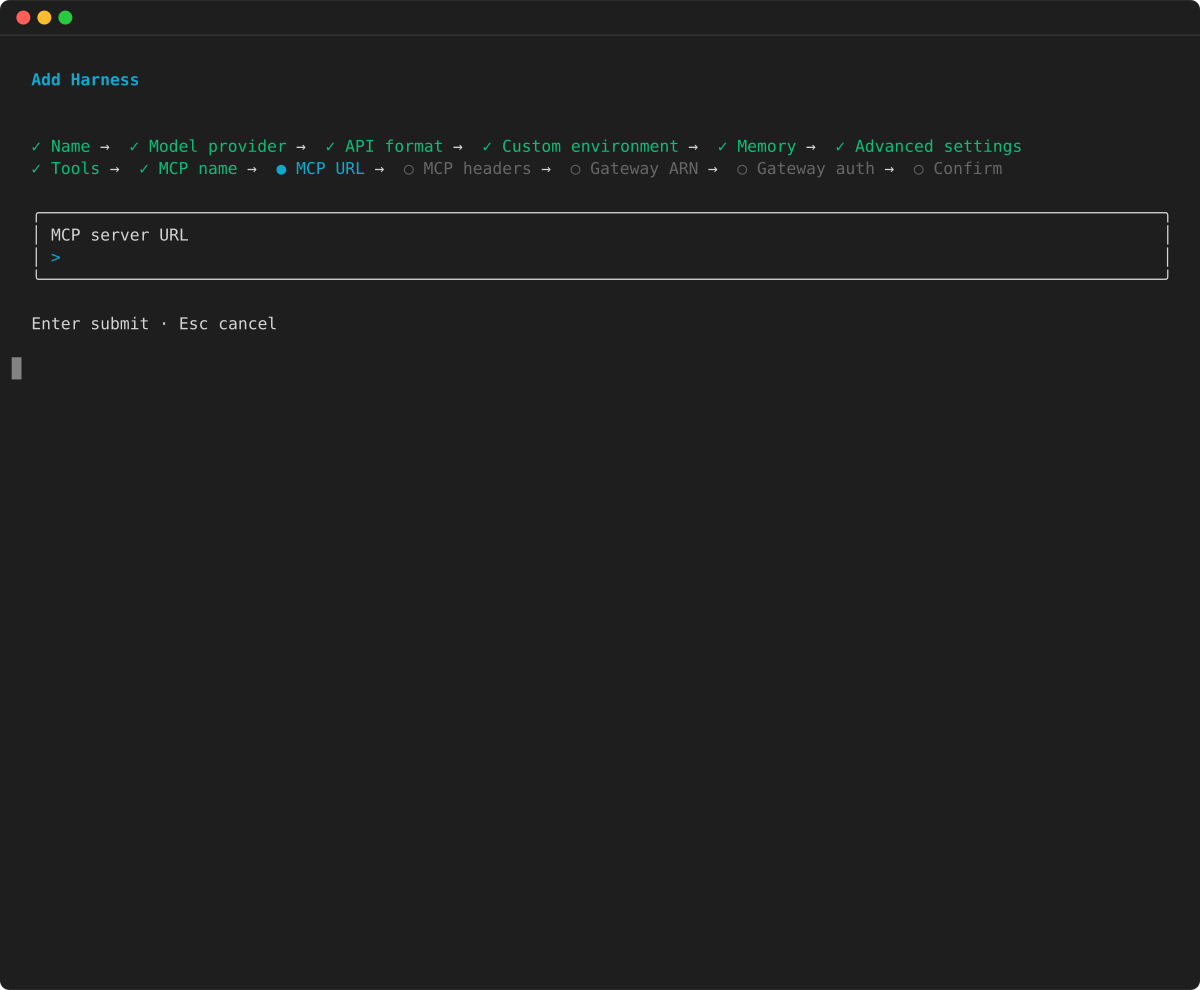
1. 对于**远程 MCP 服务器**,向导会提示输入服务器名称、URL 和可选的请求标头。
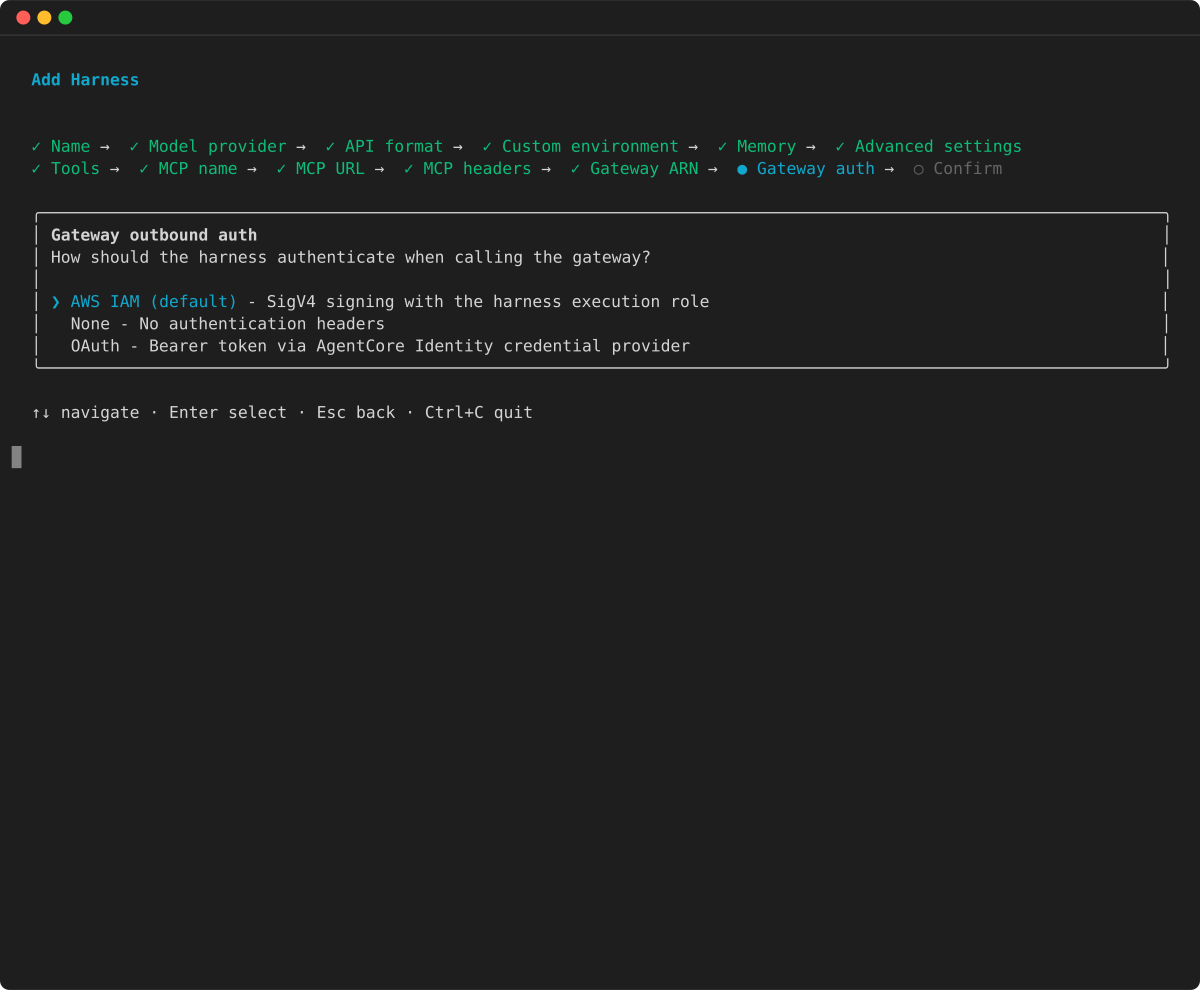
1. **对于**AgentCore 网关**,请输入网关 ARN 并选择其出站身份验证:** Amazon IAM**(默认)、“**无**” 或 OAuth。**
1. 查看配置摘要并确认。
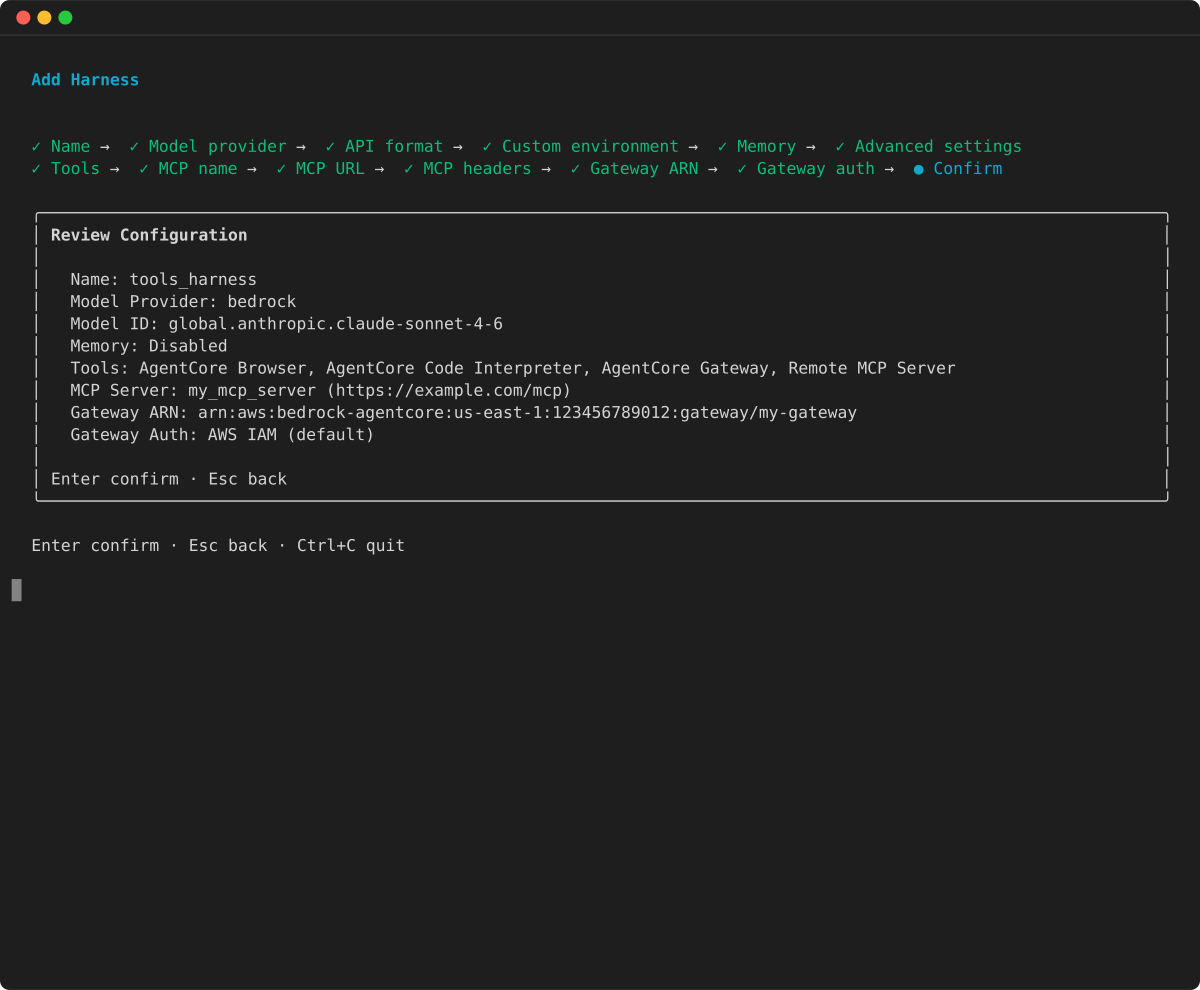
然后跑`agentcore deploy`去申请。
## 网页搜寻
要让您的代理进行网络搜索,请将 Web S [earch Tool](gateway-target-connector-web-search-tool.md) 连接器放在[AgentCore 网关](gateway.md)后面,然后将该网关作为`agentcore_gateway`工具连接到您的安全带上。该网关将网络搜索作为标准的 MCP `WebSearch` 工具公开。您的代理会像任何其他网关工具一样发现并调用它。 AgentCore Gateway 完全在内部提供所有查询 Amazon。有关隐私模型和专门构建的 Web 索引的更多信息,请参阅 Web 搜索工具连接器页面。
**区域可用性**
Web 搜索工具可在多个 Amazon 地区使用。有关当前列表,请参阅 Web 搜索工具连接器页面上的[可用性](gateway-target-connector-web-search-tool.md#gateway-target-connector-web-search-tool-availability)。在支持的区域中创建网关和线束。
完成以下步骤,为您的安全带设置网络搜索。
1. **创建网关和连接器目标。**按照[设置 Web 搜索工具](gateway-add-target-api-target-config.md#gateway-add-target-api-connector-web-search-setup)中的步骤创建网关(MCP 协议、`AWS_IAM`入站身份验证)并使用添加目标。`connectorId: "web-search"`该目标需要在连接器`bedrock-agentcore:InvokeWebSearch`上使用网关服务角色。有关更多信息,请参阅[配置网关服务角色](gateway-add-target-api-target-config.md#gateway-add-target-api-connector-web-search-service-role)。当网关 ARN 到达时,请记下网关 ARN。`READY`
1. **授予安全带执行角色访问权限。**网关 ARN `bedrock-agentcore:InvokeGateway` 上需要的线束执行角色(不同于上一步中的网关服务角色)。有关所需权限的更多信息,请参阅安全主题中的[AgentCore 网关](harness-security.md)可选权限策略。如果您的安全工具使用托管内存(默认),则执行角色还需要[AgentCore 内存](harness-security.md)权限。代理在每次调用时都会读取和写入会话内存。
1. **将网关连接到安全带。**将其添加为具有默认`AWS_IAM`出站身份验证的`agentcore_gateway`工具。以下示例说明如何在创建时连接网关。
**Example**
在创建时连接网关(或传递 `tools``update_harness`/`invoke_harness`):
```
tools = [
{
"type": "agentcore_gateway",
"name": "web-search",
"config": {"agentCoreGateway": {
"gatewayArn": "arn:aws:bedrock-agentcore:us-east-1:123456789012:gateway/my-web-search-gateway",
"outboundAuth": {"awsIam": {}}
}},
},
]
client.create_harness(
harnessName="research-agent",
executionRoleArn="arn:aws:iam::123456789012:role/MyHarnessRole",
tools=tools,
)
```
该网关的工具现在可供代理使用。使用需要当前信息的提示调用安全带:
```
response = client.invoke_harness(
harnessArn=HARNESS_ARN,
runtimeSessionId=SESSION_ID,
messages=[{"role": "user", "content": [{"text": "Search the web for the latest AWS announcements and cite your sources."}]}],
)
```
```
# Attach the web-search gateway to your harness
agentcore add tool --harness research-agent --type agentcore_gateway \
--name web-search \
--gateway-arn arn:aws:bedrock-agentcore:us-east-1:123456789012:gateway/my-web-search-gateway
# Deploy, then invoke
agentcore deploy
agentcore invoke --harness research-agent "Search the web for the latest AWS announcements and cite your sources."
```
## 内联函数调用
内联函数允许你定义一个在代码中执行的工具,而不是在线束中执行的工具。这对于人工在环审批、调用内部 API 或任何要控制客户端的逻辑都非常有用。
**Example**
在调用时传递一个内联函数工具:
```
import json
tools = [{
"type": "inline_function",
"name": "get_weather",
"config": {"inlineFunction": {
"description": "Get the current weather for a city.",
"inputSchema": {
"type": "object",
"properties": {"city": {"type": "string"}},
"required": ["city"]
}
}}
}]
# 1. Invoke with the inline function tool
response = client.invoke_harness(
harnessArn=HARNESS_ARN,
runtimeSessionId=SESSION_ID,
tools=tools,
messages=[{"role": "user", "content": [{"text": "What's the weather in Seattle?"}]}],
)
# 2. Capture the toolUseId and input, then wait for the handoff boundary
tool_use_id = None
tool_block_index = None
tool_input = None
last_stop_reason = None
for event in response["stream"]:
if "contentBlockStart" in event:
content_block_start = event["contentBlockStart"]
start = content_block_start.get("start", {})
if (
tool_use_id is None
and "toolUse" in start
and start["toolUse"].get("name") == "get_weather"
):
tool_use_id = start["toolUse"]["toolUseId"]
tool_block_index = content_block_start["contentBlockIndex"]
if "contentBlockDelta" in event:
content_block_delta = event["contentBlockDelta"]
delta = content_block_delta.get("delta", {})
if (
content_block_delta.get("contentBlockIndex") == tool_block_index
and "toolUse" in delta
):
tool_input = (tool_input or "") + delta["toolUse"].get("input", "")
if "messageStop" in event:
last_stop_reason = event["messageStop"].get("stopReason")
if last_stop_reason != "tool_use" or tool_use_id is None:
raise RuntimeError("The inline function was not handed off for execution.")
# 3. Execute the tool yourself and send the matching result back
tool_arguments = json.loads(tool_input or "{}")
# Run your client-side implementation with tool_arguments.
tool_result = "72°F, partly cloudy"
response = client.invoke_harness(
harnessArn=HARNESS_ARN,
runtimeSessionId=SESSION_ID,
tools=tools,
messages=[{
"role": "user",
"content": [{
"toolResult": {
"toolUseId": tool_use_id,
"content": [{"text": tool_result}],
"status": "success",
}
}],
}],
)
```
对两个`runtimeSessionId`请求都使用相同的值。该工具存储该会话中的权威助手`toolUse`和待执行任务。后续请求只需要匹配的用户`toolResult`。如果您重新发送助手`toolUse`,则安全带会忽略该副本,并从会话状态恢复原始执行。如果您提供了内联工具作为`InvokeHarness`替代工具,请再次将其包括在内,以便待处理的工具仍然可用。丢失、重复、过时或重播的结果无法恢复移交。
对于一个模型响应中的相邻内联函数调用,请在一个后续请求中返回待处理结果和紧随其后的任何结果。线束按顺序处理它们。如果安全带执行的工具将两个内联调用分开,请等待另一个切换,然后再返回`tool_use`后面的结果。
在使用内联函数`after_tool_call`的事件作为授权或审计信号之前,请阅读[使用带内联函数的工具调用挂钩](harness-lifecycle-hooks.md#harness-hook-inline-functions)。
使用`response["stream"]`以接收流式传输的工具结果和任何后续代理输出。如果最后一个`stopReason`设置`messageStop`为`tool_use`,则对下一个内联函数重复移交流程。
为线束添加内联函数工具:
```
agentcore add tool --harness my-agent --type inline_function \
--name get_weather
```
然后在以下位置定义描述和输入架构`app/my-agent/harness.json`:
```
{
"type": "inline_function",
"name": "get_weather",
"config": {
"inlineFunction": {
"description": "Get the current weather for a city.",
"inputSchema": {
"type": "object",
"properties": { "city": { "type": "string" } },
"required": ["city"]
}
}
}
}
```
跑`agentcore deploy`去申请。当代理在调用期间调用内联函数时,TUI 会暂停并提示您以内联方式提供工具结果。在非交互式 (CLI) 模式下,流返回时带有,`stopReason: "tool_use"`然后您使用使用相同运行时会话的后续调用将结果发送回去。
了解有关每种工具的更多信息:
+ [AgentCore 网关](gateway.md)·[创建网关](gateway-create.md)·[策略](policy.md)
+ [AgentCore 浏览器](browser-tool.md)·[浏览器配置文件](browser-profiles.md)·[会话录制](browser-session-recording.md)
+ [AgentCore 代码解释器](code-interpreter-tool.md)·[预装](code-interpreter-preinstalled-libraries.md)的库
### 相关主题
+ [模型和指令](harness-models.md) — 配置模型并根据每次调用进行覆盖
+ [生命周期挂钩](harness-lifecycle-hooks.md) — 配置挂钩以验证调用和工具调用
+ [环境和文件系统](harness-environment.md) — 自带容器并运行 shell 命令
+ [安全和访问控制](harness-security.md) — 配置线束执行角色和控制工具访问权限
+ [API 文档](harness-get-started.md#api-documentation)