# Tag your Amazon EC2 resources
To help you manage your instances, images, and other Amazon EC2 resources, you can assign your own metadata to each resource in the form of *tags*. Tags enable you to categorize your Amazon resources in different ways, for example, by purpose, owner, or environment. This is useful when you have many resources of the same type—you can quickly identify a specific resource based on the tags that you've assigned to it. This topic describes tags and shows you how to create them.
**Warning**
Tag keys and their values are returned by many different API calls. Denying access to `DescribeTags` doesn’t automatically deny access to tags returned by other APIs. As a best practice, we recommend that you do not include sensitive data in your tags.
**Topics**
+ [Tag basics](#tag-basics)
+ [Tag your resources](#tag-resources)
+ [Tag restrictions](#tag-restrictions)
+ [Sharing tags](#sharing-tags)
+ [Tags and access management](#tag-resources-access-management)
+ [Tag your resources for billing](#tag-resources-for-billing)
+ [Tag resource permissions](supported-iam-actions-tagging.md)
+ [Add and remove tags](Using_Tags_Console.md)
+ [Filter resources by tag](filtering-the-list-by-tag.md)
+ [View tags using instance metadata](work-with-tags-in-IMDS.md)
## Tag basics
A tag is a label that you assign to an Amazon resource. Each tag consists of a *key* and an optional *value*, both of which you define.
Tags enable you to categorize your Amazon resources in different ways, for example, by purpose, owner, or environment. For example, you could define a set of tags for your account's Amazon EC2 instances that helps you track each instance's owner and stack level.
The following diagram illustrates how tagging works. In this example, you've assigned two tags to each of your instances—one tag with the key `Owner` and another with the key `Stack`. Each tag also has an associated value.
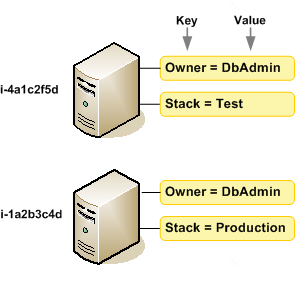
We recommend that you devise a set of tag keys that meets your needs for each resource type. Using a consistent set of tag keys makes it easier for you to manage your resources. You can search and filter the resources based on the tags you add. For more information about how to implement an effective resource tagging strategy, see the [Tagging Best Practices Amazon Whitepaper](https://docs.amazonaws.cn/whitepapers/latest/tagging-best-practices/tagging-best-practices.html).
Tags don't have any semantic meaning to Amazon EC2 and are interpreted strictly as a string of characters. Also, tags are not automatically assigned to your resources. You can edit tag keys and values, and you can remove tags from a resource at any time. You can set the value of a tag to an empty string, but you can't set the value of a tag to null. If you add a tag that has the same key as an existing tag on that resource, the new value overwrites the old value. If you delete a resource, any tags for the resource are also deleted.
For AMIs, you can share tags with other Amazon accounts by using the `ec2:SharedTag/` prefix. For more information, see [Sharing tags](#sharing-tags).
**Note**
After you delete a resource, its tags might remain visible in the console, API, and CLI output for a short period. These tags will be gradually disassociated from the resource and be permanently deleted.
## Tag your resources
When you use the Amazon EC2 console, you can apply tags to resources by using the **Tags** tab on the relevant resource screen, or you can use the **Tags Editor** in the Amazon Resource Groups console. Some resource screens enable you to specify tags for a resource when you create the resource; for example, a tag with a key of `Name` and a value that you specify. In most cases, the console applies the tags immediately after the resource is created (rather than during resource creation). The console might organize resources according to the `Name` tag, but this tag doesn't have any semantic meaning to the Amazon EC2 service.
If you're using the Amazon EC2 API, the Amazon CLI, or an Amazon SDK, you can use the `CreateTags` EC2 API action to apply tags to existing resources. Additionally, some resource-creating actions enable you to specify tags for a resource when the resource is created. If tags cannot be applied during resource creation, we roll back the resource creation process. This ensures that resources are either created with tags or not created at all, and that no resources are left untagged at any time. By tagging resources at the time of creation, you can eliminate the need to run custom tagging scripts after resource creation. For more information about enabling users to tag resources on creation, see [Grant permission to tag Amazon EC2 resources during creation](supported-iam-actions-tagging.md).
You can apply tag-based resource-level permissions in your IAM policies to the Amazon EC2 API actions that support tagging on creation to implement granular control over the users and groups that can tag resources on creation. Your resources are properly secured from creation—tags are applied immediately to your resources, therefore any tag-based resource-level permissions controlling the use of resources are immediately effective. Your resources can be tracked and reported on more accurately. You can enforce the use of tagging on new resources, and control which tag keys and values are set on your resources.
You can also apply resource-level permissions to the `CreateTags` and `DeleteTags` Amazon EC2 API actions in your IAM policies to control which tag keys and values are set on your existing resources. For more information, see [Example: Tag resources](ExamplePolicies_EC2.md#iam-example-taggingresources).
For more information about tagging your resources for billing, see [Using cost allocation tags](https://docs.amazonaws.cn/awsaccountbilling/latest/aboutv2/cost-alloc-tags.html) in the *Amazon Billing User Guide*.
## Tag restrictions
The following basic restrictions apply to tags:
+ Maximum number of tags per resource – 50
+ For each resource, each tag key must be unique, and each tag key can have only one value.
+ Maximum key length – 128 Unicode characters in UTF-8
+ Maximum value length – 256 Unicode characters in UTF-8
+ Allowed characters
+ Although EC2 allows for any character in its tags, other Amazon services are more restrictive. The allowed characters across all Amazon services are: letters (`a-z`, `A-Z`), numbers (`0-9`), and spaces representable in UTF-8, and the following characters: `+ - = . _ : / @`.
+ If you enable instance tags in instance metadata, instance tag *keys* can only use letters (`a-z`, `A-Z`), numbers (`0-9`), and the following characters: `+ - = . , _ : @`. Instance tag *keys* can't contain spaces or `/`, and can't comprise only `.` (one period), `..` (two periods), or `_index`. For more information, see [View tags for your EC2 instances using instance metadata](work-with-tags-in-IMDS.md).
+ Tag keys and values are case-sensitive.
+ The `aws:` prefix is reserved for Amazon use. If a tag has a tag key with this prefix, then you can't edit or delete the tag's key or value. Tags with the `aws:` prefix do not count against your tags per resource limit.
You can't terminate, stop, or delete a resource based solely on its tags; you must specify the resource identifier. For example, to delete snapshots that you tagged with a tag key called `DeleteMe`, you must use the `DeleteSnapshots` action with the resource identifiers of the snapshots, such as `snap-1234567890abcdef0`.
When you tag public or shared resources, the tags you assign are available only to your Amazon account; no other Amazon account will have access to those tags. For tag-based access control to shared resources, each Amazon account must assign its own set of tags to control access to the resource. For an exception to this rule, see [Sharing tags](#sharing-tags).
## Sharing tags
By default, user-defined tags are private to the Amazon account that creates them. However, for image resources, you can use the `ec2:SharedTag/` prefix to create tags that are visible to all Amazon accounts with which you share the image.
The following rules apply to shared tags:
+ Amazon EC2 supports shared tags only for image resources. You cannot use the `ec2:SharedTag/` prefix on other EC2 resource types.
+ Only the resource owner can create, modify, or delete tags with the `ec2:SharedTag/` prefix. Accounts with which you share the image can view these tags but cannot change them.
+ Shared tags count against the resource owner's tags-per-resource quota (50 tags per resource). They do not count against the quota of accounts with which you share the image.
+ When you copy an image that has shared tags, Amazon EC2 copies the shared tags to the new image.
+ Shared tags can affect access management. Before you share tags, review [Tags and access management](#tag-resources-access-management).
## Tags and access management
If you're using Amazon Identity and Access Management (IAM), you can control which users in your Amazon account have permission to create, edit, or delete tags. For more information, see [Grant permission to tag Amazon EC2 resources during creation](supported-iam-actions-tagging.md).
You can also use resource tags to implement attribute-based control (ABAC). You can create IAM policies that allow operations based on the tags for the resource. For more information, see [Control access using attribute-based access](iam-policies-for-amazon-ec2.md#control-access-with-tags).
When you use shared tags (tags with the `ec2:SharedTag/` prefix), be aware of the access-management implications. Unlike other user-defined tags, shared tags are visible to every Amazon account that you share the image with. We recommend that you use shared tags only for values that you intend all accounts with access to see. If those accounts have attribute-based access control (ABAC) policies that evaluate tags, those policies also apply to the shared image. Only the resource owner can create, modify, or delete shared tags. As a result, accounts that you share the image with can't change the tag values that their policies depend on. When you use a shared image, the image owner sets its `ec2:SharedTag/` tags and you can't change them, so account for these tags in any ABAC policies that you use to control access to the image. For more information about shared tags, see [Sharing tags](#sharing-tags).
## Tag your resources for billing
You can use tags to organize your Amazon bill to reflect your own cost structure. To do this, sign up to get your Amazon account bill with tag key values included. For more information about setting up a cost allocation report with tags, see [Monthly cost allocation report](https://docs.amazonaws.cn/awsaccountbilling/latest/aboutv2/configurecostallocreport.html) in the *Amazon Billing User Guide*. To see the cost of your combined resources, you can organize your billing information based on resources that have the same tag key values. For example, you can tag several resources with a specific application name, and then organize your billing information to see the total cost of that application across several services. For more information, see [Using cost allocation tags](https://docs.amazonaws.cn/awsaccountbilling/latest/aboutv2/cost-alloc-tags.html) in the *Amazon Billing User Guide*.
**Note**
If you've just enabled reporting, data for the current month is available for viewing after 24 hours.
Cost allocation tags can indicate which resources are contributing to costs, but deleting or deactivating resources doesn't always reduce costs. For example, snapshot data that is referenced by another snapshot is preserved, even if the snapshot that contains the original data is deleted. For more information, see [Amazon Elastic Block Store volumes and snapshots](https://docs.amazonaws.cn/awsaccountbilling/latest/aboutv2/checklistforunwantedcharges.html#checkebsvolumes) in the *Amazon Billing User Guide*.
**Note**
Elastic IP addresses that are tagged do not appear on your cost allocation report.