# Monitor a service
## Open a service
Open a service from the application map or services list. The service view shows information for the selected time range.
## Use the service signals to narrow the problem
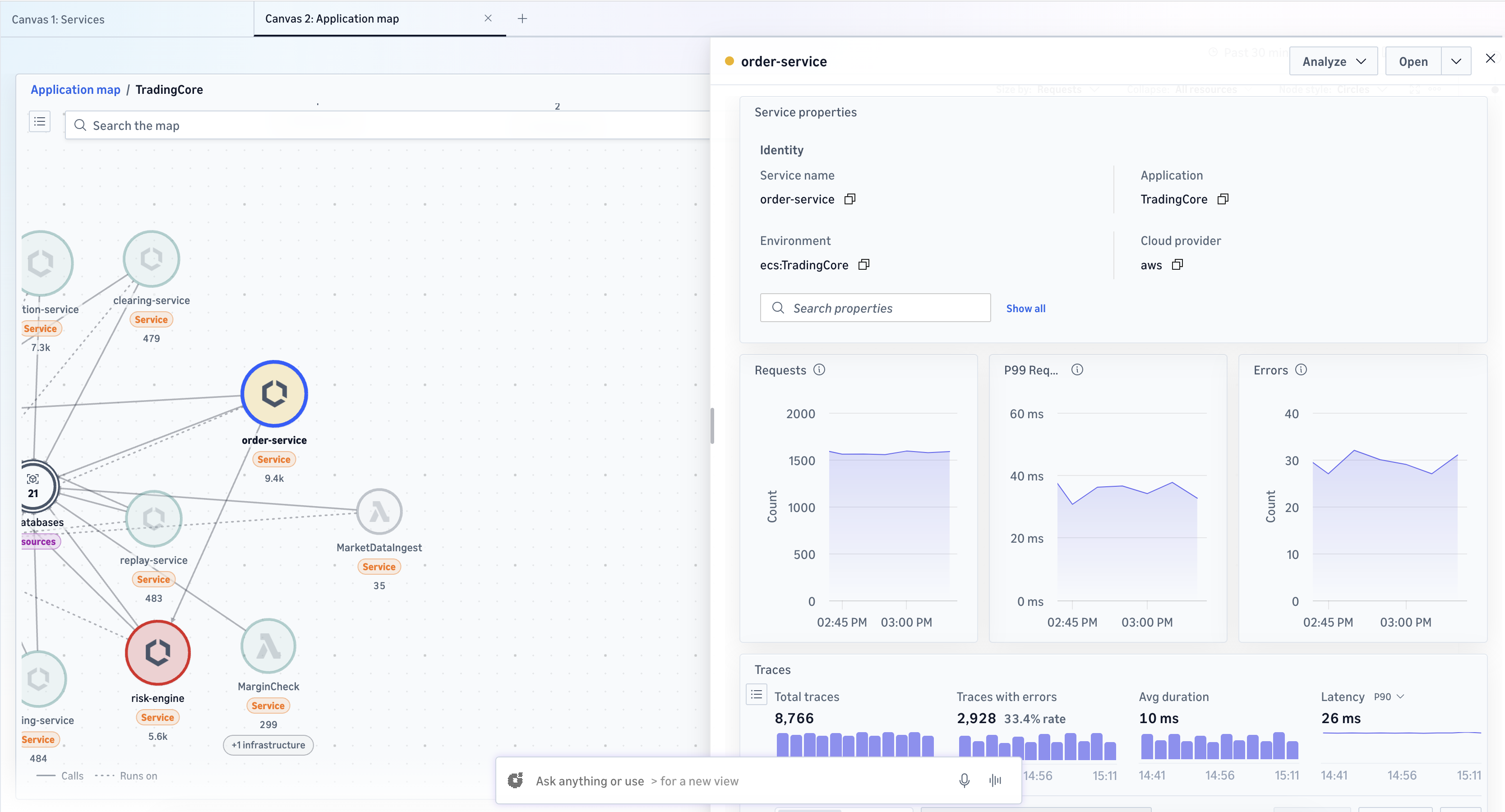
Start in the service details view to decide what kind of issue you are seeing. Review the following telemetry:
+ **Service properties**, such as the service name and identifying attributes for application, environment, cloud provider, Region, or account.
+ **Requests** to spot traffic changes.
+ **Request Latency** to identify slowdowns affecting the service.
+ **Errors** to see whether requests are failing.
+ **Trace summary** to see how much trace data exists for the service and how much of it includes errors.
Together, these signals help you decide whether to investigate traces, logs, or broader service behavior.
## Continue the investigation from the service view
From the service details view, you can continue directly into the telemetry behind the service. Use the following actions:
+ From a service, choose **Analyze traces** or **View traces**.
+ From a point on a metric chart, choose **Search for traces** to see the traces from exactly that time bucket or **Open in Explore** to continue analysis in Explore. On a latency chart the option is **Search for slow traces**, biased toward the slow requests behind the point you chose.
For how to read the traces list, inspect a trace's spans, and pivot from a span to logs or service metrics, see [Application traces](omni-application-traces.md). For an agent's own runs, see [Agent traces](omni-agent-traces.md). To query trace data directly instead, see [Explore and query your telemetry](omni-explore-and-query-your-telemetry.md).
## What to watch out for
+ **A trace ends where instrumentation ends.** A call to an uninstrumented service shows as the caller's outgoing span with nothing deeper. To extend the trace, instrument the callee. See [Send telemetry to CloudWatch Omni](omni-send-telemetry.md).
+ **Errors can read Not available.** The **Errors** metric needs a dimension that not all telemetry carries; when it is absent, the service view says **Not available** rather than showing a misleading zero. Faults are unaffected.
## Populate the request metrics with span metrics
The request metrics (**Requests**, **Errors**, and **Latency**) are derived from span metrics. To emit span metrics, add the CloudWatch plugin for OpenTelemetry to your application's instrumentation. For details, see [Send telemetry to CloudWatch Omni](omni-send-telemetry.md) and [Send application telemetry](omni-send-application-telemetry.md).
## Where to go next
| To do this | See |
| --- | --- |
| Query trace data with SQL, or pivot by trace ID | [Explore and query your telemetry](omni-explore-and-query-your-telemetry.md) |
| Explore an agent's own traces and sessions | [Agent traces](omni-agent-traces.md) and [Agent sessions](omni-agent-sessions.md) |
| Investigate an individual request end to end | [Application traces](omni-application-traces.md) |
| See the whole system a service belongs to | [Monitor applications with the application map](omni-monitor-applications-with-the-application-map.md) |