# Setting the CPU cores and threads per CPU core for a DB instance class
You can configure the number of CPU cores and threads per core for the DB instance class when you perform the following operations:
+ [Creating an Amazon RDS DB instance](USER_CreateDBInstance.md)
+ [Modifying an Amazon RDS DB instance](Overview.DBInstance.Modifying.md)
+ [Restoring to a DB instance](USER_RestoreFromSnapshot.md)
+ [Restoring a DB instance to a specified time for Amazon RDS](USER_PIT.md)
**Note**
When you modify a DB instance to configure the number of CPU cores or threads per core, there is a brief outage similar to when you modify the instance class.
Set the CPU cores by using the Amazon Web Services Management Console, Amazon CLI or the RDS API.
## Console
**To set the cores**
1. Sign in to the Amazon Web Services Management Console and open the Amazon RDS console at [https://console.amazonaws.cn/rds/](https://console.amazonaws.cn/rds/).
1. Choose **Create database**.
1. When setting the **Instance configuration** options:
1. Choose the **Optimize CPU** option.
1. Set your **vCPU** option by choosing the number of cores.
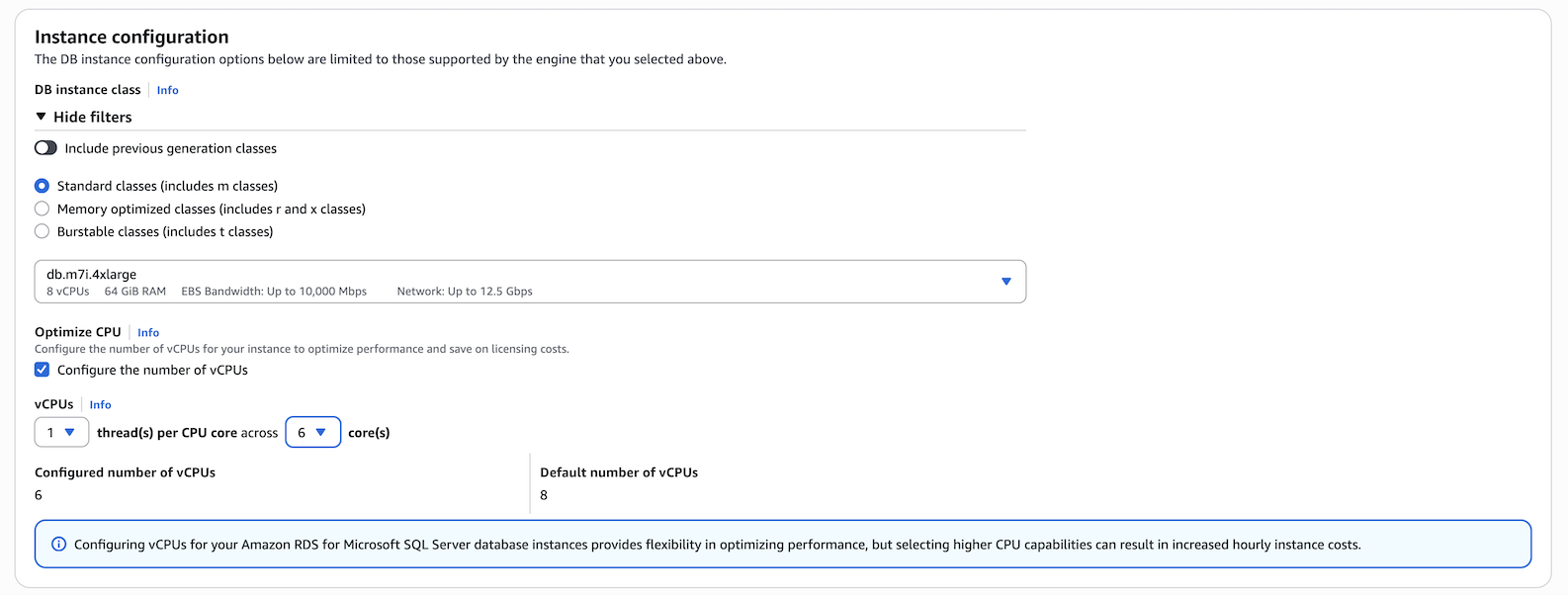
1. After completing other selections, select **Create database**.
## Amazon CLI
**To set the cores**
1. To configure Optimize CPU using the Amazon CLI, include the `--processor-features` option in the command. Specify the number of CPU cores with the `coreCount` and `threadsPerCore` as `1`.
1. Use the following syntax:
```
aws rds create-db-instance \
--engine sqlserver-ee \
--engine-version 16.00 \
--license-model license-included \
--allocated-storage 300 \
--master-username {{myuser}} \
--master-user-password {{xxxxx}} \
--no-multi-az \
--vpc-security-group-ids myvpcsecuritygroup \
--db-subnet-group-name mydbsubnetgroup \
--db-instance-identifier my-rds-instance \
--db-instance-class db.m7i.4xlarge \
--processor-features "Name=coreCount,Value=6" "Name=threadsPerCore,Value=1"
```
**Example of viewing valid processor values for a DB instance class**
Use the `describe-orderable-db-instance-options` command to show the default vCPUs, cores, and threads per core. For example, the output for the following command shows the processor options for the db.r7i.2xlarge instance class.
```
aws rds describe-orderable-db-instance-options --engine sqlserver-ee \
--db-instance-class db.r7i.2xlarge
Sample output:
-------------------------------------------------------------
| DescribeOrderableDBInstanceOptions |
+-----------------------------------------------------------+
|| OrderableDBInstanceOptions ||
|+------------------------------------+--------------------+|
|| DBInstanceClass | db.r7i.2xlarge ||
|| Engine | sqlserver-ee ||
|| EngineVersion | 13.00.6300.2.v1 ||
|| LicenseModel | license-included ||
|| MaxIopsPerDbInstance | ||
|| MaxIopsPerGib | ||
|| MaxStorageSize | 64000 ||
|| MinIopsPerDbInstance | ||
|| MinIopsPerGib | ||
|| MinStorageSize | 20 ||
|| MultiAZCapable | True ||
|| OutpostCapable | False ||
|| ReadReplicaCapable | True ||
|| StorageType | gp2 ||
|| SupportsClusters | False ||
|| SupportsDedicatedLogVolume | False ||
|| SupportsEnhancedMonitoring | True ||
|| SupportsGlobalDatabases | False ||
|| SupportsIAMDatabaseAuthentication | False ||
|| SupportsIops | False ||
|| SupportsKerberosAuthentication | True ||
|| SupportsPerformanceInsights | True ||
|| SupportsStorageAutoscaling | True ||
|| SupportsStorageEncryption | True ||
|| SupportsStorageThroughput | False ||
|| Vpc | True ||
|+------------------------------------+--------------------+|
||| AvailabilityZones |||
||+-------------------------------------------------------+||
||| Name |||
||+-------------------------------------------------------+||
||| us-west-2a |||
||| us-west-2b |||
||| us-west-2c |||
||+-------------------------------------------------------+||
||| AvailableProcessorFeatures |||
||+-----------------+-----------------+-------------------+||
||| AllowedValues | DefaultValue | Name |||
||+-----------------+-----------------+-------------------+||
||| 1,2,3,4 | 4 | coreCount |||
||| 1 | 1 | threadsPerCore |||
||+-----------------+-----------------+-------------------+||
```
In addition, you can run the following commands for DB instance class processor information:
+ `describe-db-instances` – Shows the processor information for the specified DB instance
+ `describe-db-snapshots` – Shows the processor information for the specified DB snapshot
+ `describe-valid-db-instance-modifications` – Shows the valid modifications to the processor for the specified DB instance
In the output of the preceding command, the values for the processor features are `null` if Optimize CPU is not configured.
**Example of setting the number of CPU cores for a DB instance**
The following example modifies {{mydbinstance}} by setting the number of CPU cores to 4 threadsPerCore as 1. Apply the changes immediately by using `--apply-immediately`. If you want to apply the changes during the next scheduled maintenance window, omit `--apply-immediately option`.
```
aws rds modify-db-instance \
--db-instance-identifier {{mydbinstance}} \
--db-instance-class db.r7i.8xlarge \
--processor-features "Name=coreCount,Value={{4}}" "Name=threadsPerCore,Value={{1}}" \
--apply-immediately
```
**Example of returning to default processor settings for a DB instance**
The following example modifies {{mydbinstance}} by returning it to the default processor values for it.
```
aws rds modify-db-instance \
--db-instance-identifier {{mydbinstance}} \
--db-instance-class db.r7i.8xlarge \
--use-default-processor-features \
--apply-immediately
```