Services or capabilities described in Amazon Web Services documentation might vary by Region. To see the differences applicable to the China Regions,
see Getting Started with Amazon Web Services in China
(PDF).
Add a target using the CLI
You can use the AgentCore CLI to add targets to an existing gateway with simplified commands.
Example
- AgentCore CLI
-
-
Add an MCP server target:
agentcore add gateway-target \
  --name MyMCPTarget \
  --type mcp-server \
  --endpoint https://your-mcp-server.example.com/mcp \
  --gateway MyGateway
agentcore deploy
Add a Lambda function target:
agentcore add gateway-target \
  --name MyLambdaTarget \
  --type lambda-function-arn \
  --lambda-arn arn:aws:lambda:us-east-1:123456789012:function:MyFunction \
  --tool-schema-file tools.json \
  --gateway MyGateway
agentcore deploy
Add an OpenAPI schema target:
agentcore add gateway-target \
  --name MyOpenAPITarget \
  --type open-api-schema \
  --schema path/to/openapi-spec.json \
  --outbound-auth none|api-key|oauth \
  --gateway MyGateway
agentcore deploy
Add a Connector target with Web Search Tool:
agentcore add gateway-target \
  --name MyWebSearchToolTarget \
  --type connector \
  --connector web-search \
  --exclude-domains blocked-website-1.com,blocked-website-2.com \
  --gateway MyGateway
agentcore deploy
- Interactive
-
-
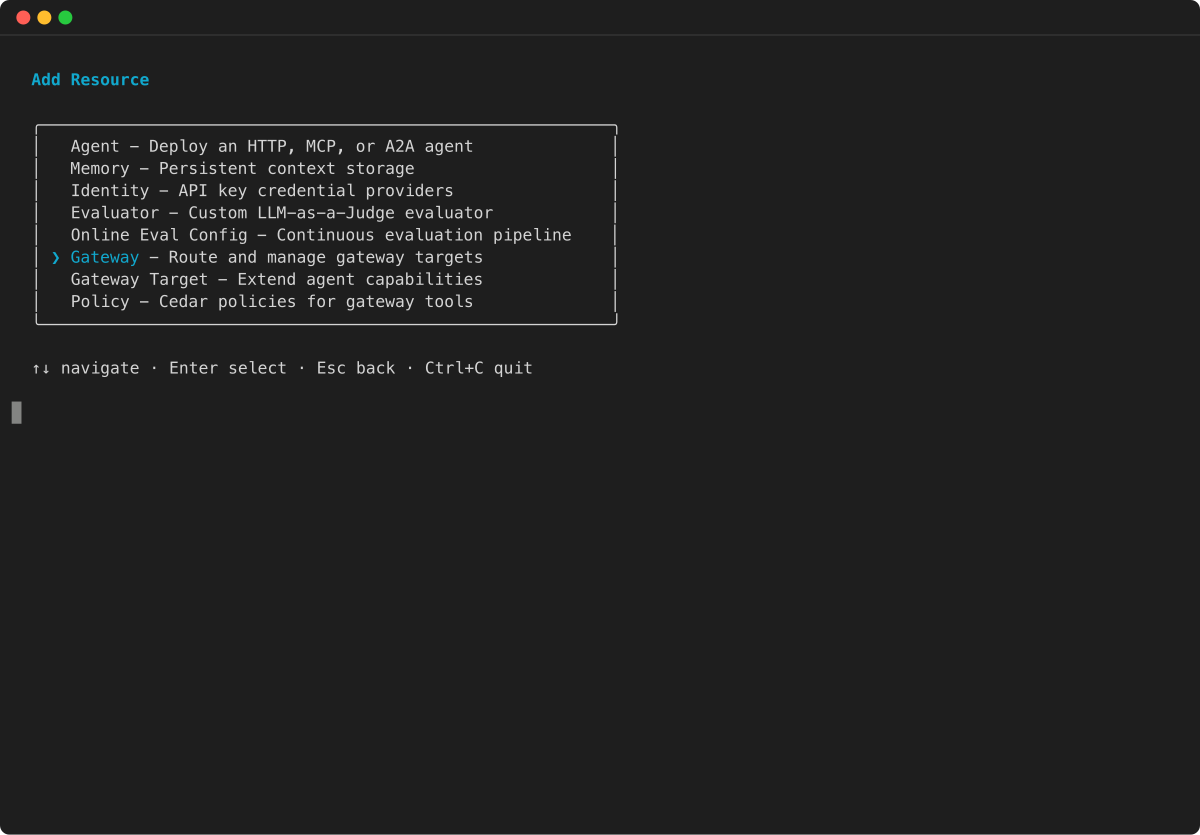
You can also use the AgentCore CLI interactive terminal UI. Run agentcore to open the TUI, then select add and choose Gateway Target :
-
In the Add Resource menu, select Gateway Target and press Enter.
-
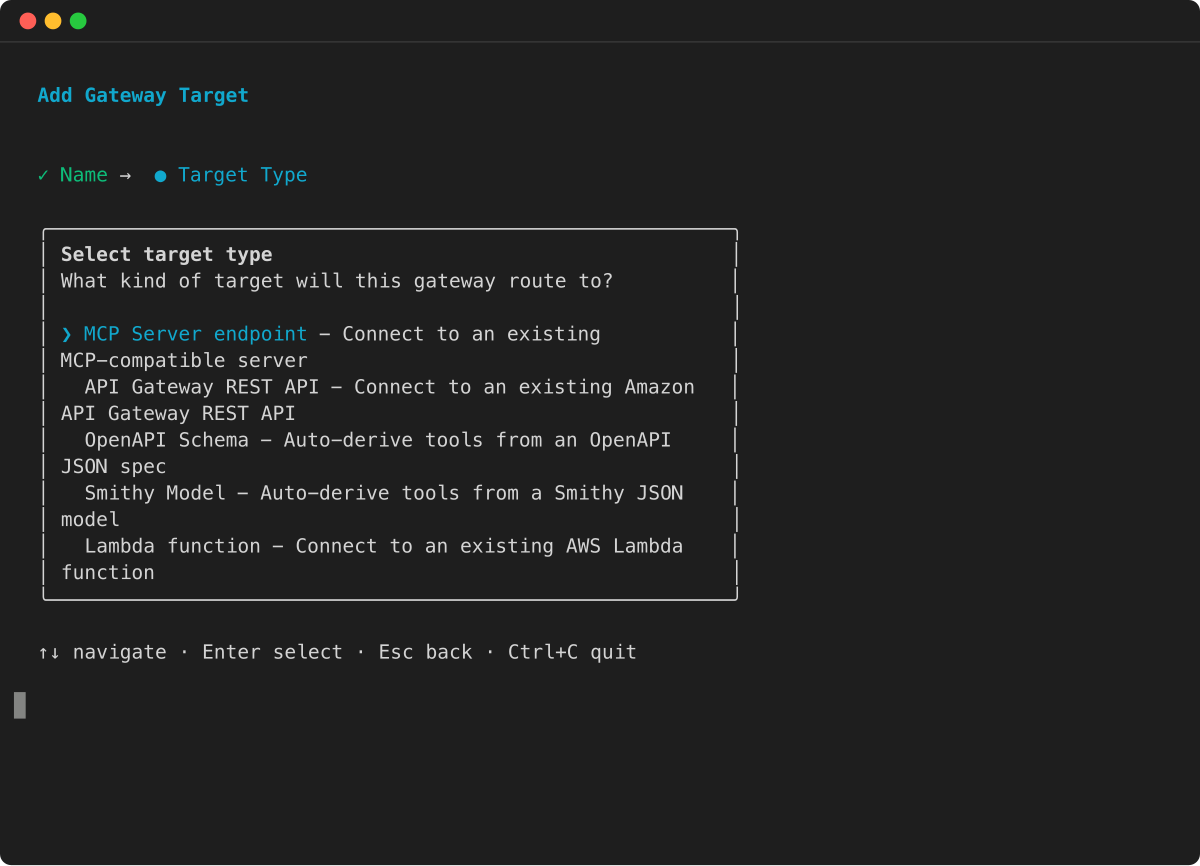
Select the target type for your gateway. The wizard shows the available target types, including MCP Server endpoint, API Gateway REST API, OpenAPI Schema, Smithy Model, and Lambda function.
-
Follow the remaining wizard prompts to provide the target name, endpoint or schema details, and outbound authorization configuration. The specific fields depend on the target type you selected.
For more CLI examples, see the Get started with AgentCore Gateway.