Using the Amazon Compute Optimizer dashboard
Amazon Compute Optimizer (Compute Optimizer) recommends optimal Amazon resources to reduce your costs and improve performance. Use the dashboard in the Compute Optimizer console to evaluate and prioritize the optimization opportunities for the supported resource types in your account. The dashboard shows the following information. Compute Optimizer refreshes it daily. It analyzes the specifications and utilization metrics of your resources.
Topics
Savings opportunity
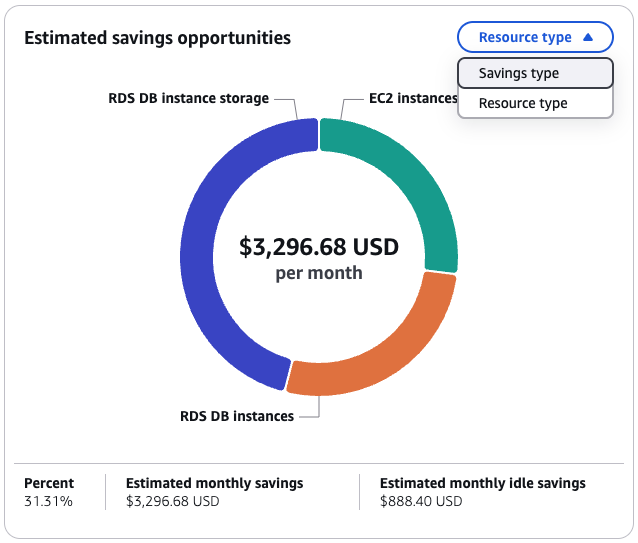
The savings opportunity section shows the total estimated monthly savings in US dollars. It also shows the percentage you can save if you use the Compute Optimizer recommendations for resources in your account. You can display the estimated monthly savings by resource type or savings type. To look for cost savings, start with the resource type that has the greatest savings opportunity.
For example, the EC2 instances recommendations page lists the estimated monthly savings and savings opportunity for each EC2 instance. You can find them in the Estimated monthly savings (after discounts), Estimated monthly savings (On-Demand), and Savings opportunity (%) columns. To learn how Compute Optimizer calculates estimated monthly savings, see Estimated monthly savings and savings opportunity.
If you enable Cost Optimization Hub in Amazon Cost Explorer, Compute Optimizer uses Cost Optimization Hub data to generate your recommendations. This data includes your specific pricing discounts. If Cost Optimization Hub isn't enabled, Compute Optimizer uses Cost Explorer data and On-Demand pricing information. For more information, see Enabling Cost Explorer and Cost Optimization Hub in the Amazon Cost Management User Guide.
Performance improvement opportunity
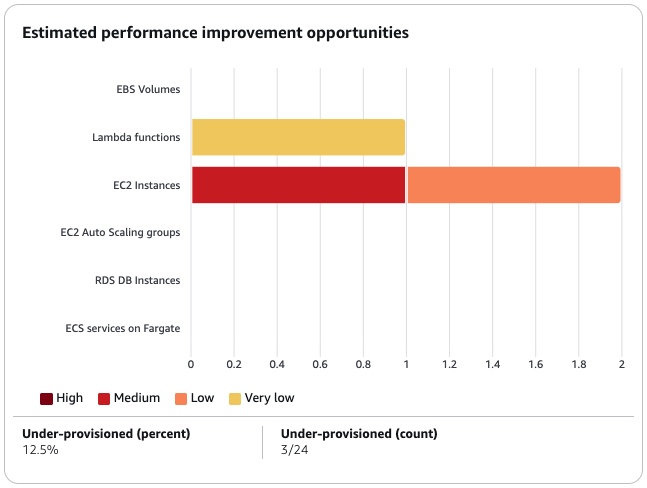
The performance improvement opportunity section shows a count and percentage of resources in your account. These are resources that Compute Optimizer found at risk of not meeting your workload performance needs. The section also shows the performance risk classifications for each resource type. Resources can have a high, medium, or very low performance risk. To look for performance improvements, start with the resource types that have a high performance risk.
Optimization options per resource
This table in the dashboard provides a breakdown of optimization opportunities across your different resource types. It outlines the potential savings that you can achieve by identifying and addressing resources that are not optimized, idle, or inefficiently sized.
-
The Savings opportunity column displays the potential cost savings that you can achieve through optimization. Note that the saving opportunity might not be equal to the sum of the idle, rightsize, and license savings figures.
-
The Optimized, Not optimized, and Idle columns indicate the current state of your resources utilization, helping to identify areas for improvement.
-
The Idle savings, Rightsizing savings, and License savings columns quantify the potential cost savings that you can achieve by addressing your idle clean-up opportunities, rightsizing your resources, and using our recommended license configurations.
You can use this table as a comprehensive guide to identify optimization opportunities, prioritize areas for improvement, and estimate the financial impact of various optimization strategies for your Amazon resources.
Viewing the dashboard
Use the following procedure to view the dashboard and the optimization findings for your resources.
-
Open the Compute Optimizer console at https://console.amazonaws.cn/compute-optimizer/
. -
Choose Dashboard in the navigation pane.
By default, the dashboard displays an overview of optimization findings for Amazon resources across all Amazon Web Services Regions in the account that you're currently signed in to.
-
You can perform the following actions on the dashboard:
-
To view the optimization findings for resources in another account, choose Account, and then select a different account ID.
NoteThe ability to view optimization findings for resources in other accounts is available only if you're signed in to a management account of an organization, you opted in all member accounts of the organization, and trusted access with Compute Optimizer is enabled. For more information, see Accounts supported by Compute Optimizer and Trusted access for Amazon Organizations.
-
To show or hide the savings opportunity and performance improvement opportunity sections of the dashboard, choose the gear icon, choose the sections that you want to show or hide, and choose Apply.
-
To filter findings on the dashboard to one or more Amazon Web Services Regions, enter the name of the Region in the Filter by one or more Regions text box, or choose one or more Regions in the drop-down list that appears.
-
To clear the selected filters, choose Clear filters next to the filter.
-
To view optimization recommendations, choose the View recommendations link for one of the resource types displayed, or choose the number of resources listed next to a findings classification to view the resources for that classification. For more information, see Viewing resource recommendations.
-