End of support notice: On October 7th, 2026, Amazon will discontinue support for Amazon IoT Greengrass Version 1. After October 7th, 2026, you will no longer be able to access the Amazon IoT Greengrass V1 resources. For more information, please visit [Migrate from Amazon IoT Greengrass Version 1](https://docs.amazonaws.cn/greengrass/v2/developerguide/migrate-from-v1.html).
# Create and configure the Lambda function
In this step, you create a Lambda function that tracks the number of cars that pass the traffic light. Every time that the `GG_TrafficLight` shadow state changes to `G`, the Lambda function simulates the passing of a random number of cars (from 1 to 20). On every third `G` light change, the Lambda function sends basic statistics, such as min and max, to a DynamoDB table.
1. On your computer, create a folder named `car_aggregator`.
1. From the [TrafficLight ](https://github.com/aws/aws-greengrass-core-sdk-python/tree/master/examples/TrafficLight) examples folder on GitHub, download the `carAggregator.py` file to the `car_aggregator` folder. This is your Lambda function code.
**Note**
This example Python file is stored in the Amazon IoT Greengrass Core SDK repository for convenience, but it doesn't use the Amazon IoT Greengrass Core SDK.
1. If you aren't working in the US East (N. Virgina) Region, open `carAggregator.py` and change `region_name` in the following line to the Amazon Web Services Region that's currently selected in the Amazon IoT console. For the list of supported Amazon Web Services Regions, see [Amazon IoT Greengrass](https://docs.amazonaws.cn/general/latest/gr/greengrass.html) in the *Amazon Web Services General Reference*.
```
dynamodb = boto3.resource('dynamodb', region_name='us-east-1')
```
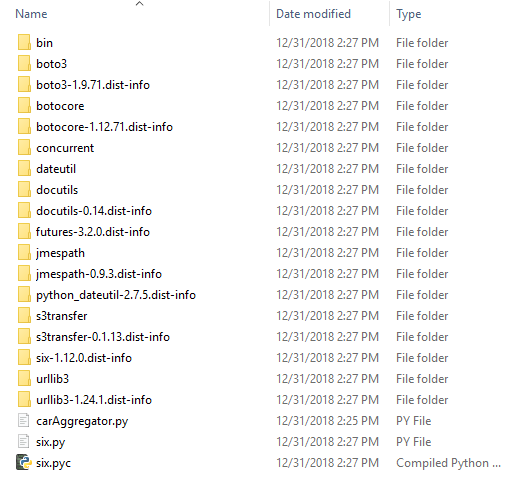
1. Run the following command in a [command-line](https://en.wikipedia.org/wiki/Command-line_interface) window to install the [Amazon SDK for Python (Boto3)](https://github.com/boto/boto3/blob/develop/README.rst) package and its dependencies in the `car_aggregator` folder. Greengrass Lambda functions use the Amazon SDK to access other Amazon services. (For Windows, use an [elevated command prompt](https://technet.microsoft.com/en-us/library/cc947813(v=ws.10).aspx).)
```
pip install boto3 -t {{path-to-car_aggregator-folder}}
```
This results in a directory listing similar to the following:
1. Compress the contents of the `car_aggregator` folder into a `.zip` file named `car_aggregator.zip`. (Compress the folder's contents, not the folder.) This is your Lambda function deployment package.
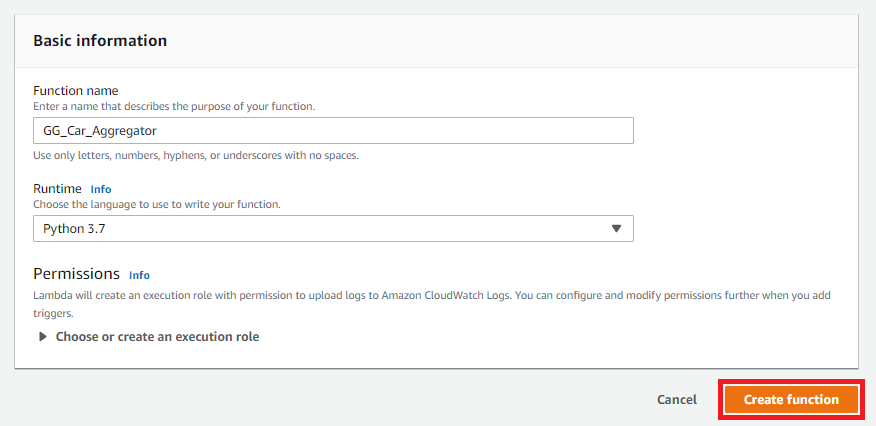
1. In the Lambda console, create a function named **GG\_Car\_Aggregator**, and set the remaining fields as follows:
+ For **Runtime**, choose **Python 3.7**.
+ For **Permissions**, keep the default setting. This creates an execution role that grants basic Lambda permissions. This role isn't used by Amazon IoT Greengrass.
Choose **Create function**.
1. Upload your Lambda function deployment package:
1. On the **Code** tab, under **Code source**, choose **Upload from**. From the dropdown, choose **.zip file**.
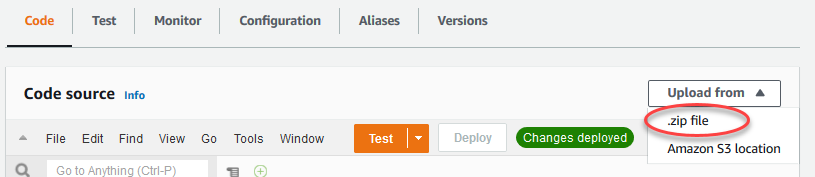
1. Choose upload, and then choose your `car_aggregator.zip` deployment package. Then, choose **Save**.
1. On the **Code** tab for the function, under **Runtime settings**, choose **Edit**, and then enter the following values.
+ For **Runtime**, choose **Python 3.7**.
+ For **Handler**, enter **carAggregator.function\_handler**
1. Choose **Save**.
1. Publish the Lambda function, and then create an alias named **GG\_CarAggregator**. For step-by-step instructions, see the steps to [publish the Lambda function](create-lambda.md#publish-function-version) and [create an alias](create-lambda.md#create-version-alias) in Module 3 (Part 1).
1. In the Amazon IoT console, add the Lambda function that you just created to your Amazon IoT Greengrass group:
1. On the group configuration page, choose **Lambda functions**, and then under **My Lambda functions**, choose **Add**.
1. For **Lambda function**, choose **GG\_Car\_Aggregator**.
1. For **Lambda function version**, choose the alias to the version that you published.
1. For **Memory limit**, enter **64 MB**.
1. For **Pinned**, choose **True**.
1. Choose **Add Lambda function**.
**Note**
You can remove other Lambda functions from earlier modules.