# Connect and disconnect external key stores
New external key stores are not connected. To create and use Amazon KMS keys in your external key store, you need to connect your external key store to its [external key store proxy](keystore-external.md#concept-xks-proxy). You can connect and disconnect your external key store at any time, and [view its connection state](view-xks-keystore.md).
While your external key store is disconnected, Amazon KMS cannot communicate with your external key store proxy. As a result, you can view and manage your external key store and its existing KMS keys. However, you cannot create KMS keys in your external key store, or use its KMS keys in cryptographic operations. You might need to disconnect your external key store at some point, such as when editing its properties, but plan accordingly. Disconnecting the key store might disrupt the operation of Amazon services that use its KMS keys.
You are not required to connect your external key store. You can leave an external key store in a disconnected state indefinitely and connect it only when you need to use it. However, you might want to test the connection periodically to verify that the settings are correct and it can be connected.
When you disconnect a custom key store, the KMS keys in the key store become unusable right away (subject to eventual consistency). However, resources encrypted with [data keys](data-keys.md) protected by the KMS key are not affected until the KMS key is used again, such as to decrypt the data key. This issue affects Amazon Web Services services, many of which use data keys to protect your resources. For details, see [How unusable KMS keys affect data keys](unusable-kms-keys.md).
**Note**
External key stores are in a `DISCONNECTED` state only when the key store has never been connected or you explicitly disconnect it. A `CONNECTED` state does not indicate that external key store or its supporting components are operating efficiently. For information about the performance of your external key store components, see the graphs in **Monitoring** section of the detail page for each external key store. For details, see [Monitor external key stores](xks-monitoring.md).
Your external key manager might provide additional methods of stopping and restarting communication between your Amazon KMS external key store and your external key store proxy, or between your external key store proxy and external key manager. For details, see your external key manager documentation.
**Topics**
+ [Connection state](#xks-connection-state)
+ [Connect an external key store](about-xks-connecting.md)
+ [Disconnect an external key store](about-xks-disconnecting.md)
## Connection state
Connecting and disconnecting changes the *connection state* of your custom key store. Connection state values are the same for Amazon CloudHSM key stores and external key stores.
To view the connection state of your custom key store, use the [DescribeCustomKeyStores](https://docs.amazonaws.cn/kms/latest/APIReference/DescribeCustomKeyStores.html) operation or Amazon KMS console. **Connection state** appears in each custom key store table, in the **General configuration** section of the detail page for each custom key store, and on the **Cryptographic configuration** tab of KMS keys in a custom key store. For details, see [View an Amazon CloudHSM key store](view-keystore.md) and [View external key stores](view-xks-keystore.md).
An custom key store can have one of the following connection states:
+ `CONNECTED`: The custom key store is connected to its backing key store. You can create and use KMS keys in the custom key store.
The *backing key store* for an Amazon CloudHSM key store is its associated Amazon CloudHSM cluster. The *backing key store* for an external key store is external key store proxy and the external key manager that it supports.
A CONNECTED state means that a connection succeeded and the custom key store has not been intentionally disconnected. It does not indicate that the connection is operating properly. For information about the status of the Amazon CloudHSM cluster associated with your Amazon CloudHSM key store, see [Getting CloudWatch metrics for Amazon CloudHSM](https://docs.amazonaws.cn/cloudhsm/latest/userguide/hsm-metrics-cw.html) in the Amazon CloudHSM User Guide. For information about the status and operation of your external key store, see the graphs in the **Monitoring** section of the detail page for each external key store. For details, see [Monitor external key stores](xks-monitoring.md).
+ `CONNECTING`: The process of connecting an custom key store is in progress. This is a transient state.
+ `DISCONNECTED`: The custom key store has never been connected to its backing, or it was intentionally disconnected by using the Amazon KMS console or the [DisconnectCustomKeyStore](https://docs.amazonaws.cn/kms/latest/APIReference/DisconnectCustomKeyStores.html) operation.
+ `DISCONNECTING`: The process of disconnecting an custom key store is in progress. This is a transient state.
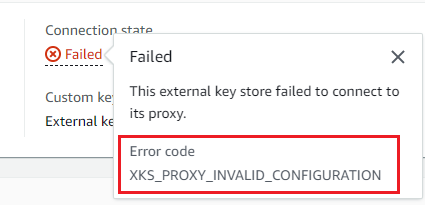
+ `FAILED`: An attempt to connect the custom key store failed. The `ConnectionErrorCode` in the [DescribeCustomKeyStores](https://docs.amazonaws.cn/kms/latest/APIReference/DescribeCustomKeyStores.html) response indicates the problem.
To connect an custom key store, its connection state must be `DISCONNECTED`. If the connection state is `FAILED`, use the `ConnectionErrorCode` to identify and resolve the problem. Then disconnect the custom key store before trying to connect it again. For help with connection failures, see [External key store connection errors](xks-troubleshooting.md#fix-xks-connection). For help responding to a connection error code, see [Connection error codes for external key stores](xks-troubleshooting.md#xks-connection-error-codes).
To view the connection error code:
+ In the [DescribeCustomKeyStores](https://docs.amazonaws.cn/kms/latest/APIReference/API_DescribeCustomKeyStores.html) response, view the value of the `ConnectionErrorCode` element. This element appears in the `DescribeCustomKeyStores` response only when the `ConnectionState` is `FAILED`.
+ To view the connection error code in the Amazon KMS console, on detail page for the external key store and hover over the **Failed** value.