# Granting database permissions using the named resource method
The following steps explain how to grant database permissions by using the named resource method.
------
#### [ Console ]
Use the **Grant permissions** page on the Lake Formation console. The page is divided into the following sections:
+ **Principal type** – The **Principals** section include the IAM users, roles, IAM Identity Center users and groups, SAML users and groups, Amazon accounts, organizations, or organizational units to grant permissions. In the **Principals by attributes** section, you can specify the key and values for the attributes attached to the IAM roles.
+ **LF-Tags or catalog resources** – The databases, tables, views, or resource links to grant permissions on.
+ **Permissions** – The Lake Formation permissions to grant.
**Note**
To grant permissions on a database resource link, see [Granting resource link permissions](granting-link-permissions.md).
1. Open the **Grant permissions** page.
Open the Amazon Lake Formation console at [https://console.aws.amazon.com/lakeformation/](https://console.aws.amazon.com/lakeformation/), and sign in as a data lake administrator, the database creator, or an IAM user who has **Grantable permissions** on the database.
Do one of the following:
+ In the navigation pane, under **Permissions**, choose **Data permissions**. Then choose **Grant**.
+ In the navigation pane, choose **Databases** under **Data Catalog**. Then, on the **Databases** page, choose a database, and from the **Actions** menu, under **Permissions**, choose **Grant**.
**Note**
You can grant permissions on a database through its resource link. To do so, on the **Databases** page, choose a resource link, and on the **Actions** menu, choose **Grant on target**. For more information, see [How resource links work in Lake Formation](resource-links-about.md).
1. In the **Principal type** section, specify principals or grant permissions to principals using attributes.
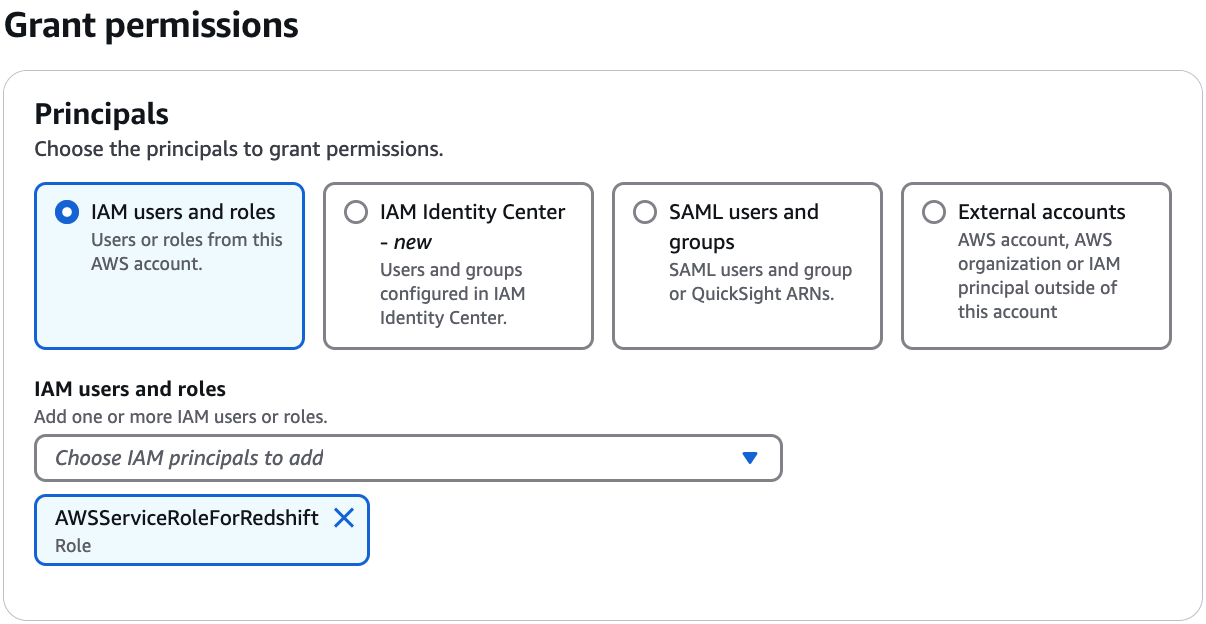
**IAM users and roles**
Choose one or more users or roles from the **IAM users and roles** list.
**IAM Identity Center**
Choose one or more users or groups from the **Users and groups** list. Select **Add** to add more users or groups.
**SAML users and groups**
For **SAML and Quick users and groups**, enter one or more Amazon Resource Names (ARNs) for users or groups federated through SAML, or ARNs for Amazon Quick users or groups. Press Enter after each ARN.
For information about how to construct the ARNs, see [Lake Formation grant and revoke Amazon CLI commands](lf-permissions-reference.md#perm-command-format).
Lake Formation integration with Quick is supported only for Quick Enterprise Edition.
**External accounts**
For **Amazon Web Services account, Amazon organization**, or **IAM Principal** enter one or more valid Amazon account IDs, organization IDs, organizational unit IDs, or ARN for the IAM user or role. Press **Enter** after each ID.
An organization ID consists of "o-" followed by 10–32 lower-case letters or digits.
An organizational unit ID starts with "ou-" followed by 4–32 lowercase letters or digits (the ID of the root that contains the OU). This string is followed by a second "-" dash and 8 to 32 additional lowercase letters or digits.
Principals by attributes
Specify the attribute key and value(s). If you choose more than one value, you are creating an attribute expression with an OR operator. This means that if any of the attribute tag values assigned to an IAM role or user match, the role/user gains access permissions on the resource.
Choose the permission scope by specifying if you're granting permissions to principals with matching attributes in the same account or in another account.
1. In the **LF-Tags or catalog resources** section, choose **Named data catalog resources**.

1. Choose one or more databases from the **Database** list. You can also choose one or more **Tables** and/or **Data filters**.
1. In the **Permissions** section, select permissions and grantable permissions. Under **Database permissions**, select one or more permissions to grant.

**Note**
After granting `Create Table` or `Alter` on a database that has a location property that points to a registered location, be sure to also grant data location permissions on the location to the principals. For more information, see [Granting data location permissions](granting-location-permissions.md).
1. (Optional) Under **Grantable permissions**, select the permissions that the grant recipient can grant to other principals in their Amazon account. This option is not supported when you are granting permissions to an IAM principal from an external account.
1. Choose **Grant**.
------
#### [ Amazon CLI ]
You can grant database permissions by using the named resource method and the Amazon Command Line Interface (Amazon CLI).
**To grant database permissions using the Amazon CLI**
+ Run a `grant-permissions` command, and specify a database or the Data Catalog as the resource, depending on the permission being granted.
In the following examples, replace {{}} with a valid Amazon account ID.
**Example – Grant to create a database**
This example grants `CREATE_DATABASE` to user `datalake_user1`. Because the resource on which this permission is granted is the Data Catalog, the command specifies an empty `CatalogResource` structure as the `resource` parameter.
```
1. aws lakeformation grant-permissions --principal DataLakePrincipalIdentifier=arn:aws:iam::{{}}:user/datalake_user1 --permissions "CREATE_DATABASE" --resource '{ "Catalog": {}}'
```
**Example – Grant to create tables in a designated database**
The next example grants `CREATE_TABLE` on the database `retail` to user `datalake_user1`.
```
1. aws lakeformation grant-permissions --principal DataLakePrincipalIdentifier=arn:aws:iam::{{}}:user/datalake_user1 --permissions "CREATE_TABLE" --resource '{ "Database": {"Name":"retail"}}'
```
**Example – Grant to an external Amazon account with the Grant option**
The next example grants `CREATE_TABLE` with the grant option on the database `retail` to external account 1111-2222-3333.
```
1. aws lakeformation grant-permissions --principal DataLakePrincipalIdentifier=111122223333 --permissions "CREATE_TABLE" --permissions-with-grant-option "CREATE_TABLE" --resource '{ "Database": {"Name":"retail"}}'
```
**Example – Grant to an organization**
The next example grants `ALTER` with the grant option on the database `issues` to the organization `o-abcdefghijkl`.
```
1. aws lakeformation grant-permissions --principal DataLakePrincipalIdentifier=arn:aws:organizations::111122223333:organization/o-abcdefghijkl --permissions "ALTER" --permissions-with-grant-option "ALTER" --resource '{ "Database": {"Name":"issues"}}'
```
**Example - Grant to `ALLIAMPrincipals` in the same account**
The next example grants `CREATE_TABLE` permission on the database `retail` to all principals in the same account. This option enables every principal in the account to create a table in the database and create a table resource link allowing integrated query engines to access shared databases and tables. This option is especially useful when a principal receives a cross-account grant, and does not have the permission to create resource links. In this scenario, the data lake administrator can create a placeholder database and grant `CREATE_TABLE` permission to the `ALLIAMPrincipal` group, enabling every IAM principal in the account to create resource links in the placeholder database.
```
1. aws lakeformation grant-permissions --principal DataLakePrincipalIdentifier=111122223333:IAMPrincipals --permissions "CREATE_TABLE" --resource '{ "Database": {"Name":"temp","CatalogId":"111122223333"}}'
```
**Example - Grant to `ALLIAMPrincipals` in an external account**
The next example grants `CREATE_TABLE` on the database `retail` to all principals in an external account. This option enables every principal in the account to create a table in the database.
```
1. aws lakeformation grant-permissions --principal DataLakePrincipalIdentifier=111122223333:IAMPrincipals --permissions "CREATE_TABLE" --resource '{ "Database": {"Name":"retail","CatalogId":"123456789012"}}'
```
**Note**
After granting `CREATE_TABLE` or `ALTER` on a database that has a location property that points to a registered location, be sure to also grant data location permissions on the location to the principals. For more information, see [Granting data location permissions](granting-location-permissions.md).
------
**See also**
[Lake Formation permissions reference](lf-permissions-reference.md)
[Granting permissions on a database or table shared with your account](regranting-shared-resources.md)
[Accessing and viewing shared Data Catalog tables and databases](viewing-shared-resources.md)