# Developing Lambda functions locally with VS Code
You can move your Lambda functions from the Lambda console to Visual Studio Code, which provides a full development environment and allows you to use other local development options like Amazon SAM and Amazon CDK.
## Key benefits of local development
While the Lambda console provides a quick way to edit and test functions, local development offers more advanced capabilities:
+ **Advanced IDE features**: Debugging, code completion, and refactoring tools
+ **Offline development**: Work and test changes locally before cloud deployment
+ **Infrastructure as code integration**: Seamless use with Amazon SAM, Amazon CDK, and Infrastructure Composer
+ **Dependency management**: Full control over function dependencies
## Prerequisites
Before developing Lambda functions locally in VS Code, you must have:
+ **VS Code**: For installation instructions, see [Download VS Code](https://code.visualstudio.com/download).
+ **Amazon Toolkit for Visual Studio Code**: For installation instructions, see [Setting up the Amazon Toolkit for Visual Studio Code](https://docs.amazonaws.cn/toolkit-for-vscode/latest/userguide/setup-toolkit.html). For an overview, see [Amazon Toolkit for Visual Studio Code](https://aws.amazon.com/visualstudiocode/).
+ **Amazon credentials**: For information about configuring credentials, see [Setting up your Amazon credentials](https://docs.amazonaws.cn/toolkit-for-vscode/latest/userguide/setup-credentials.html).
+ **Amazon SAM CLI**: For installation instructions, see [Installing the Amazon SAM CLI](https://docs.amazonaws.cn/serverless-application-model/latest/developerguide/serverless-sam-cli-install.html).
+ **Docker installed (optional, but required for local testing)**: For installation instructions, see [Get Docker](https://docs.docker.com/get-docker/).
**Note**
If you already have an Amazon account and profile configured locally, ensure that the AdministratorAccess managed policy is added to your configured Amazon profile.
## Authentication and access control
To develop Lambda functions locally, you need Amazon credentials to securely access and manage Amazon resources on your behalf, just like they would in the cloud. The Amazon Toolkit for VS Code supports the following authentication methods:
The Amazon Toolkit for VS Code supports the following authentication methods:
+ IAM user long-term credentials
+ Temporary credentials from assumed roles
+ Identity federation
+ Amazon account root user credentials (not recommended)
This section guides you through obtaining and configuring these credentials using IAM user long-term credentials.
### Get IAM Credentials
If you already have an IAM user with access keys, have both the access key ID and secret access key ready for the next section. If you don't have these keys, follow these steps to create them:
**Note**
You must use both the access key ID and secret access key together to authenticate your requests.
To create an IAM user and access keys:
1. Open the IAM console at [https://console.aws.amazon.com/iam/](https://console.aws.amazon.com/iam/)
1. In the navigation pane, choose **Users**.
1. Choose **Create user**.
1. For **User name**, enter a name and choose **Next**.
1. Under **Set permissions**, choose **Attach policies directly**.
1. Select **AdministratorAccess** and choose **Next**.
1. Choose **Create user**.
1. In the success banner, choose **View user**.
1. Choose **Create access key**.
1. For **Use case**, select **Local code**.
1. Select the confirmation check box and choose **Next**.
1. (Optional) Enter a description tag value.
1. Choose **Create access key**.
1. Copy your access key and secret access key immediately. **You won't be able to access the secret access key again after you leave this page.**
**Important**
Never share your secret key or commit it to source control. Store these keys securely and delete them when no longer needed.
**Note**
For more information, see [Create an IAM user in your Amazon account](https://docs.amazonaws.cn/IAM/latest/UserGuide/id_users_create.html) and [Manage access keys for IAM users](https://docs.amazonaws.cn/IAM/latest/UserGuide/id_credentials_access-keys.html) in the *IAM User Guide*.
### Configure Amazon credentials using the Amazon Toolkit
The following table summarizes the credential setup process you will complete in the following procedure.
| What to Do | Why? |
| --- | --- |
| Open Sign In panel | Start authentication |
| Use Command Palette, search for Amazon Add a New Connection | Access the sign-in UI |
| Choose IAM Credential | Use your access keys for programmatic access |
| Enter profile name, access key, secret key | Provide credentials for connection |
| See Amazon Explorer update | Confirm you're connected |
Complete the following steps authenticate to your Amazon account:
1. Open the Sign In panel in VS Code:
1. To start the authentication process, select the Amazon icon in the left navigation pane or open the Command Palette (Cmd\+Shift\+P on Mac or Ctrl\+Shift\+P on Windows/Linux) and search for and select **Amazon Add a New Connection**.
1. In the sign in panel, choose **IAM Credentials** and select **Continue**.
**Note**
To proceed, you will need to allow Amazon IDE Extensions for VS Code to access your data.
1. Enter your profile name, access key ID, and secret access key, then select **Continue**.
1. Verify the connection by checking the Amazon Explorer in VS Code for your Amazon services and resources.
For information on setting up authentication with long-term credentials, see [Using long-term credentials to authenticate Amazon SDKs and tools](https://docs.aws.amazon.com/sdkref/latest/guide/access-iam-users.html).
For information about configuring authentication, see [Amazon IAM credentials](https://docs.amazonaws.cn/toolkit-for-vscode/latest/userguide/setup-credentials.html) in the Amazon Toolkit for Visual Studio Code User Guide.
## Moving from console to local development
**Note**
If you've made changes in the console, make sure you don't have any undeployed changes before transitioning to local development.
To move a Lambda function from the Lambda console to VS Code, complete the following steps:
1. Open the [Lambda console](https://console.amazonaws.cn/lambda).
1. Choose the name of your function.
1. Select the **Code source** tab.
1. Choose **Open in Visual Studio Code**.
**Note**
The **Open in Visual Studio Code** button is only available in Amazon Toolkit version **3.69.0** and later. If you have an earlier version of the Amazon Toolkit installed, you may see a `Cannot open the handler` message in VS Code. To resolve this, update your Amazon Toolkit to the latest version.
1. When prompted, allow your browser to open VS Code.
When you open your function in VS Code, Lambda creates a local project with your function code in a temporary location that's designed for quick testing and deployment. This includes the function code, dependencies, and a basic project structure that you can use for local development.
For details on using Amazon in VS Code, see the *[Amazon Toolkit for Visual Studio Code User Guide](https://docs.amazonaws.cn/toolkit-for-vscode/latest/userguide/welcome.html)*.
## Working with functions locally
After opening your function in VS Code, follow these steps to access and manage your functions:
1. Select the Amazon icon in the sidebar to open the Amazon Explorer:
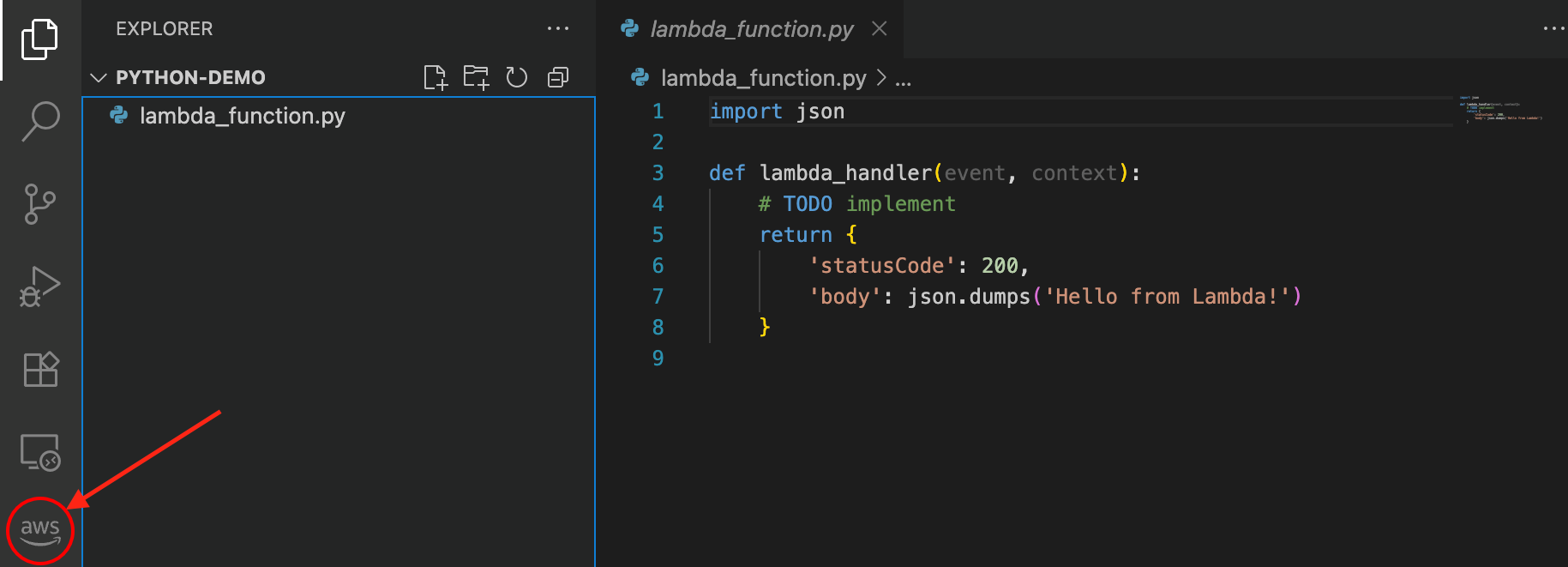
1. In the Amazon Explorer, select the region with your Lambda function:
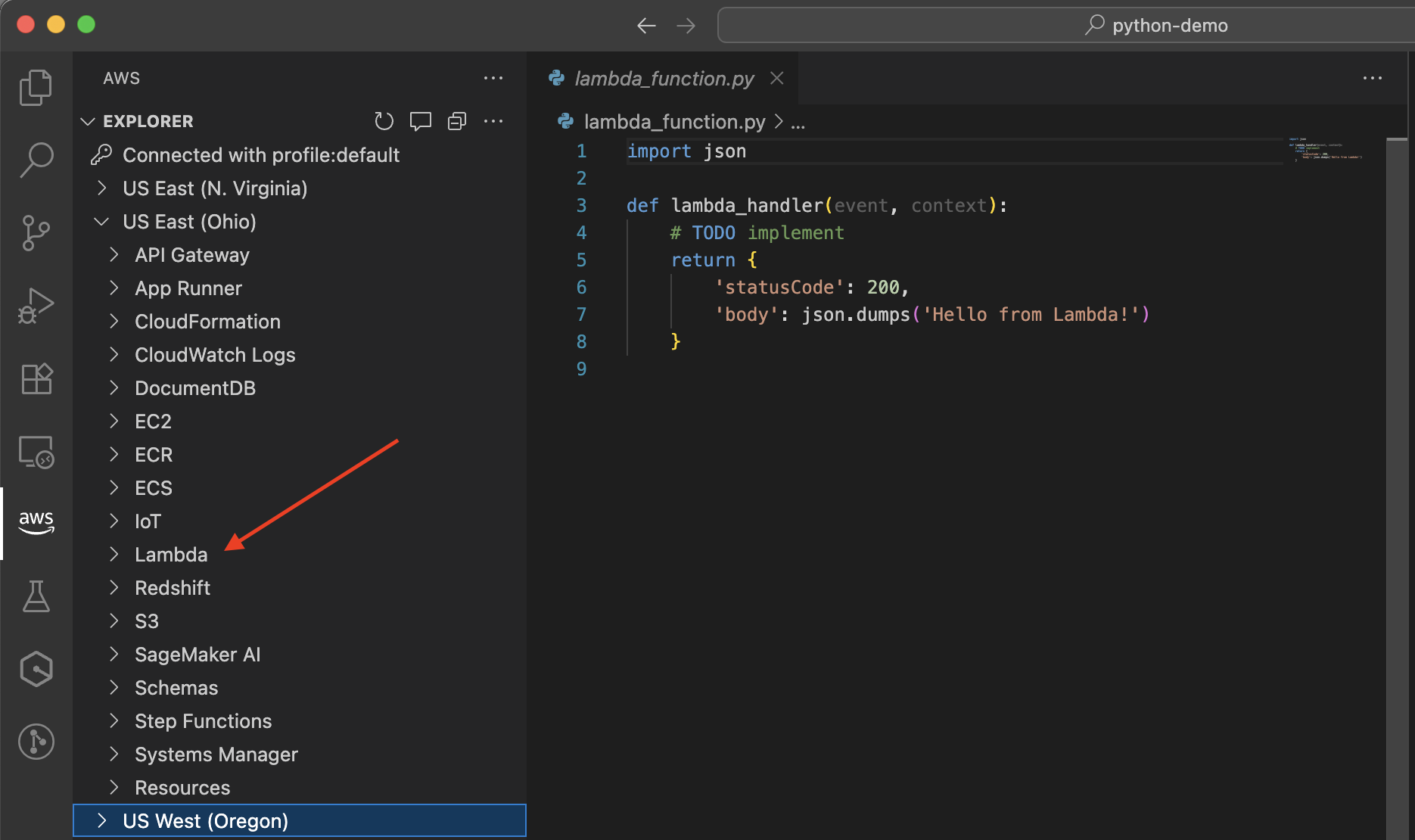
1. Under your selected region, expand the Lambda section to view and manage your functions:
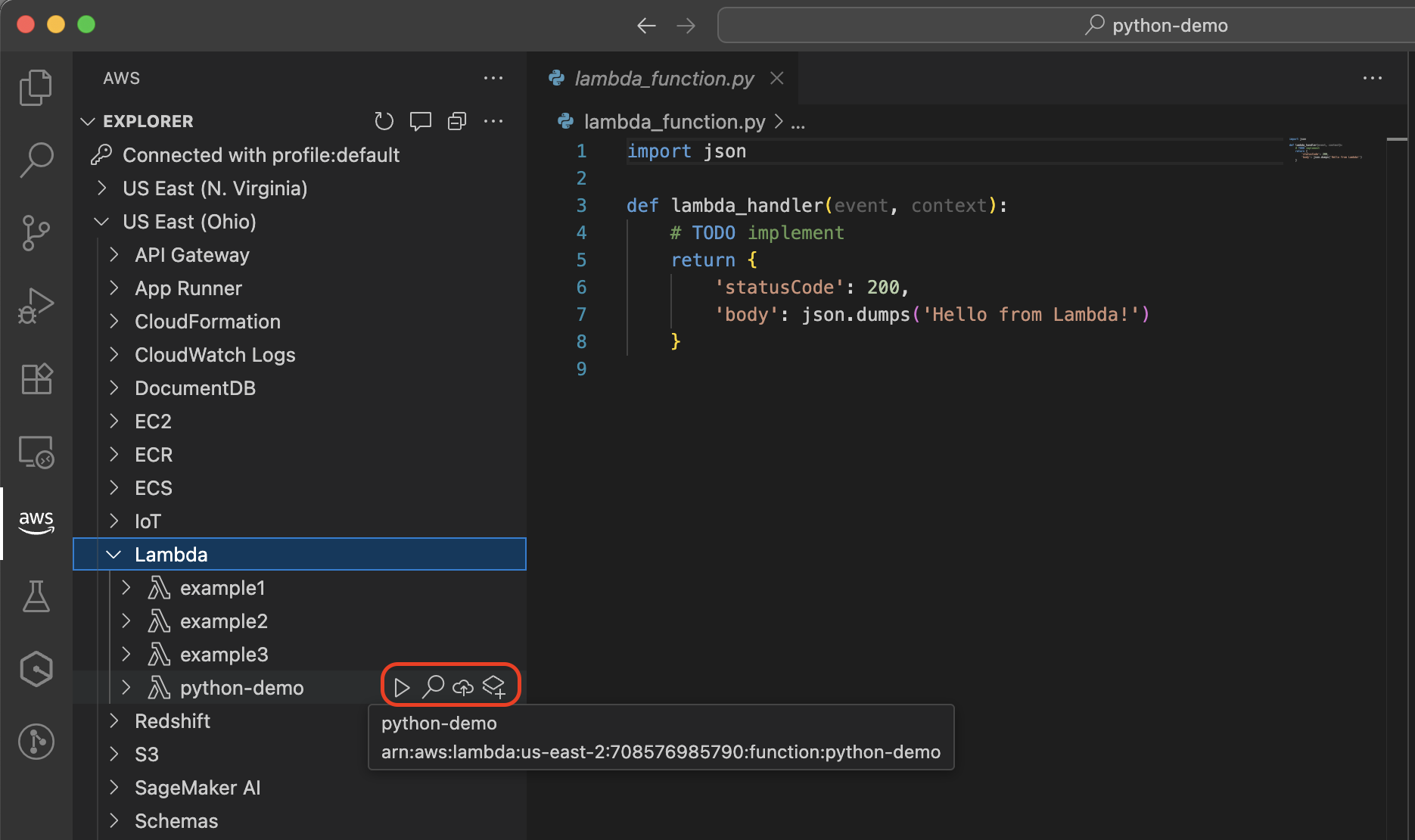
With your function opened in VS Code, you can:
+ Edit function code with full language support and code completion.
+ Use the [LocalStack integration in VS Code](https://docs.amazonaws.cn/toolkit-for-vscode/latest/userguide/lambda-localstack.html) to test Lambda functions that make API calls to other Amazon Web Services services during execution, such as reading from DynamoDB tables or writing to Amazon S3 buckets. LocalStack is a cloud service emulator that provides a complete local development environment for testing service integrations. You can also [use Amazon SAM CLI to test your function in a local container](https://docs.amazonaws.cn/serverless-application-model/latest/developerguide/serverless-sam-cli-using-invoke.html). If your function makes API calls to other Amazon Web Services services those calls will reach real Amazon resources, not emulated ones.
+ Debug your function with breakpoints and variable inspection. For more information, see [Running and debugging Lambda functions directly from code](https://docs.amazonaws.cn/toolkit-for-vscode/latest/userguide/serverless-apps-run-debug-no-template.html) in the *Amazon Toolkit for Visual Studio Code User Guide*.
+ Deploy your updated function back to Amazon using the cloud icon.
+ Install and manage dependencies for your function.
For more information, see [Working with Amazon Lambda functions](https://docs.amazonaws.cn/toolkit-for-vscode/latest/userguide/building-lambda.html) in the Amazon Toolkit for Visual Studio Code User Guide.
## Convert your function to an Amazon SAM template and use IaC tools
In VS Code, you can convert your Lambda function to an Amazon SAM template by choosing the **Convert to Amazon SAM Application** icon next to your Lambda function. You will be prompted to select an Amazon SAM project location. Once selected, your Lambda function will be converted to a `template.yaml` file that is saved in your new Amazon SAM project.
With your function converted to an Amazon SAM template, you can:
+ Control the versioning of your infrastructure
+ Automate deployments
+ Remotely debug functions
+ Add additional Amazon resources to your application
+ Maintain consistent environments across your development lifecycle
+ Use Infrastructure Composer to visually edit your Amazon SAM template
For more information on using IaC tools, refer to the following guides:
+ [The Amazon Serverless Application Model Developer Guide](https://docs.amazonaws.cn/serverless-application-model/latest/developerguide/what-is-sam.html)
+ [The Amazon Cloud Development Kit (Amazon CDK) Developer Guide](https://docs.amazonaws.cn/cdk/v2/guide/home.html)
+ [The Infrastructure Composer Developer Guide](https://docs.amazonaws.cn/application-composer/latest/dg/what-is-composer.html)
+ [The Amazon CloudFormation User Guide](https://docs.amazonaws.cn/AWSCloudFormation/latest/UserGuide/Welcome.html)
These tools provide additional capabilities for defining, testing, and deploying your serverless applications.
## Next steps
To learn more about working with Lambda functions in VS Code, see the following resources:
+ [Working with Amazon Lambda functions](https://docs.amazonaws.cn/toolkit-for-vscode/latest/userguide/building-lambda.html) in the Amazon Toolkit for VS Code User Guide
+ [Working with serverless applications](https://docs.amazonaws.cn/toolkit-for-vscode/latest/userguide/serverless-apps.html) in the Amazon Toolkit for VS Code User Guide
+ [Infrastructure as code](https://docs.amazonaws.cn/lambda/latest/dg/foundation-iac.html) in the Lambda Developer Guide