Configuring fit scaling
If you choose Fit for your Scaling behavior, MediaConvert scales your input image until it fits inside the dimensions of your output resolution, without exceeding the dimensions of your output resolution.
For example, if your input file is 200 pixels by 200 pixels
and you want an output resolution that is 300 pixels by 400
pixels, MediaConvert increases the image to 300 pixels by 300 pixels.
MediaConvert does not add padding to your output when you choose
Fit.
Key
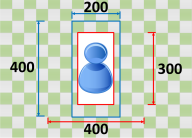
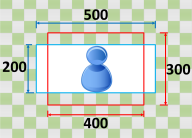
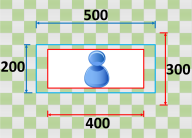
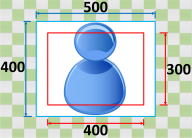
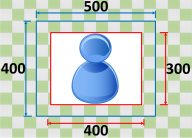
The following key graphic shows input and output image width, height, cropping, and padding. In this key graphic, input dimensions (on the top and left) are in blue and output dimensions (on the right and bottom) are in red.
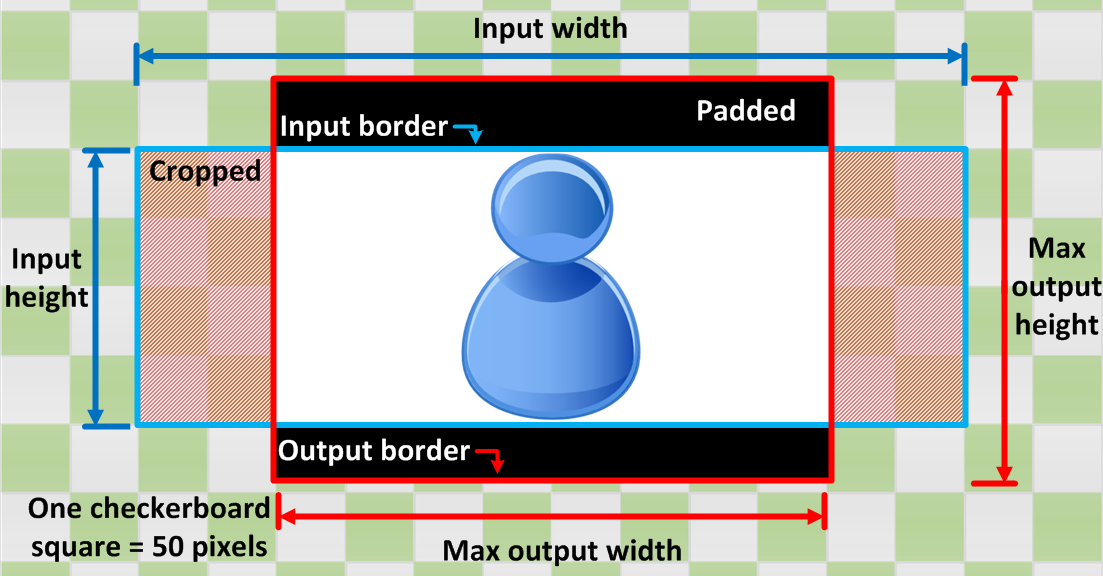
The following table shows example image scaling behavior when your input and output resolutions differ. For details about to read the images, reference the previous key graphic.
|
Condition |
Input |
Output |
|---|---|---|
|
Input width less than output width Input height less than output height |
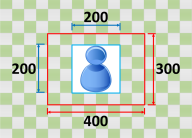
|
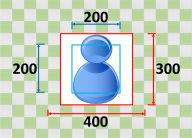
|
|
Input width less than output width Input height greater than output height |
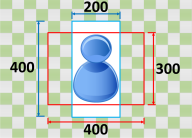
|
|
|
Input width greater than output width Input height less than output height |
|
|
|
Input width greater than output width Input height greater than output height |
|
|