Using Amazon OpenSearch Service workspaces
Amazon OpenSearch Service supports creating multiple use case-specific workspaces. Each workspace provides a curated experience for popular use cases such as Observability, Security Analytics and Search. Workspace also supports collaborator management, so that you can share your workspace with only your intended collaborators and manage the permissions for each one.
Creating OpenSearch UI application workspaces
After an OpenSearch UI application has been created and associated with data sources, and user permissions have been configured for the application, you can launch the OpenSearch UI application to create workspaces.
To start creating a workspace, you can select the Launch application button on the application detail page or use the OpenSearch UI application URL to open the OpenSearch UI application homepage in a new browser window.
The OpenSearch UI application provides options for creating workspaces and lists all the existing workspaces in the homepage, categorized by use case.
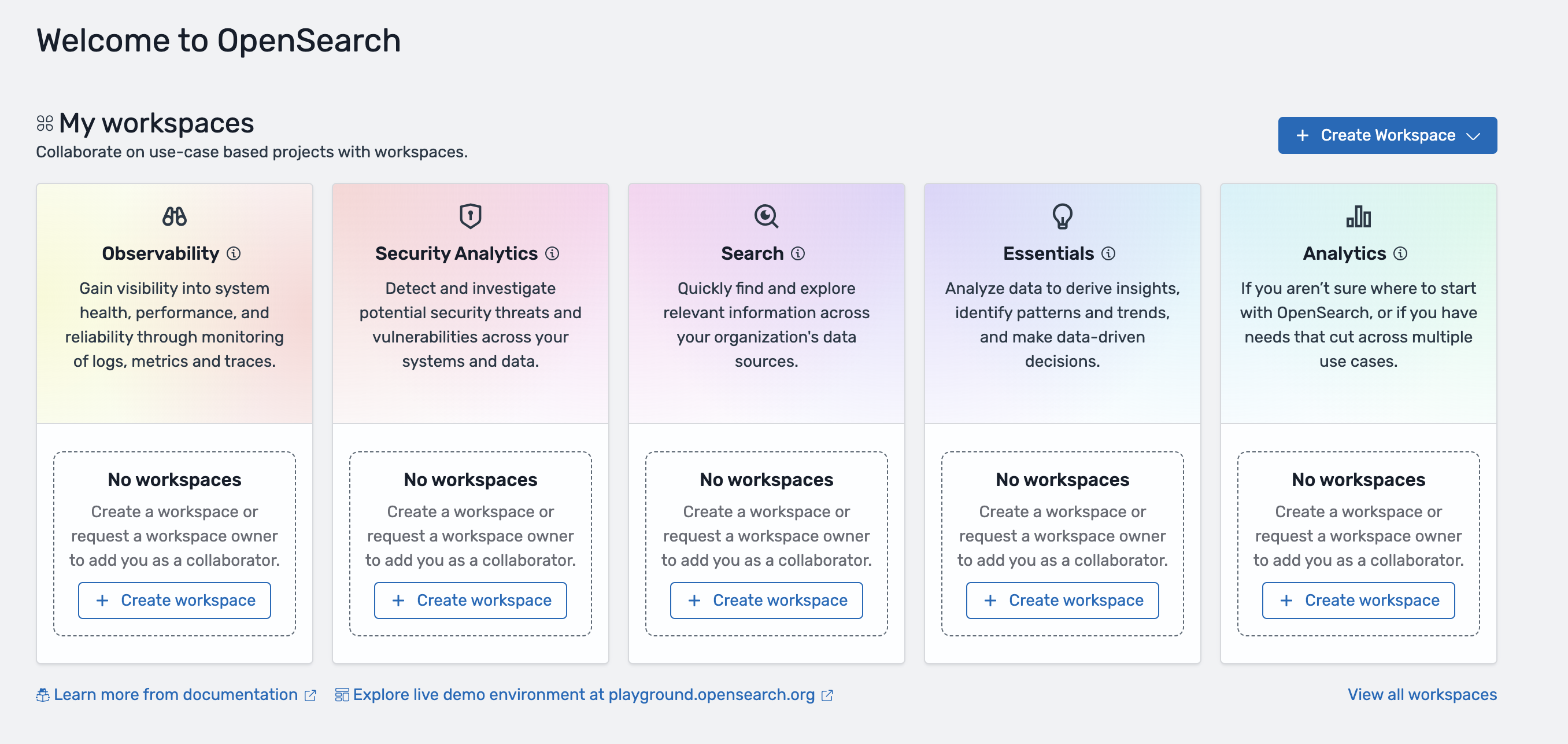
For more information about the supported types of workspaces, see Workspace types.
Workspace privacy and collaborators
You can define a privacy setting for a workspace as the default permission level for all users. You can do this while creating a workspace or modify an existing workspace (on the workspace Collaborators tab). There are three privacy options to choose from:
-
Private to collaborators – Only collaborators you explicitly add to the workspace can access the workspace. You can define permission levels for each collaborator.
-
Anyone can view – Anyone who has access to the OpenSearch UI application can access the workspace and view its assets, but they can't make any changes in the workspace.
-
Anyone can edit – Anyone who has access to the OpenSearch UI application can access the workspace, view assets in it, and make changes to the assets in the workspace.
On the workspace Collaborators tab, you can add IAM users or roles and Amazon IAM Identity Center users as collaborators in a workspace. There are three levels of permissions for collaborators to choose from:
-
Read only – The collaborator can only view the assets in the workspace. This setting is overridden if the workspace is configured to use the Anyone can edit privacy setting.
-
Read and write – The collaborator can view and edit assets in the workspace. If the workspace configured to use the Anyone can view privacy setting, the collaborator can still edit.
-
Admin – The collaborator can update settings and delete the workspace. The collaborator can also change workspace privacy settings and manage collaborators. The user who creates the workspace is automatically assigned to be a workspace administrator.
Workspace types
Amazon OpenSearch Service provides five workspace types, each with different features for the different use cases:
-
The Observability workspace is designed for gaining visibility into system health, performance, and reliability through monitoring of logs, metrics and traces.
-
The Security Analytics workspace is designed for detecting and investigating potential security threats and vulnerabilities across your systems and data.
-
The Search workspace is designed for quickly finding and exploring relevant information across your organization's data sources.
-
The Essentials workspace is designed for OpenSearch Serverless as a data source, and enables analyzing data to derive insights, identify patterns and trends, and make data-driven decisions quickly. You can find and explore relevant information across your organization's data sources in an Essentials workspace.
-
The Analytics (all features) workspace is designed for multi-purpose use cases and supports all the features available in OpenSearch Service UI (Dashboards).
How privacy and collaborator permissions interact
The privacy setting of a workspace acts as a floor: it sets the minimum permission level for every user of the application. A collaborator permission can grant more access, but never less than the privacy setting allows.
| Combination | Effective permission |
|---|---|
| Privacy is Anyone can view, and the collaborator has read and write | Read and write. The collaborator permission applies |
| Privacy is Anyone can edit, and the collaborator has read only | Read and write. The privacy setting raises the permission |
| Privacy is Private to collaborators, and the user is not a collaborator | No access |
The user who creates a workspace becomes a workspace administrator, who can update the workspace settings, add and remove collaborators, change collaborator permissions, and delete the workspace. A workspace administrator is not the same as an application administrator: an application administrator can manage every workspace in the application, while a workspace administrator manages only that workspace. For more information about application administrators, see Managing application administrators.
Best practices for workspaces
- Create a workspace for each team or use case
-
Use a separate workspace rather than sharing one. For example, keep production monitoring, security investigations, shared dashboards, and experimentation in separate workspaces.
- Apply least privilege
-
Start with Private to collaborators and add people as they need access. Grant read only by default, grant read and write only to contributors, and reserve the admin permission for workspace owners.
- Review collaborator access periodically
-
Review access particularly for workspaces that hold sensitive data, workspaces that use the Anyone can edit privacy setting, and collaborators who have changed teams.