Manage PGP keys
To manage your PGP keys, use Amazon Secrets Manager.
Note
Your secret name includes your Transfer Family server ID. This means you should have already identified or created a server before you can store your PGP key information in Amazon Secrets Manager.
If you want to use one key and passphrase for all of your users, you can store the PGP
key block information under the secret name
aws/transfer/,
where server-id/@pgp-defaultserver-iduser-name
You can create a key for a specific user. In this case, the format for the secret name
is
aws/transfer/,
where server-id/user-nameuser-name
Note
You can store a maximum of 3 PGP private keys, per Transfer Family server, per user.
To configure PGP keys for use with decryption
-
Depending on the version of GPG that you are using, run one of the following commands to generate a PGP key pair.
-
If you are using
GnuPGversion 2.3.0 or newer, run the following command:gpg --full-gen-keyYou can choose
RSA, or, if you chooseECC, you can choose eitherNIST,BrainPoolorCurve25519for the elliptic curve. If you rungpg --gen-keyinstead, you create a key pair that uses the ECC Curve 25519 encryption algorithm. -
For versions of
GnuPGprior to 2.3.0, you can use the following command, since RSA is the default encryption type.gpg --gen-key
Important
During the key-generation process, you must provide a passphrase and an email address. Make sure to take note of these values. You must provide the passphrase when you enter the key's details into Amazon Secrets Manager later in this procedure. And you must provide the same email address to export the private key in the next step.
-
-
Run the following command to export the private key. To use this command, replace
private.pgpmarymajor@example.comgpg --outputprivate.pgp--armor --export-secret-keymarymajor@example.com -
Use Amazon Secrets Manager to store your PGP key.
-
Sign in to the Amazon Web Services Management Console and open the Amazon Secrets Manager console at https://console.amazonaws.cn/secretsmanager/
. -
In the left navigation pane, choose Secrets.
-
On the Secrets page, choose Store a new secret.
-
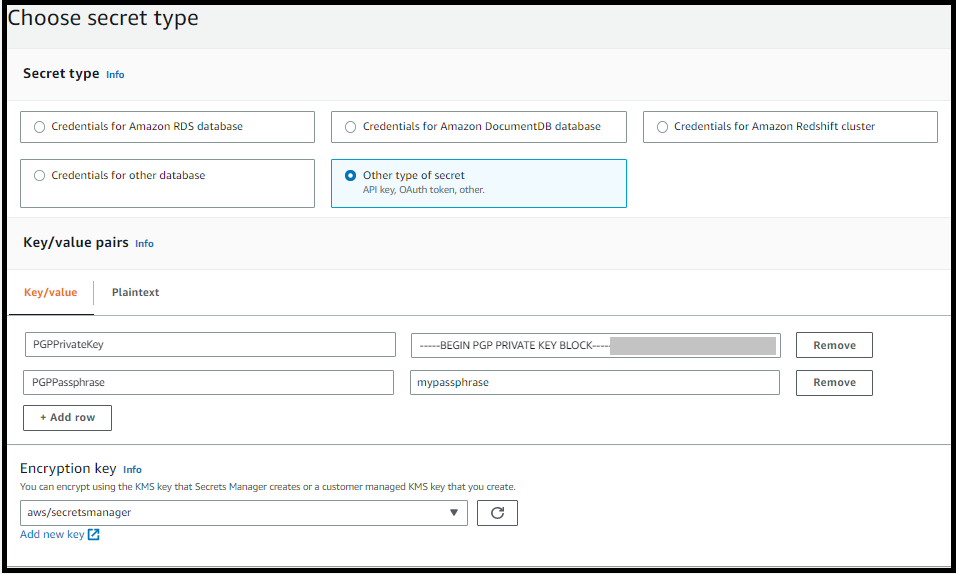
On the Choose secret type page, for Secret type, select Other type of secret.
-
In the Key/value pairs section, choose the Key/value tab.
-
Key – Enter
PGPPrivateKey.Note
You must enter the
PGPPrivateKeystring exactly: do not add any spaces before or between characters. -
value – Paste the text of your private key into the value field. You can find the text of your private key in the file (for example,
private.pgp) that you specified when you exported your key earlier in this procedure. The key begins with-----BEGIN PGP PRIVATE KEY BLOCK-----and ends with-----END PGP PRIVATE KEY BLOCK-----.Note
Make sure that the text block contains only the private key and does not contain the public key as well.
-
-
Select Add row and in the Key/value pairs section, choose the Key/value tab.
-
Key – Enter
PGPPassphrase.Note
You must enter the
PGPPassphrasestring exactly: do not add any spaces before or between characters. -
value – Enter the passphrase you used when you generated your PGP key pair.
Note
You can add up to 3 sets of keys and passphrases. To add a second set, add two new rows, and enter
PGPPrivateKey2andPGPPassphrase2for the keys, and paste in another private key and passphrase. To add a third set, key values must bePGPPrivateKey3andPGPPassphrase3. -
-
Choose Next.
-
On the Configure secret page, enter a name and description for your secret.
-
If you're creating a default key, that is, a key that can be used by any Transfer Family user, enter
aws/transfer/. Replaceserver-id/@pgp-defaultserver-id -
If you're creating a key to be used by a specific Transfer Family user, enter
aws/transfer/. Replaceserver-id/user-nameserver-iduser-nameuser-name
-
-
Choose Next and accept the defaults on the Configure rotation page. Then choose Next.
-
On the Review page, choose Store to create and store the secret.
-
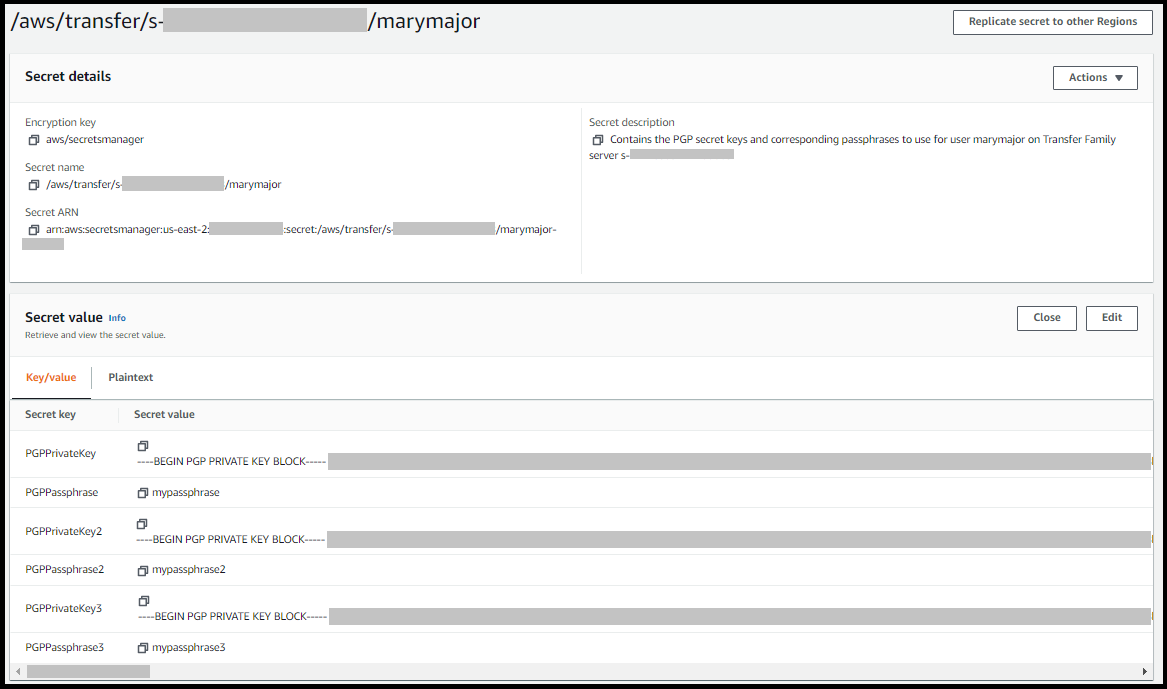
The following screenshot shows the details for the user
marymajor for a specific Transfer Family server. This example shows
three keys and their corresponding passphrases.