SageMaker AI Insights dashboard
The SageMaker AI Insights dashboard is organized into three tabs: Performance, Capacity, and Reliability. Each tab provides a focused view of your inference endpoint health.
Dashboard layout
Summary bar
The summary bar at the top of the dashboard shows fleet‐wide totals.
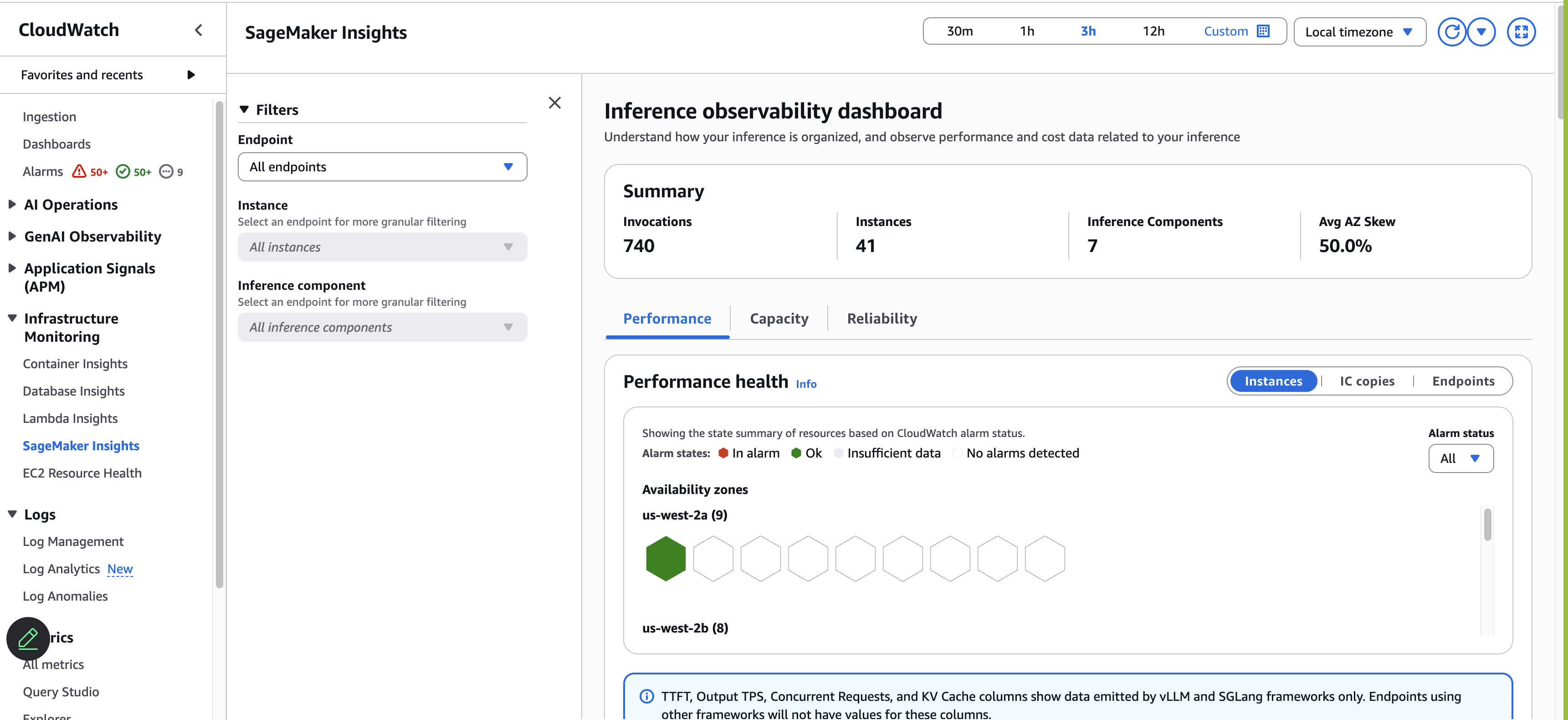
| Metric | Description |
|---|---|
| Invocations | Total invocations across all endpoints in the selected time range |
| Instances | Total number of instances currently serving traffic |
| Inference Components | Total number of inference components across all endpoints |
| Avg AZ Skew | Average availability zone distribution imbalance (0% = perfectly balanced) |
Filters panel
| Filter | Description |
|---|---|
| Endpoint | Select a specific endpoint or All endpoints for the fleet view |
| Instance | Select a specific instance (requires an endpoint selected first) |
| Inference component | Select a specific IC for granular filtering |
Drill-down
SageMaker AI Insights supports progressive drill‐down.
Fleet level (default)—all endpoints visible, summary metrics aggregated
Endpoint level—select an endpoint from the filter panel or choose an endpoint link in any table
IC level—select an inference component from the filter panel
Cross-linking with the SageMaker AI console
Choose an endpoint name to open the endpoint detail page in the SageMaker AI console.
Choose View logs to open CloudWatch Logs filtered to that endpoint or IC.
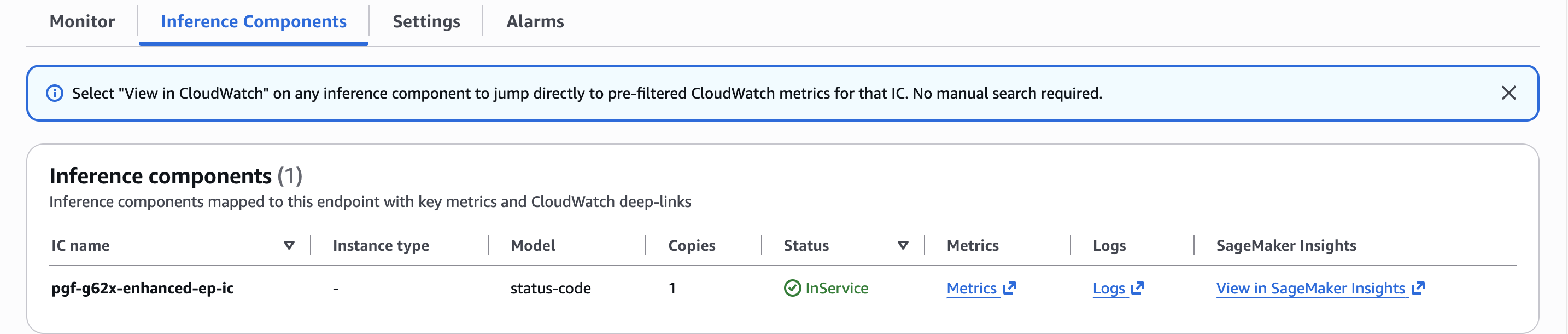
From the SageMaker AI console, choose View in SageMaker AI Insights or Metrics for a per‐IC row.
Accessing the dashboard
You can access the SageMaker AI Insights dashboard from multiple locations in the console.
-
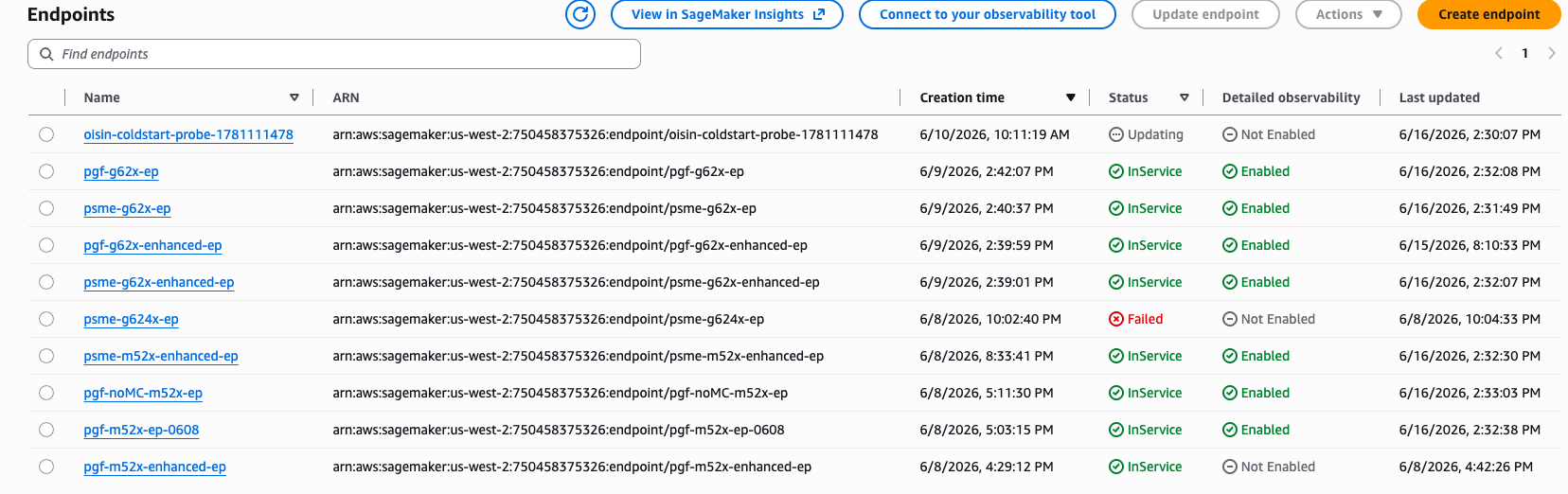
From the Endpoints list page: Choose View in SageMaker AI Insights to open the dashboard at the fleet level with no filters applied.
-
From the endpoint detail page: Choose View in SageMaker AI Insights to open the dashboard filtered to that endpoint.

-
From the inference component detail page: Choose View in SageMaker AI Insights to open the dashboard filtered to that endpoint and inference component.
Direct navigation: CloudWatch console → Infrastructure monitoring → SageMaker AI Insights.
Performance tab
The Performance tab answers "is it healthy?" and "why is it slow?"—flowing from fleet‐wide health at the top to per‐IC diagnostics at the bottom.
- Performance health
-
Honeycombs grouped by AZ showing alarm state for instances, IC copies, and endpoints at a glance.

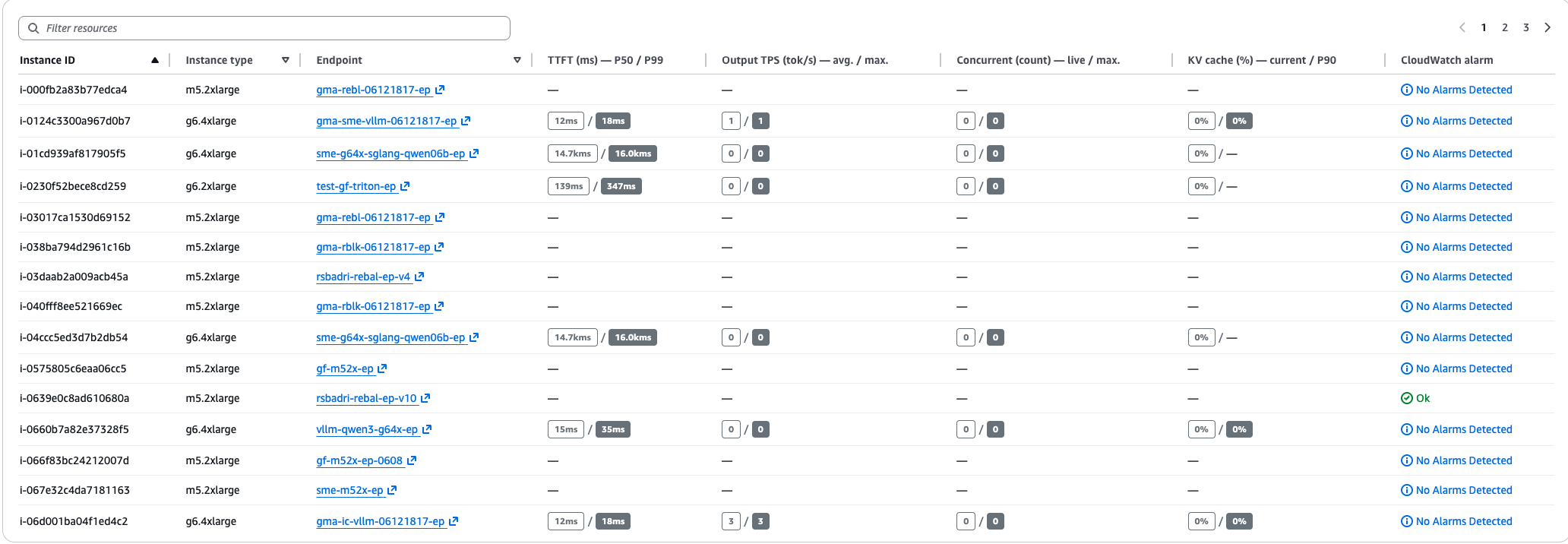
- Instance performance table
-
Per‐instance breakdown showing TTFT (P50/P99), output TPS (avg/max), concurrent requests (live/max), and KV cache utilization.
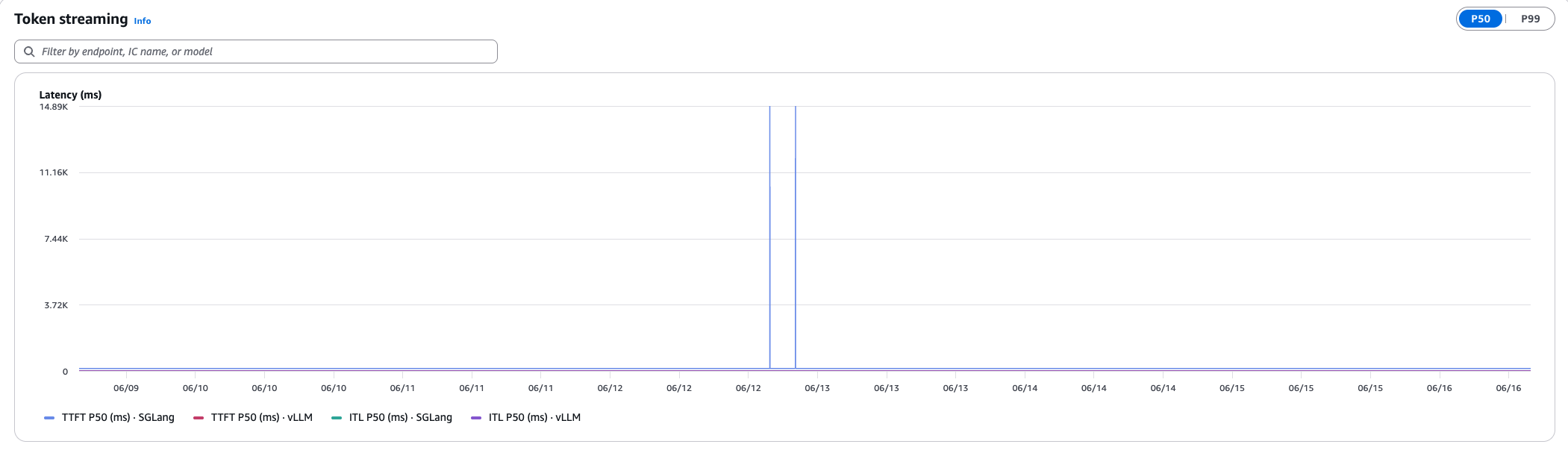
- Token streaming
-
Time‐series chart showing TTFT and inter‐token latency (ITL) with a P50/P99 toggle, broken down by framework.
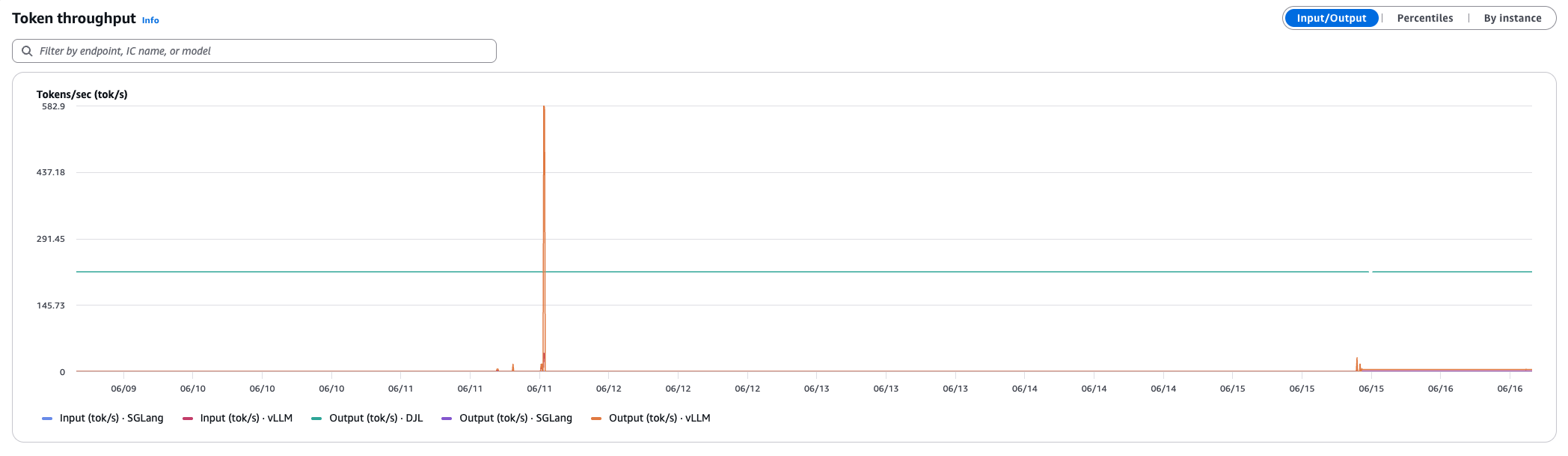
- Token throughput
-
Input and output tokens per second by framework, with toggles for Input/Output, Percentiles, and By instance views.
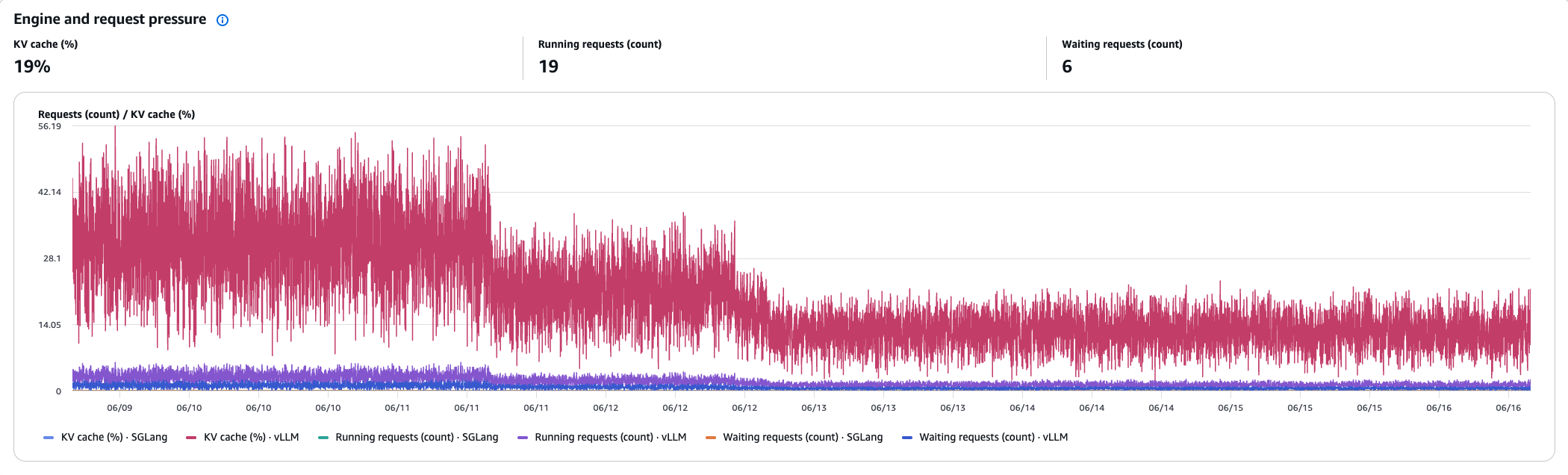
- Engine and request pressure
-
KV cache utilization (%), running requests, and waiting requests over time—key saturation signals for the inference engine.
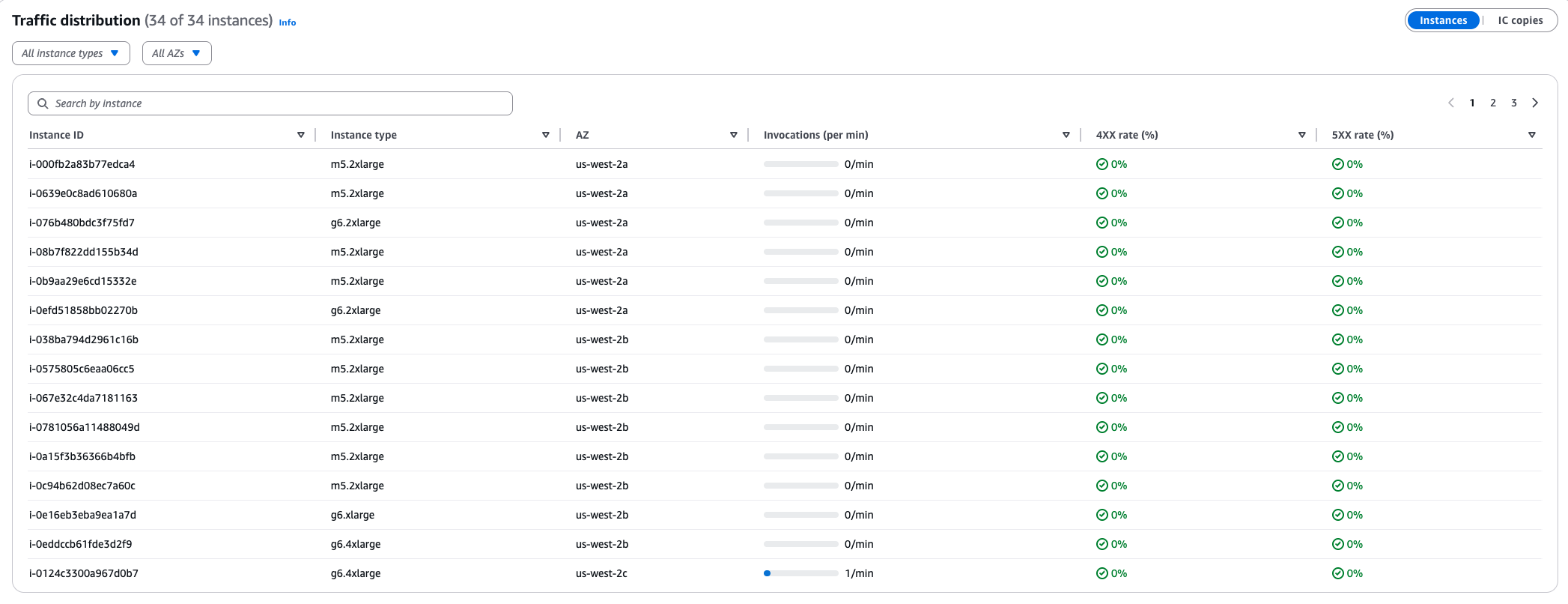
- Traffic distribution
-
Per‐instance or per‐IC‐copy table showing invocations per minute, 4XX rate, and 5XX rate to identify routing imbalances.
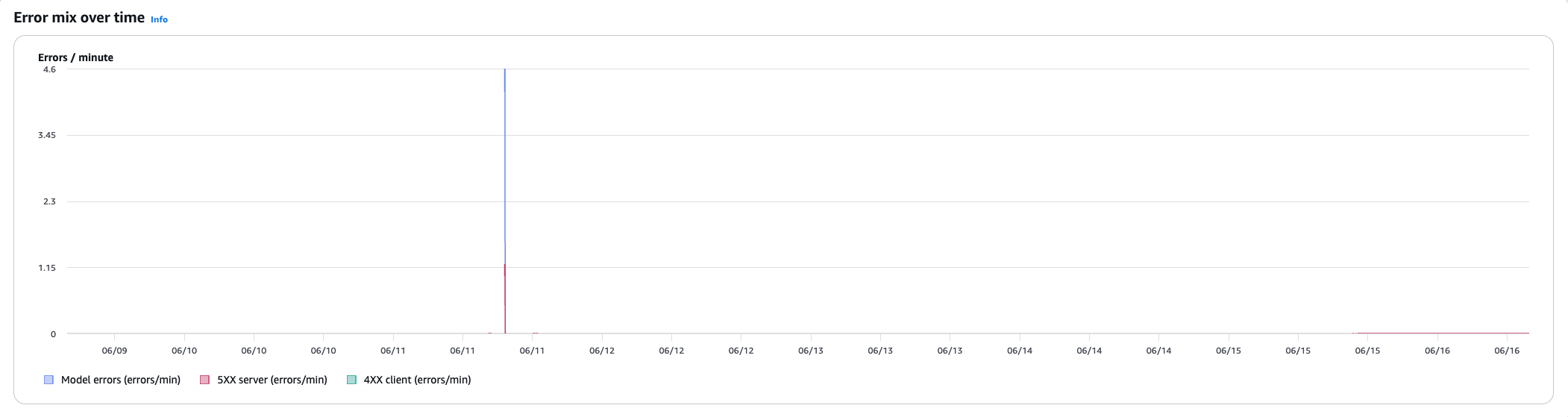
- Error mix over time
-
Line chart showing 4XX, 5XX, and mid‐stream error rates over time per IC.
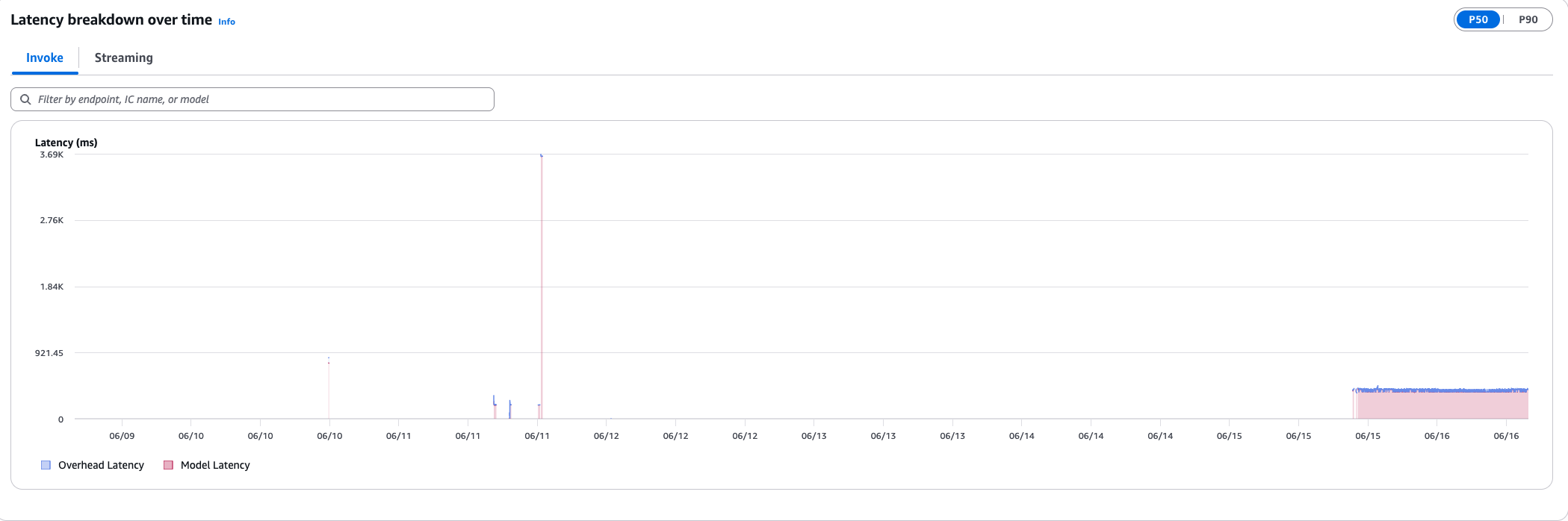
- Latency breakdown over time
-
Stacked area chart with tabs for Invoke (model latency + overhead latency) and Streaming (first chunk model + first chunk overhead), with a P50/P90 toggle.
Capacity tab
The Capacity tab answers "do I have headroom?" and "is my hardware healthy?"—showing actual utilization compared to reserved capacity.
- Capacity health
-
The same honeycomb visualization as the Performance tab, showing alarm state for instances, IC copies, and endpoints.

- Instance capacity table
-
Per‐instance utilization bars for GPU, GPU memory, CPU, memory, and disk.

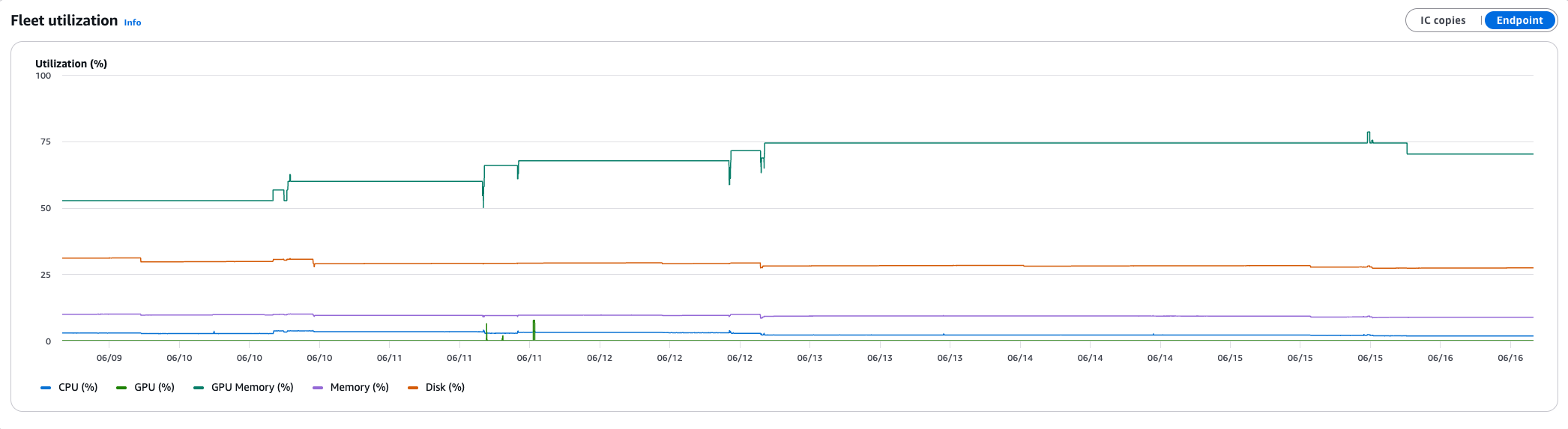
- Fleet utilization
-
Time‐series showing CPU, GPU, GPU memory, memory, and disk utilization per instance, with toggles for Instance, IC copies, and Endpoint views.
Reliability tab
The Reliability tab answers "is it resilient?" and "why did scaling fail?"—covering AZ distribution, scaling behavior, and provisioning events.
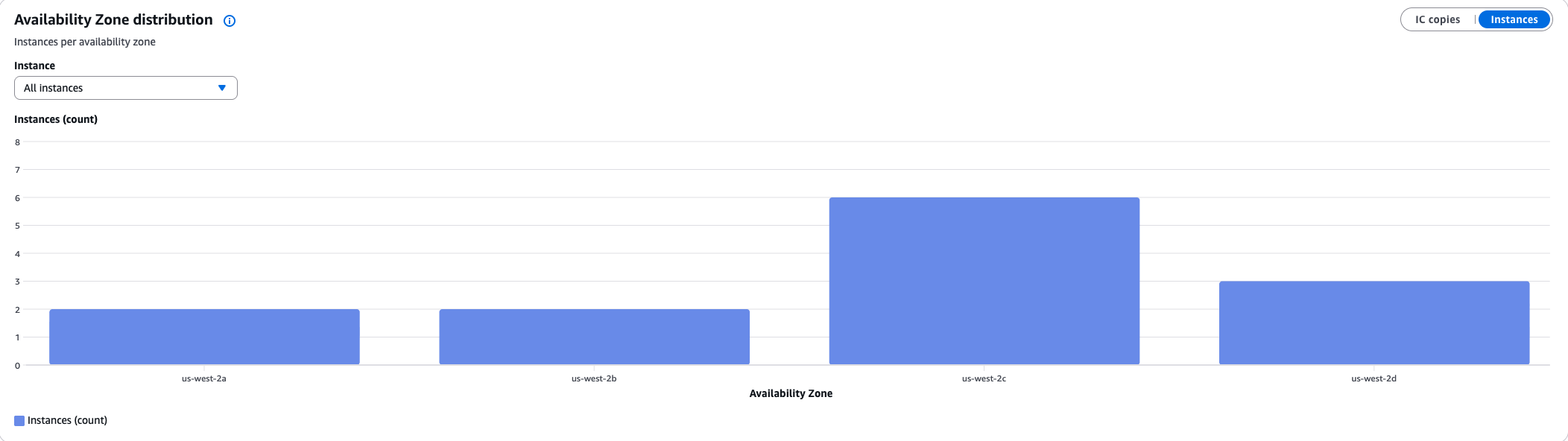
- Availability Zone distribution
-
Bar chart showing instance or IC copy count per AZ to validate high availability (HA) compliance.
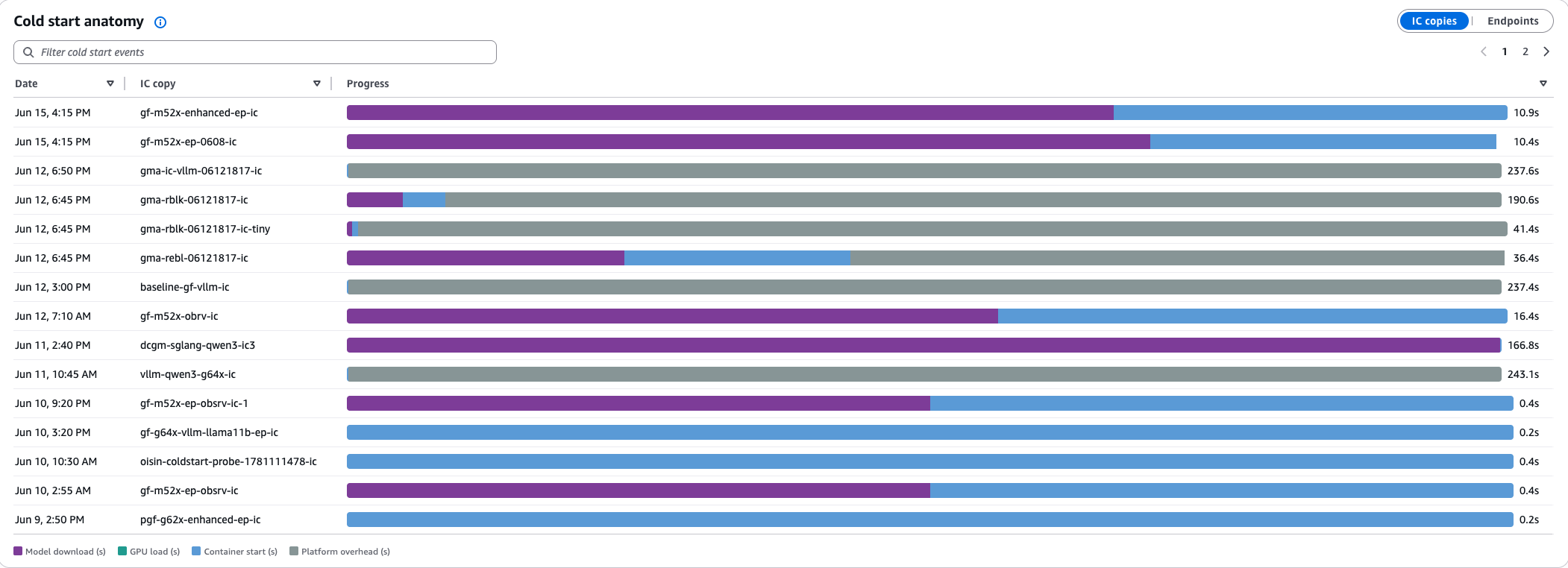
- Cold start anatomy
-
Horizontal stacked bar showing the breakdown of provisioning time into model download, GPU load, container start, and platform overhead (IC endpoints only).
- ICE diagnostics
-
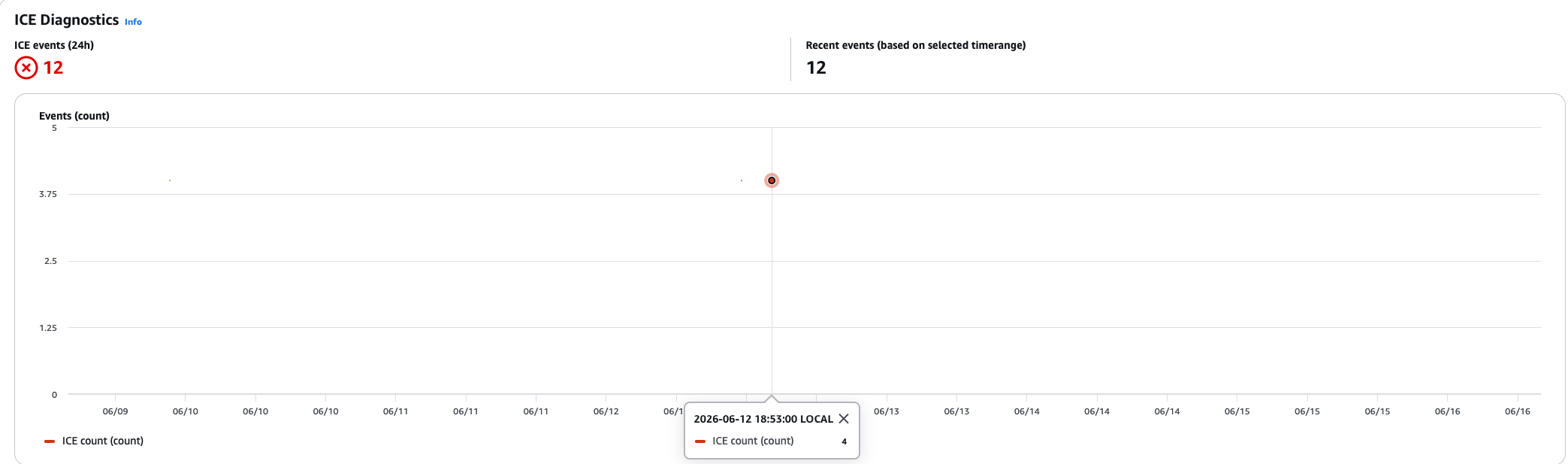
Insufficient Capacity Error (ICE) count over time with an event table showing time, endpoint, failed instance type, and failed AZ. Non‐zero values indicate capacity constraints.