Services or capabilities described in Amazon Web Services documentation might vary by Region. To see the differences applicable to the China Regions,
see Getting Started with Amazon Web Services in China
(PDF).
Tools are declarative. You list what the agent can call; AgentCore handles invocation, credentials, and results. The harness supports five tool types, plus the built-in filesystem and shell tools.
-
MCP servers: Connect to any remote Model Context Protocol endpoint by URL. No Gateway required for simple cases.
-
AgentCore Gateway: Governed connectivity to APIs and MCP servers with inbound/outbound auth, access control, and policy enforcement. Reference a gateway ARN and every tool configured on that gateway becomes available. Use Gateway when you need a managed, policy-backed tool surface.
-
AgentCore Browser: Managed web browsing and automation.
-
AgentCore Code Interpreter: Sandboxed Python/JavaScript/TypeScript code execution for data analysis and computation.
-
Inline functions: Tool schemas that execute on the client side, not on the harness VM. The harness pauses when the tool is called and returns the call to your code, which decides what to do and sends a result back. This is the pattern for human-in-the-loop approvals and custom integrations.
Default tools shell and file_operations are available in every session unless you restrict them with allowedTools. shell executes bash commands; file_operations supports viewing, creating, and editing files.
The allowedTools parameter controls which tools the agent can use. If omitted, all tools are allowed.
Token overhead from tool definitions
Tool definitions count toward model input tokens even when the agent doesn’t call the tools. Together, the default shell and file_operations definitions add approximately 900 input tokens to each model request. The exact count varies by model and can change as tool definitions evolve. Because an invocation can make multiple model requests, this overhead can occur more than once per invocation. Use allowedTools to expose only the tools needed for a request and reduce token usage.
Supported patterns:
| Pattern |
Example |
Matches |
|
*
|
"*"
|
All tools
|
|
Plain name
|
"shell"
|
Builtin by name
|
|
Builtin glob
|
"file_*"
|
file_operations, file_read
|
|
@builtin
|
"@builtin"
|
All builtin tools
|
|
@builtin/name
|
"@builtin/shell"
|
Specific builtin
|
|
@server
|
"@git"
|
All tools from an MCP server
|
|
@server/tool
|
"@git/git_status"
|
Specific MCP tool
|
|
@server/glob
|
"@git/read_*"
|
Glob within a server
|
|
@*/tool
|
"@*-mcp/status"
|
Glob across servers
|
allowedTools scopes LLM tool selection during InvokeHarness only. It does not affect InvokeAgentRuntimeCommand, which is a separate API with its own IAM action (bedrock-agentcore:InvokeAgentRuntimeCommand) that executes commands directly without passing through the LLM. To prevent direct command execution, do not grant bedrock-agentcore:InvokeAgentRuntimeCommand in your IAM policies.
Example
-
Amazon CLI/boto3
-
Pass tools at create, update, or invoke time:
tools = [
    # MCP server
    {
        "type": "remote_mcp",
        "name": "exa",
        "config": {"remoteMcp": {"url": "https://mcp.exa.ai/mcp"}},
    },
    # MCP server with authentication headers (plain text)
    {
        "type": "remote_mcp",
        "name": "my-private-mcp",
        "config": {"remoteMcp": {
            "url": "https://mcp.example.com/api",
            "headers": {"Authorization": "Bearer <your-token>"}
        }},
    },
    # MCP server with API key stored in AgentCore Identity Token Vault.
    # Use ${arn:...} to reference a credential provider - the ARN is resolved
    # to the actual API key at invocation time.
    {
        "type": "remote_mcp",
        "name": "exa-secure",
        "config": {"remoteMcp": {
            "url": "https://mcp.exa.ai/mcp",
            "headers": {"x-api-key": "${arn:aws:bedrock-agentcore:us-west-2:123456789012:token-vault/default/apikeycredentialprovider/my-exa-key}"}
        }},
    },
    # For managed credential rotation and OAuth-protected tools, put your MCP server
    # behind AgentCore Gateway and use AgentCore Identity instead of raw headers.
    #
    # AgentCore Gateway with SigV4 auth (default)
    {
        "type": "agentcore_gateway",
        "name": "my-gateway",
        "config": {"agentCoreGateway": {"gatewayArn": "arn:aws:bedrock-agentcore:us-west-2:123456789012:gateway/my-gateway"}},
    },
    # AgentCore Gateway with OAuth auth
    {
        "type": "agentcore_gateway",
        "name": "my-oauth-gateway",
        "config": {"agentCoreGateway": {
            "gatewayArn": "arn:aws:bedrock-agentcore:us-west-2:123456789012:gateway/my-oauth-gateway",
            "outboundAuth": {"oauth": {
                "credentialProviderName": "my-oauth-provider",
                "scopes": ["read", "write"]
            }}
        }},
    },
    # AgentCore Browser
    {"type": "agentcore_browser", "name": "browser"},
    # AgentCore Code Interpreter
    {"type": "agentcore_code_interpreter", "name": "code_interpreter"},
    # Inline function - executes on the client side, not on the harness VM.
    # When the agent calls this tool, the call is returned to your code for handling.
    {
        "type": "inline_function",
        "name": "approve_purchase",
        "config": {
            "inlineFunction": {
                "description": "Request human approval for a purchase.",
                "inputSchema": {
                    "type": "object",
                    "properties": {
                        "item": {"type": "string"},
                        "amount": {"type": "number"},
                    },
                    "required": ["item", "amount"],
                },
            }
        },
    },
]

response = client.invoke_harness(
    harnessArn=HARNESS_ARN,
    runtimeSessionId=SESSION_ID,
    tools=tools,
    messages=[{"role": "user", "content": [{"text": "Find a mechanical keyboard under $200 and request approval."}]}],
)
- AgentCore CLI
-
When creating a new harness interactively, the agentcore add harness wizard lets you select tools. To add tools via the CLI, use agentcore add tool after creating the harness:
The --type flag uses underscore-separated names (for example, agentcore_browser), which match the tool type identifiers in harness.json.
# Add a remote MCP server
agentcore add tool --harness my-agent --type remote_mcp \
  --name exa --url https://mcp.exa.ai/mcp

# Create a harness with a remote MCP server and request headers.
# Use ${arn:...} syntax to reference a credential provider.
agentcore add harness \
  --name secure_agent \
  --model-provider bedrock \
  --model-id us.anthropic.claude-sonnet-4-5-20250514-v1:0 \
  --tools remote_mcp \
  --mcp-name exa-secure \
  --mcp-url https://mcp.exa.ai/mcp \
  --mcp-headers '{"x-api-key":"${arn:aws:bedrock-agentcore:us-west-2:123456789012:token-vault/default/apikeycredentialprovider/my-exa-key}"}'

# Add Browser
agentcore add tool --harness my-agent --type agentcore_browser --name browser

# Add Code Interpreter
agentcore add tool --harness my-agent --type agentcore_code_interpreter --name code-interpreter

# Add Gateway by ARN
agentcore add tool --harness my-agent --type agentcore_gateway \
  --name my-gateway --gateway-arn arn:aws:bedrock-agentcore:us-west-2:123456789012:gateway/my-gateway

# Add Gateway by project-local name
agentcore add tool --harness my-agent --type agentcore_gateway \
  --name my-gateway --gateway my-gateway

# Add an inline function tool (executes client-side, not on the harness VM)
agentcore add tool --harness my-agent --type inline_function \
  --name approve_purchase \
  --description "Request human approval for a purchase" \
  --input-schema '{"type": "object", "properties": {"item": {"type": "string"}, "amount": {"type": "number"}}, "required": ["item", "amount"]}'
Deploy to apply.
Override tools on a single invocation:
agentcore invoke --harness research-agent --tools agentcore_browser "Find the latest news on AI agents"
- Interactive
-
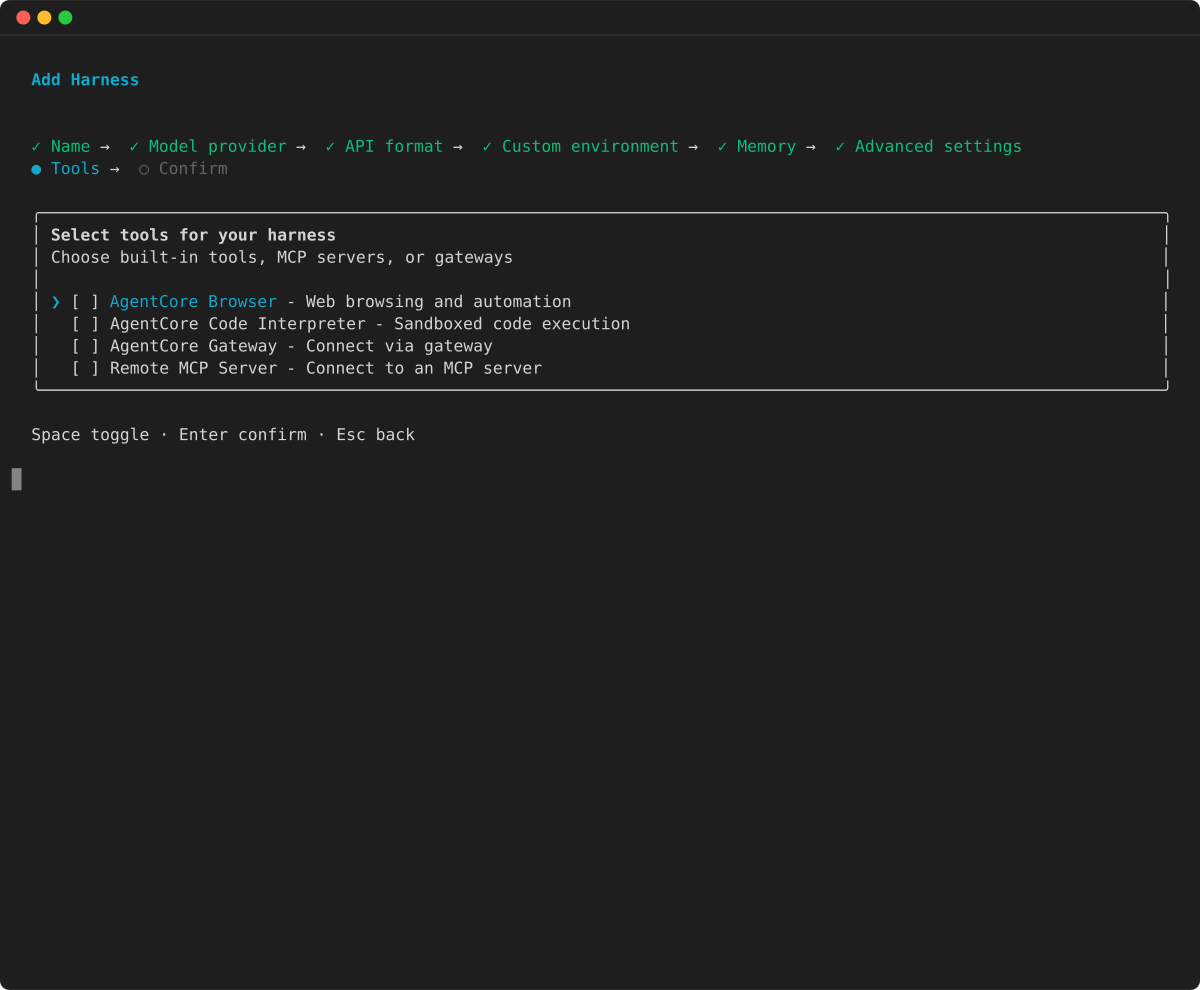
Run agentcore in a project directory, select add , choose Harness , and advance to Advanced settings . Enable Tools with Space , then press Enter .
-
Select the tools for your harness: AgentCore Browser , AgentCore Code Interpreter , AgentCore Gateway , or Remote MCP Server . Use Space to toggle each, then press Enter .
-
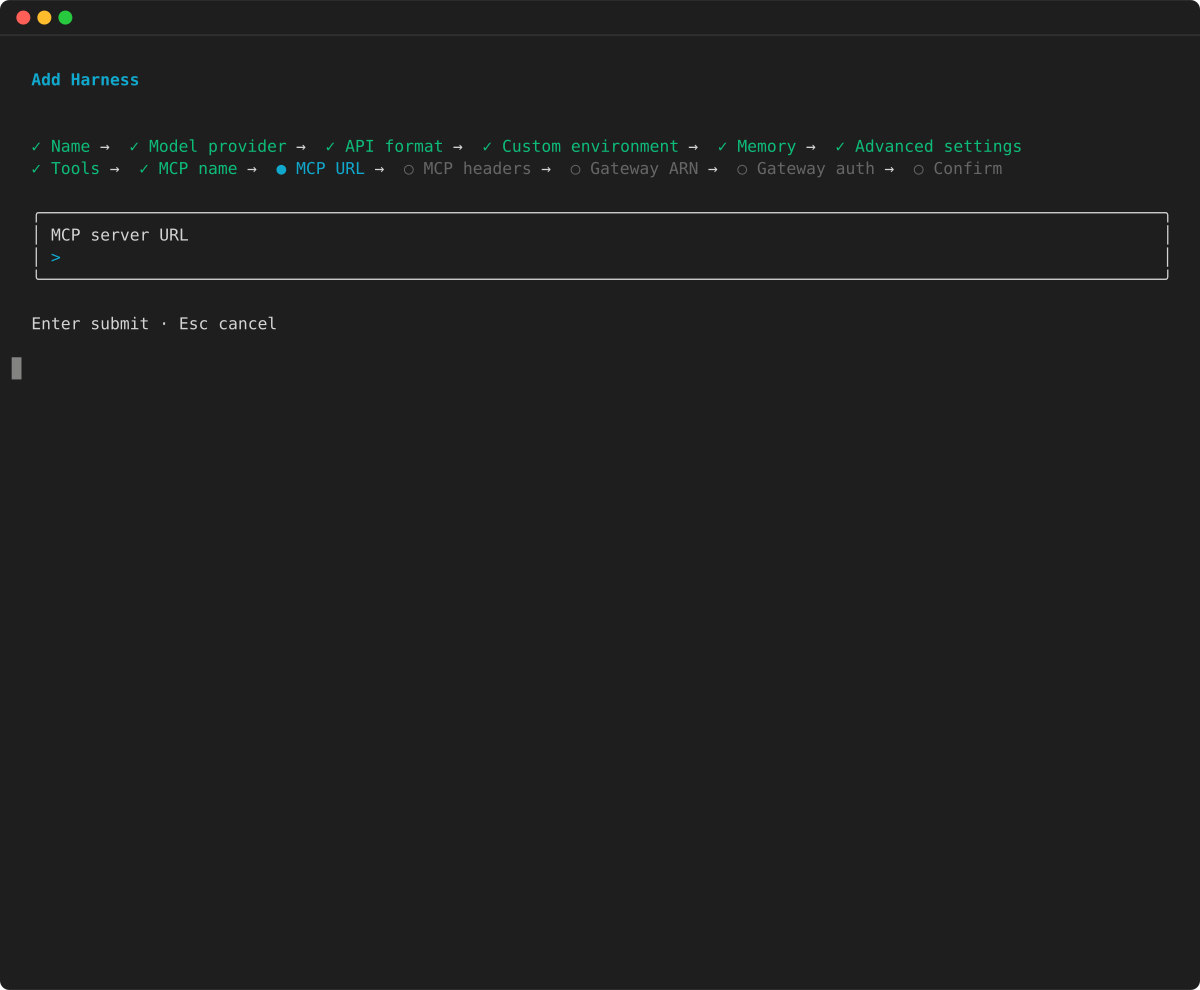
For a Remote MCP Server , the wizard prompts for the server name, URL, and optional request headers.
-
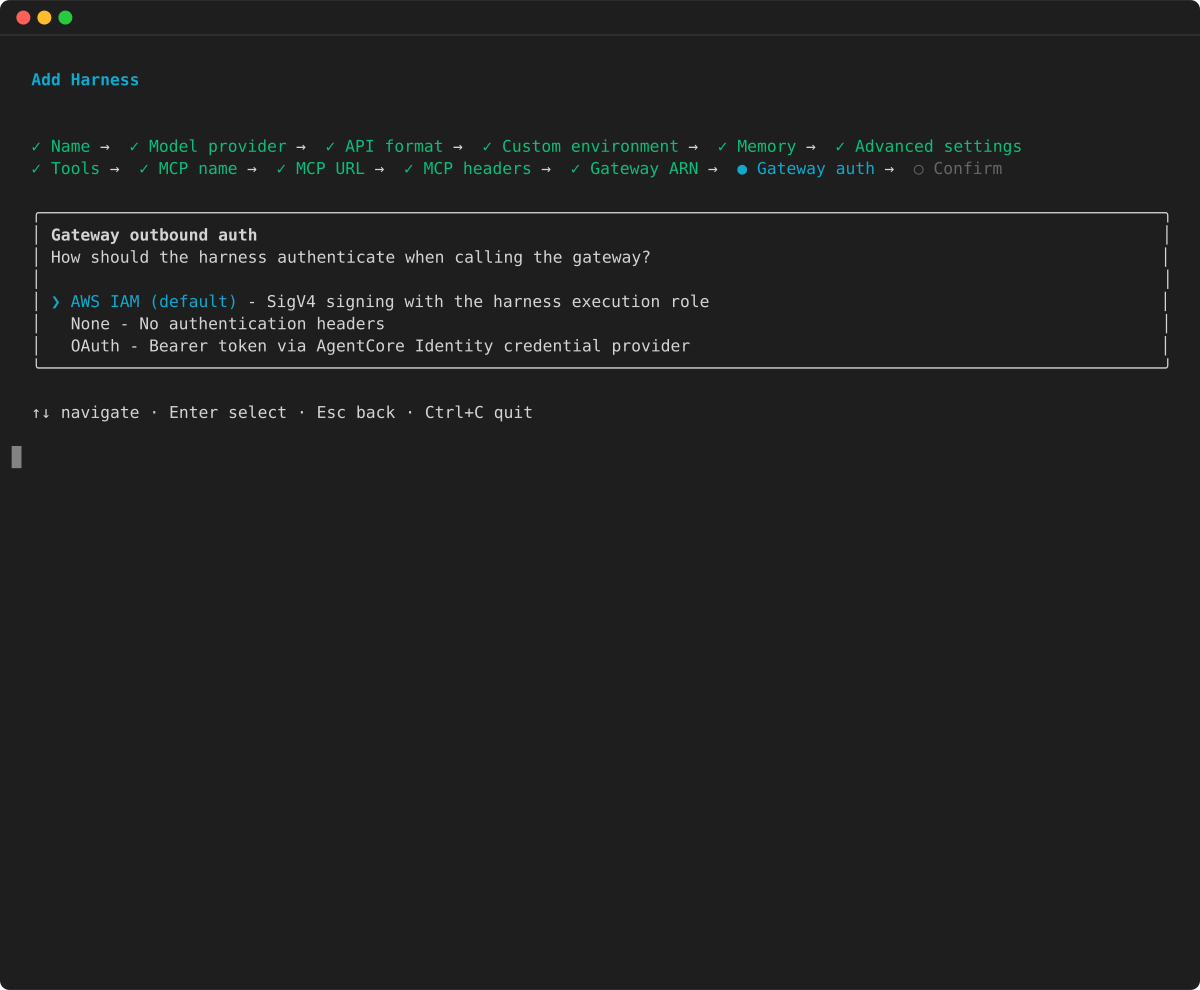
For an AgentCore Gateway , enter the gateway ARN and choose its outbound authentication:
Amazon IAM (default), None , or OAuth .
-
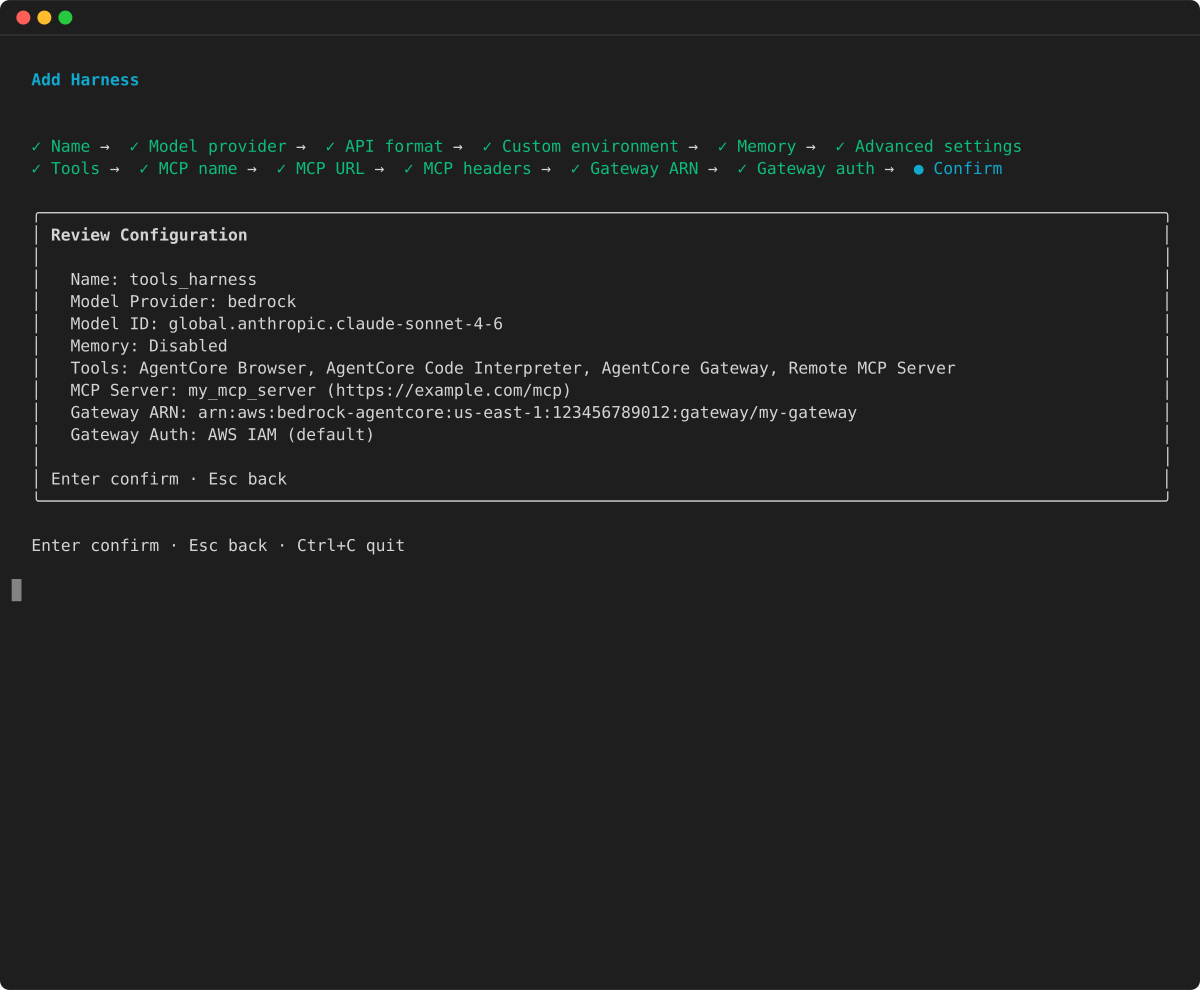
Review the configuration summary and confirm.
Then run agentcore deploy to apply.
Web search
To give your agent web search, put the Web Search Tool connector behind an AgentCore Gateway and attach that gateway to your harness as an agentcore_gateway tool. The gateway exposes web search as a standard MCP WebSearch tool. Your agent discovers and calls it like any other gateway tool. AgentCore Gateway serves all queries entirely within Amazon. For more information about the privacy model and the purpose-built web index, see the Web Search Tool connector page.
Web Search Tool is available in the US East (N. Virginia) us-east-1 Region. Create the gateway and harness in us-east-1.
Complete the following steps to set up web search for your harness.
-
Create the gateway and connector target. Follow the steps in Set up Web Search Tool to create a Gateway (MCP protocol, AWS_IAM inbound auth) and add a target with connectorId: "web-search". That target needs a Gateway service role with bedrock-agentcore:InvokeWebSearch on the connector. For more information, see Configure the Gateway Service Role. Note the gateway ARN once it reaches READY.
-
Grant the harness execution role access. The harness execution role (distinct from the Gateway service role in the previous step) needs bedrock-agentcore:InvokeGateway on the gateway ARN. For more information about the required permissions, see the AgentCore Gateway optional-permissions policy in the security topic. If your harness uses managed memory (the default), the execution role also needs the AgentCore Memory permissions. The agent reads and writes session memory on each invocation.
-
Attach the gateway to the harness. Add it as an agentcore_gateway tool with the default AWS_IAM outbound auth. The following examples show how to attach the gateway at create time.
Example
-
Amazon CLI/boto3
-
Attach the gateway at create time (or pass tools on update_harness / invoke_harness):
tools = [
    {
        "type": "agentcore_gateway",
        "name": "web-search",
        "config": {"agentCoreGateway": {
            "gatewayArn": "arn:aws:bedrock-agentcore:us-east-1:123456789012:gateway/my-web-search-gateway",
            "outboundAuth": {"awsIam": {}}
        }},
    },
]

client.create_harness(
    harnessName="research-agent",
    executionRoleArn="arn:aws:iam::123456789012:role/MyHarnessRole",
    tools=tools,
)
The gateway’s tools are now available to the agent. Invoke the harness with a prompt that needs current information:
response = client.invoke_harness(
    harnessArn=HARNESS_ARN,
    runtimeSessionId=SESSION_ID,
    messages=[{"role": "user", "content": [{"text": "Search the web for the latest AWS announcements and cite your sources."}]}],
)
- AgentCore CLI
-
# Attach the web-search gateway to your harness
agentcore add tool --harness research-agent --type agentcore_gateway \
  --name web-search \
  --gateway-arn arn:aws:bedrock-agentcore:us-east-1:123456789012:gateway/my-web-search-gateway

# Deploy, then invoke
agentcore deploy
agentcore invoke --harness research-agent "Search the web for the latest AWS announcements and cite your sources."
Inline function calls
Inline functions let you define a tool that executes in your code, not on the harness. This is useful for human-in-the-loop approvals, calling internal APIs, or any logic you want to control client-side.
Example
-
Amazon CLI/boto3
-
Pass an inline function tool at invoke time:
import json

tools = [{
    "type": "inline_function",
    "name": "get_weather",
    "config": {"inlineFunction": {
        "description": "Get the current weather for a city.",
        "inputSchema": {
            "type": "object",
            "properties": {"city": {"type": "string"}},
            "required": ["city"]
        }
    }}
}]

# 1. Invoke with the inline function tool
response = client.invoke_harness(
    harnessArn=HARNESS_ARN,
    runtimeSessionId=SESSION_ID,
    tools=tools,
    messages=[{"role": "user", "content": [{"text": "What's the weather in Seattle?"}]}],
)

# 2. Capture the toolUseId and input, then wait for the handoff boundary
tool_use_id = None
tool_block_index = None
tool_input = None
last_stop_reason = None
for event in response["stream"]:
    if "contentBlockStart" in event:
        content_block_start = event["contentBlockStart"]
        start = content_block_start.get("start", {})
        if (
            tool_use_id is None
            and "toolUse" in start
            and start["toolUse"].get("name") == "get_weather"
        ):
            tool_use_id = start["toolUse"]["toolUseId"]
            tool_block_index = content_block_start["contentBlockIndex"]
    if "contentBlockDelta" in event:
        content_block_delta = event["contentBlockDelta"]
        delta = content_block_delta.get("delta", {})
        if (
            content_block_delta.get("contentBlockIndex") == tool_block_index
            and "toolUse" in delta
        ):
            tool_input = (tool_input or "") + delta["toolUse"].get("input", "")
    if "messageStop" in event:
        last_stop_reason = event["messageStop"].get("stopReason")

if last_stop_reason != "tool_use" or tool_use_id is None:
    raise RuntimeError("The inline function was not handed off for execution.")

# 3. Execute the tool yourself and send the matching result back
tool_arguments = json.loads(tool_input or "{}")
# Run your client-side implementation with tool_arguments.
tool_result = "72°F, partly cloudy"
response = client.invoke_harness(
    harnessArn=HARNESS_ARN,
    runtimeSessionId=SESSION_ID,
    tools=tools,
    messages=[{
        "role": "user",
        "content": [{
            "toolResult": {
                "toolUseId": tool_use_id,
                "content": [{"text": tool_result}],
                "status": "success",
            }
        }],
    }],
)
Use the same runtimeSessionId for both requests. The harness stores the authoritative assistant toolUse and pending execution in that session. The follow-up request needs only the matching user toolResult. If you resend the assistant toolUse, the harness ignores that copy and resumes the original execution from session state. If you supplied the inline tool as an InvokeHarness override, include it again so the pending tool remains available. A missing, duplicate, stale, or replayed result cannot resume the handoff.
Before using an after_tool_call event for an inline function as an authorization or audit signal, read Use tool-call hooks with inline functions.
Consume response["stream"] to receive the streamed tool result and any subsequent agent output. If the last messageStop has stopReason set to tool_use, repeat the handoff flow for the next inline function.
- AgentCore CLI
-
Add an inline function tool to a harness:
agentcore add tool --harness my-agent --type inline_function \
  --name get_weather
Then define the description and input schema in app/my-agent/harness.json:
{
  "type": "inline_function",
  "name": "get_weather",
  "config": {
    "inlineFunction": {
      "description": "Get the current weather for a city.",
      "inputSchema": {
        "type": "object",
        "properties": { "city": { "type": "string" } },
        "required": ["city"]
      }
    }
  }
}
Run agentcore deploy to apply. When the agent calls the inline function during an invocation, the TUI pauses and prompts you to provide the tool result inline. In non-interactive (CLI) mode, the stream returns with stopReason: "tool_use" and you send the result back with a follow-up invoke call that uses the same runtime session.
Learn more about each tool: